
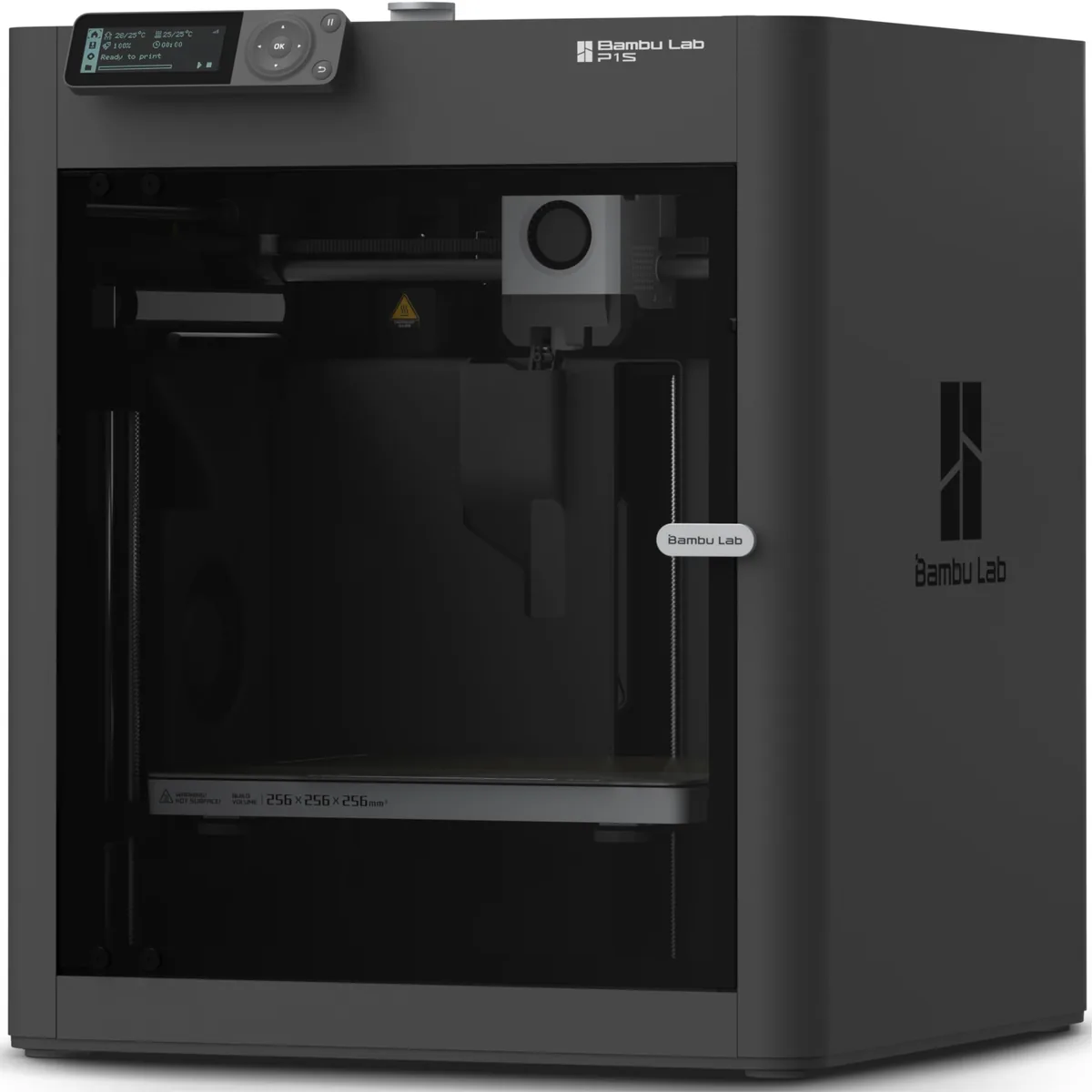
Transforming a digital concept on your computer screen into a physical, tangible object you can hold in your hands: that is the true magic of 3D printing. A decade ago, entering this hobby required mechanical engineering savvy, soldering irons, and hours spent debugging finicky firmware.
In 2026, desktop 3D printing has matured into a smooth consumer experience. Today’s printers boast automatic bed leveling, accelerometer-driven vibration compensation, and auto-calibrated extrusion. Whether you want to print custom household repair parts, tabletop miniatures, cosplay props, or prototypes for an invention, this comprehensive guide walks you through every step, from selecting your technology to pulling your first flawless print off the build plate. Understanding these foundational steps helps significantly when learning how to pick a 3D printer.
1. Choosing Your Technology: Filament (FDM) vs. Resin (SLA)
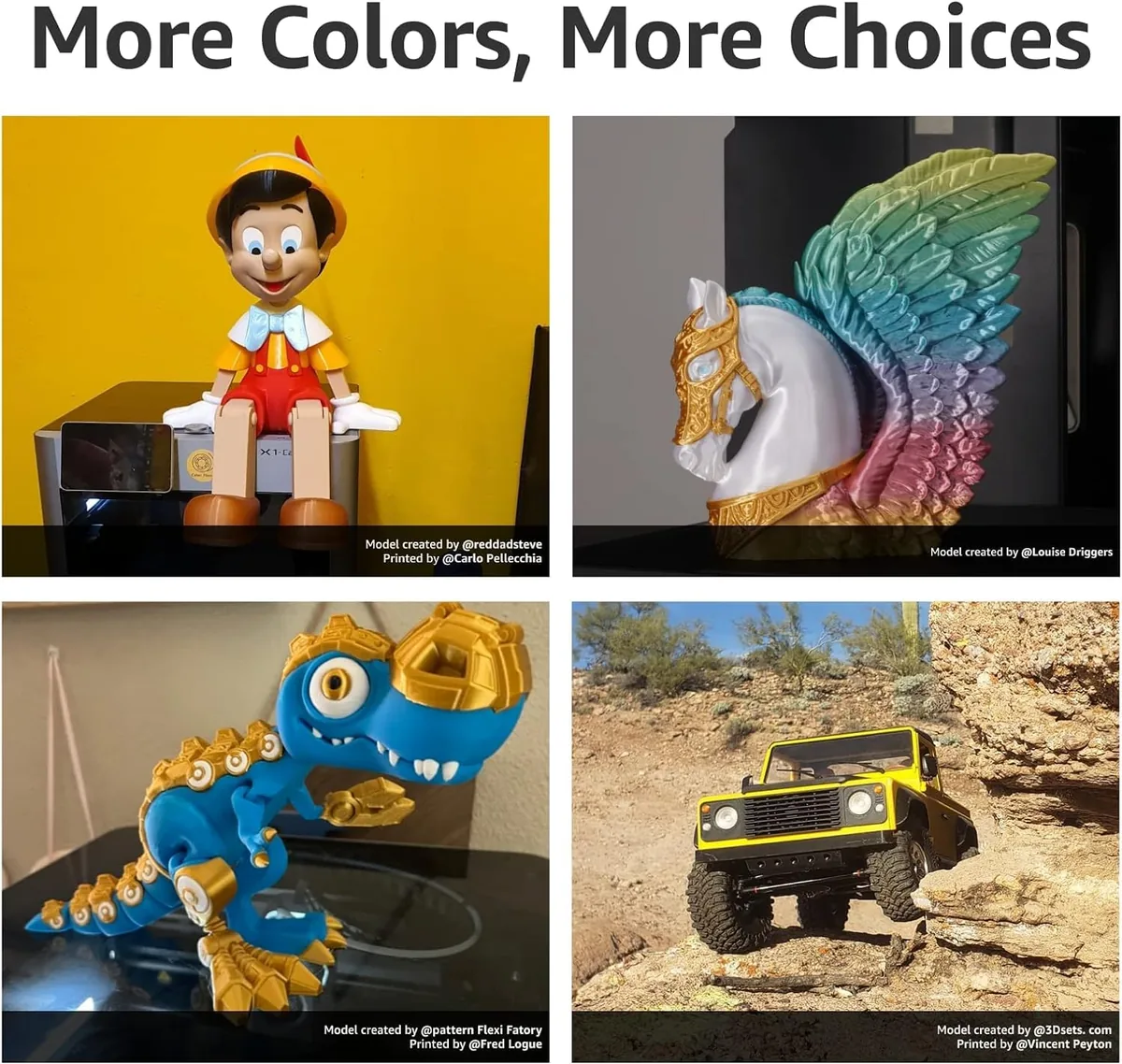
Before plugging in any hardware, you must understand the two primary technologies dominating consumer desktop 3D printing. Each serves fundamentally different creative goals:
Fused Deposition Modeling (FDM)
FDM printers represent the vast majority of household machines. They work like a computer-guided, high-precision hot glue gun: a spool of thermoplastic filament is fed into a heated printhead (extruder), melted through a brass or hardened-steel nozzle, and deposited layer-by-layer onto a build platform.
- Best for: Functional household tools, mechanical brackets, structural toys, cosplay armor, and large prototypes.
- Safety Profile: Clean and accessible. When printing with bioplastics like PLA, there are minimal emissions and no caustic liquids.
- Post-processing: Minimal. Simply peel off any temporary support struts and the part is ready to use.
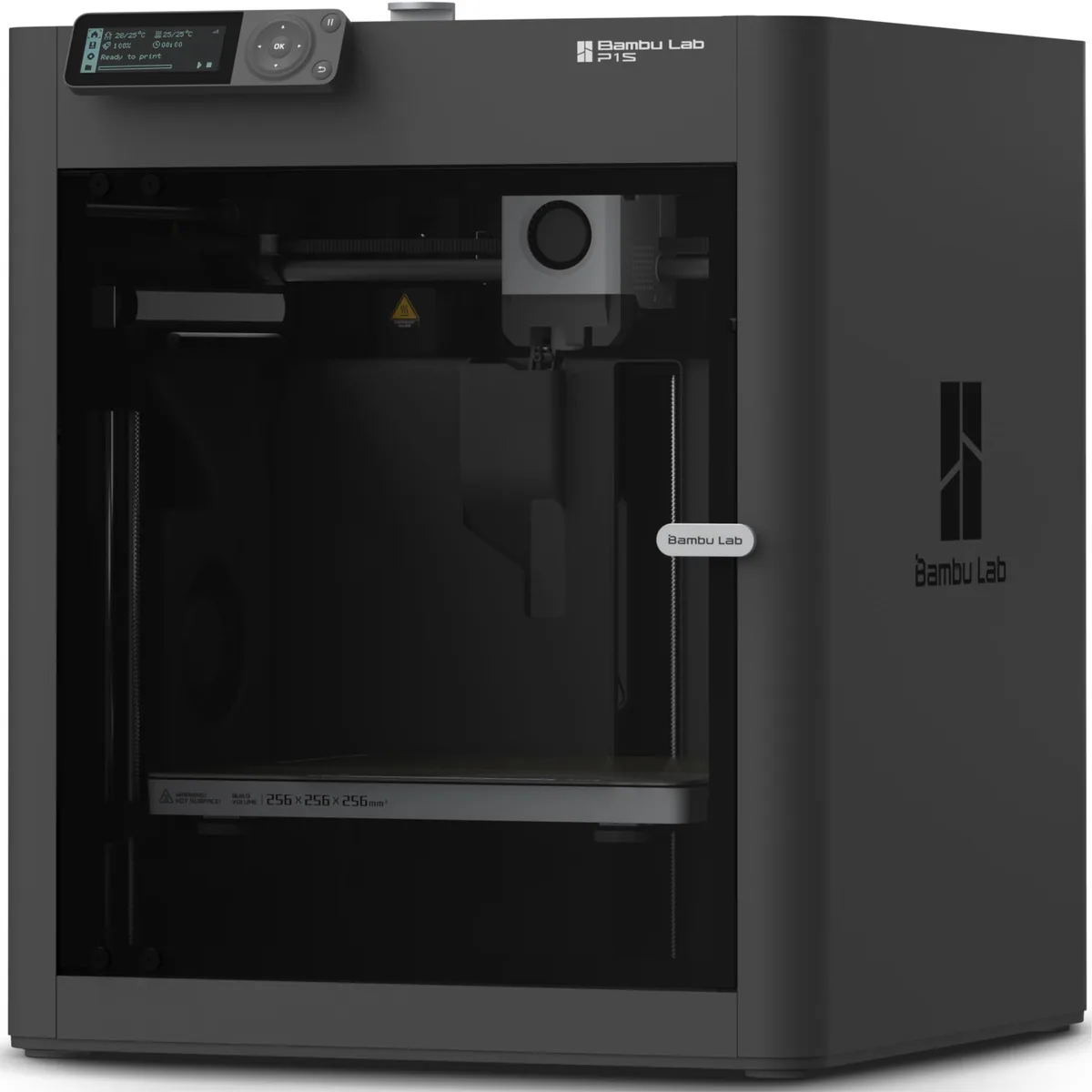
ELEGOO Neptune 4 Pro High-Speed FDM 3D Printer
Pros
- Pre-installed Klipper firmware for lightning-fast speeds
- intelligent segmented heated bed
- automatic 121-point mesh leveling
Cons
- Auxiliary cooling fan can be audible at 100% load
Stereolithography (SLA / MSLA / LCD Resin)
Resin 3D printers work upside down. A build platform dips into a vat of liquid photopolymer resin, and a high-resolution UV screen or laser projects light from beneath, curing the liquid into solid plastic layer by microscopic layer.
- Best for: Highly intricate tabletop gaming miniatures (Warhammer, D&D), jewelry castings, and detailed figurines where visible layer lines are unacceptable.
- Safety Profile: Requires caution. Liquid resin is a toxic chemical irritant. You must wear nitrile gloves, protective eyewear, and operate with organic vapor ventilation.
- Post-processing: Mandatory washing in 99% isopropyl alcohol (IPA) followed by a secondary UV cure in a specialized UV curing chamber.
Direct Comparison: FDM vs. Resin
The following table summarizes how both technologies compare across key purchasing factors:
| Feature | FDM (Filament) | Resin (SLA / MSLA) |
|---|---|---|
| Material Format | Solid thermoplastic spool (1.75mm) | Liquid photopolymer resin |
| Layer Resolution | 0.12mm – 0.28mm (subtle layer lines) | 0.02mm – 0.05mm (injection-mold smooth) |
| Cleanliness & Odor | Low odor, clean, zero chemical baths | Pungent resin fumes, sticky cleanup |
| PPE Requirements | None (standard ventilation) | Nitrile gloves, respirator mask, goggles |
| Post-Processing Time | 1 – 3 minutes (support removal) | 15 – 30 minutes (wash, dry, UV bake) |
| Average Machine Cost | $180 – $450 | $220 – $550 |
| Recommended For | 85% of general beginners & makers | Miniature painters, sculptors, jewelers |
For definitions of technical terms used here, refer to The Ultimate 3D Printing Glossary for Beginners in 2026.
2. Essential Materials & Starter Safety Gear
Starting on the right foot depends heavily on using quality filament and maintaining proper workshop safety.
1. The Right Filament: Start with PLA
Do not jump straight into engineering polymers like Nylon or Polycarbonate. Start with PLA (Polylactic Acid):
- Derived from fermented plant starch (cornstarch/sugar cane).
- Prints at low nozzle temperatures (190°C – 215°C) with a mildly heated bed (50°C – 60°C).
- Exceptional dimensional stability with virtually zero thermal warping or shrinkage.
- Inexpensive: High-grade 1kg spools typically cost between $15 and $22 on Amazon.
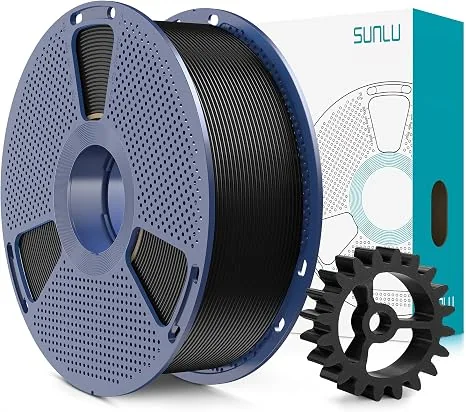
SUNLU PLA+ 2.0 3D Printer Filament 1.75mm
Pros
- Enhanced toughness compared to standard PLA
- smooth extrusion without nozzle clogging
- neat mechanical winding
Cons
- Slightly more hygroscopic; store in sealed bags with desiccant
2. Workshop Safety & Adhesion Essentials
Never overlook the small tools that keep your 3D printing workflow trouble-free:
- PEI Spring Steel Build Plate or 3DLAC Spray: A textured PEI sheet is the gold standard for FDM adhesion. When hot, prints grip like glue; once cooled to room temperature, parts pop off effortlessly with zero scraping.
- 90%+ Isopropyl Alcohol (IPA): Keep a spray bottle near your printer. A quick wipe-down with a microfiber towel removes finger grease from the bed before every print run.
- Flush Cutters & Spatula: Indispensable for snipping filament tips at a clean 45-degree angle and gently freeing stubborn first layers.
- Resin PPE (If using SLA): Thick nitrile gloves (latex can degrade when exposed to liquid resin) and a dual-cartridge respirator rated for organic vapors.
Readers concerned with environmental impact should read Is 3D Printing Sustainable? A Lifecycle Audit.
3. The Complete 3D Printing Workflow (Step-by-Step)
3D printers cannot directly read a 3D picture. The workflow involves three distinct software and hardware phases: Model Acquisition → Slicing → Physical Fabrication.
Step 1: Acquiring Your 3D Model (.STL or.3MF)
You don’t have to be a professional CAD sculptor to create incredible items. The global maker community shares millions of free designs:
- Printables.com: Hosted by Prusa Research; known for peer-reviewed, high-utility functional models.
- MakerWorld.com: Bambu Lab’s platform, featuring one-click print profiles tailored to specific machines.
- Thingiverse.com: The original legacy repository with countless replacement components and fun prints.
Look for models saved in .STL (Standard Tessellation Language) or .3MF (3D Manufacturing Format) formats.
Step 2: Slicing Your Model
A Slicer is the crucial translation engine. It slices your 3D digital polygon mesh into hundreds of horizontal 2D cross-sections and calculates the precise toolpaths, feed rates, and motor instructions in G-code format.
Top free slicing software:
- UltiMaker Cura: The industry standard for open-source Cartesian and bed-slinger machines.
- PrusaSlicer: Renowned for smart auto-orientations, organic tree supports, and clean multi-material painting.
- OrcaSlicer / Bambu Studio: Modern, high-performance slicers equipped with built-in pressure advance and resonance test calibrations.
Critical Slicer Settings for Beginners:
- Layer Height: Determines the vertical resolution. Standard quality is 0.20mm. For ultra-smooth display pieces, use 0.12mm; for rapid rough prototypes, select 0.28mm.
- Infill Density & Pattern: Real 3D prints are rarely solid plastic. A 15% to 20% infill is ideal for 95% of models. Use the Gyroid pattern, it provides equal mechanical strength in all axes and prevents the nozzle from scraping over previous lines.
- Wall / Perimeter Count: Set perimeters to 3 walls (1.2mm wall thickness with a 0.4mm nozzle). Increasing wall count adds far more structural strength than cranking up the interior infill!
- Supports: Only enable supports if your model contains overhang angles exceeding 50 to 55 degrees or horizontal bridges longer than 10mm. Use Tree (Organic) Supports to save filament and ensure painless breakaway removal.
Step 3: Bed Leveling & Z-Offset Calibration
If your first layer fails, the rest of the print will inevitably fail. Modern machines feature Automatic Bed Leveling (ABL) with inductive probes or load-cell sensors, but understanding Z-Offset remains paramount:
- Z-Offset is the exact microscopic distance between your nozzle tip and the build plate when the homing sensor triggers.
- Too High: The melted plastic bead drops through the air onto the bed without squishing. The model will detach mid-print and morph into a tangled nest of plastic “spaghetti.”
- Too Low: The nozzle scratches against the PEI sheet, blocking extrusion and clicking the extruder gears.
- The Sweet Spot: The filament should be slightly compressed against the sheet, forming smooth, flat, parallel ribbons with no gaps between adjacent passes.
Step 4: Loading the Filament & Heating Up
- Turn on your printer and set the hotend to 205°C and the bed to 60°C in the machine’s touchscreen menu.
- Snip the filament end at a clean 45-degree angle using flush cutters to ease insertion into the extruder gears.
- Release the extruder tension lever, feed the filament past the runout sensor into the hotend until you see melted filament ooze cleanly from the nozzle orifice.
- Wipe away the purged blob with tweezers or a silicone pad before starting the print.
Step 5: Initiating the Print and First-Layer Inspection
Transfer your exported G-code file via Wi-Fi, microSD card, or USB stick. Press Print.
[!IMPORTANT] The Golden Rule of 3D Printing: Never walk away during the first layer! Stay by your machine for the first 5 to 10 minutes. Once the first layer is cleanly adhered across all boundaries, your print has an estimated 95% chance of finishing without incident.
For a deeper dive into moving from concept to physical object, consult Idea to Part: The Complete 3D Printing Workflow Guide.
4. Post-Processing & Maintenance Tips
Congratulations, your print is finished! Follow these simple finishing touches:
- Patience is Key: Allow the heated bed to cool below 35°C before attempting to remove the part. As the flexible steel plate cools, the thermal expansion difference causes the printed part to pop off with a satisfying snap.
- Support Removal: Use needle-nose pliers to gently twist and peel off tree supports. If small stubborn nubs remain, trim them flush using hobby craft knives.
- Fixing Stringing: If fine cobweb-like strands of filament appear across empty gaps, quickly wave a heat gun or butane lighter across the model for 1 to 2 seconds. The thin wisps will vaporize immediately without deforming the underlying part.
- Filament Storage: Thermoplastics like PLA and especially PETG absorb ambient humidity from the air. When wet filament enters a 200°C nozzle, the water boils, causing snapping sounds, rough surface zits, and stringing. Store your filament spools in vacuum-sealed bags with silica gel packets or a heated filament dry box.
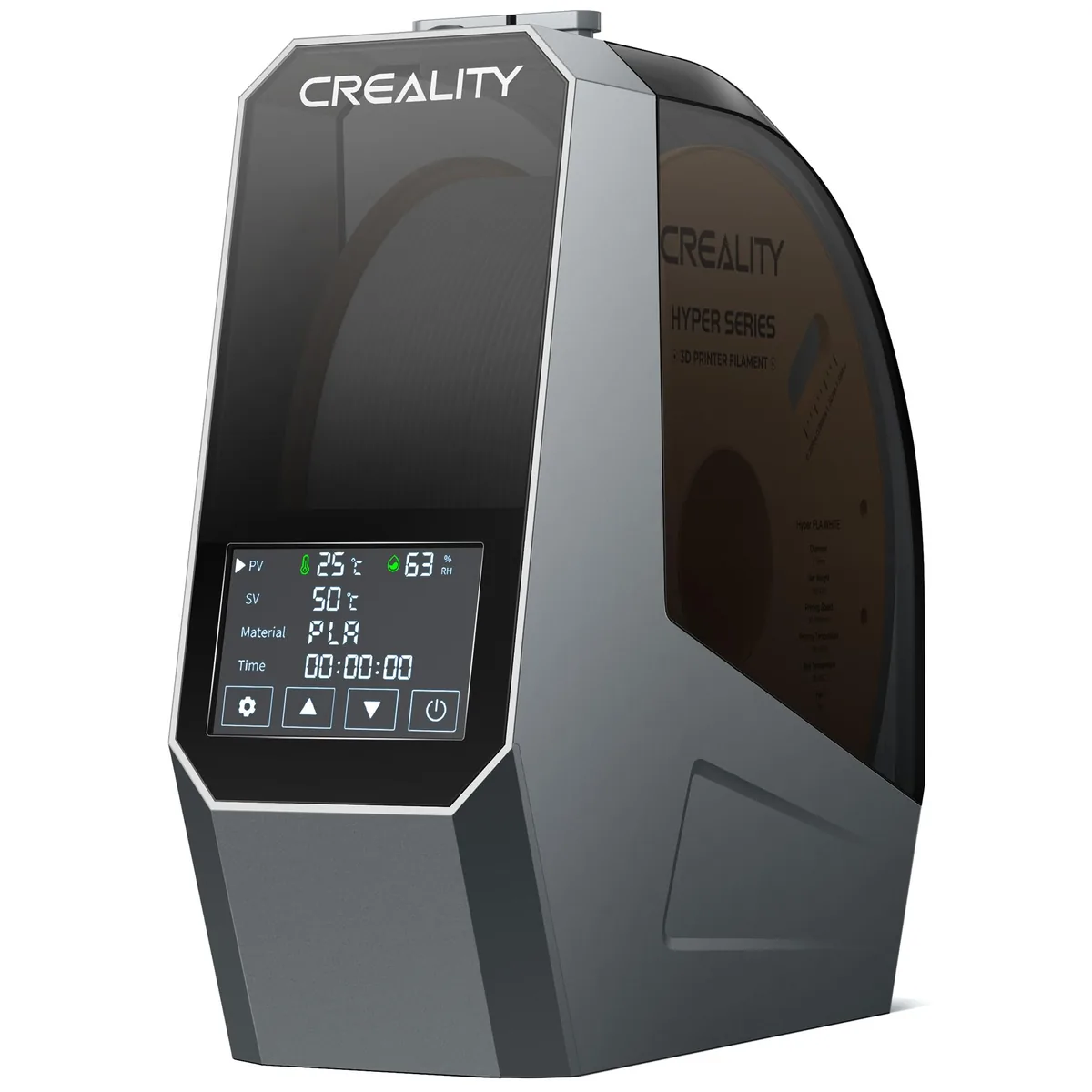
Creality Space Pi Filament Dryer
Pros
- Fast 15-minute heating to target temperature with 360-degree hot air circulation
- Real-time ambient and chamber humidity monitoring with timer display
- Feeding hole allows direct printing while drying from within the chamber
Cons
- Single spool only
- not suitable for dual-extruder or multi-material setups
5. Top 4 Beginner 3D Printing Mistakes (and Quick Fixes)
- The “Spaghetti Monster” Print Detachment:
- Cause: Greasy fingerprints on the build plate or an elevated Z-offset.
- Solution: Wash the plate with warm water and basic dish soap, re-run auto-leveling, and lower your Z-offset by 0.05mm increments.
- Corner Warping (Curling upward from the bed):
- Cause: Drafty room air cooling the lower layers unevenly while upper layers shrink.
- Solution: Disable the cooling fan for the first 3 layers, bump the bed temperature to 60°C, and ensure your printer is shielded from open windows or ceiling fans.
- Extruder Skipping / Clicking Sounds:
- Cause: The nozzle is partially clogged or temperature is too low for the feed rate.
- Solution: Increase hotend temperature by 5°C to 10°C, or perform a “cold pull” with nylon/cleaning filament to dislodge dust particles.
- Shifting Layers (Staircase effect):
- Cause: Loose timing belts or the printhead physically colliding with an infill intersection.
- Solution: Tighten your X and Y axis belt tensioners until they hum like a low bass guitar string, and switch from Grid infill to Gyroid infill in your slicer.
Conclusion
3D printing is one of the most rewarding creative skills you can learn in the modern digital age. With a reliable FDM machine like the ELEGOO Neptune 4 Pro, a spool of quality eSUN PLA+, and a free slicer like Cura or Bambu Studio, the only genuine limit is your imagination. To manage expectations, it helps to understand 3D Printers: What They Can and Cannot Do.
Bookmark this guide, keep your print bed clean, master that all-important first layer squish, and happy printing! Explore other practical 3D printing guides in daily operations.