
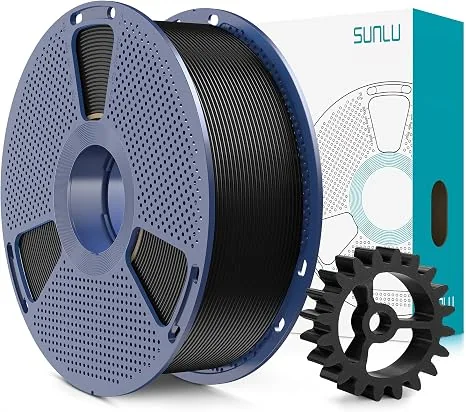
Thermoplastic Polyurethane, or TPU, is the key to creating durable, flexible, and impact-resistant parts right on your print bed. Think phone cases, vibration dampeners, flexible hinges, and gaskets. But this material is famous for one thing in the workshop: being difficult. Its rubbery nature makes it a nightmare for poorly configured printers.
Unlike rigid filaments like PLA or ABS, TPU acts like a wet noodle. It loves to bend, stretch, and compress everywhere you don’t want it to. Pushing it through an extruder is a serious mechanical challenge. Get it wrong, and you get a tangled mess in your extruder gears. Get it right, and you unlock a new class of functional prints.
This guide is pure workshop technique. No fluff. It gives you the exact settings, hardware advice, and troubleshooting steps to tame this material.
Before You Print: The Foundation for Success
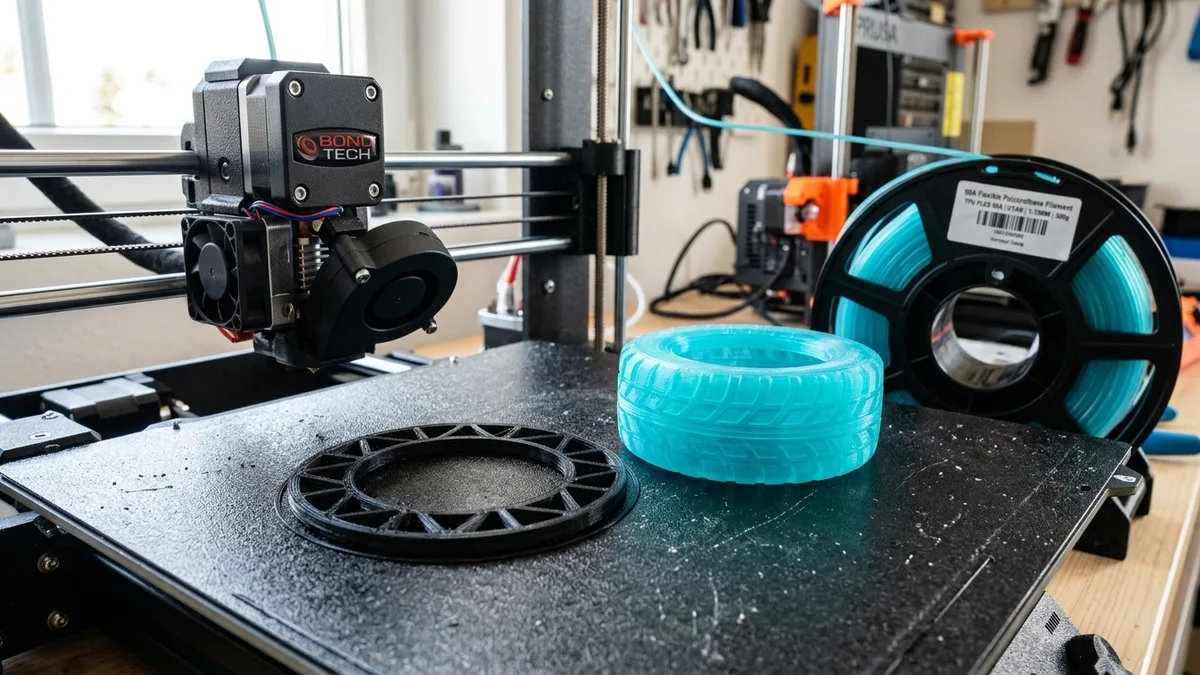
Success with TPU comes down to preparation. If you just load a spool and hit “print” with your PLA profile, you will fail. You must address three critical areas first: filament hydration, extruder type, and your core speed philosophy. Understanding material properties helps you design better functional parts. See TPU & Flexible Filaments: The Complete 3D Printing Guide for a complete overview of shore hardness and part design.
1. Filament Hydration is Your Enemy
TPU is one of the most hygroscopic filaments on the market. It aggressively absorbs moisture from the air. Wet TPU is a disaster. It will hiss and pop as the water in the filament instantly turns to steam in the hotend.
Symptoms of Wet TPU:
- Extreme stringing and oozing
- Weak, foamy-looking layer lines
- Poor layer adhesion, resulting in brittle parts
- Nozzle sputtering and inconsistent extrusion
Do not skip this step. You must dry your TPU filament.
A dedicated filament dryer is the best tool for the job. Read our guide to compare filament dryers to evaluate different heating mechanisms and capacities. Set it to 50-55°C for a minimum of 4-6 hours before printing. For a spool that’s been sitting out for weeks, you might need 8 hours or more. Printing directly from the dryer is the gold standard for long prints. Proper drying is equally critical for other engineering materials. Learn to Print Nylon Filament Without Warping or Delamination to expand your material capabilities.

Creality Space Pi Filament Dryer
Pros
- Fast, even heating with PTC element.
- Compact and fits modern workshop aesthetics.
- Simple interface for setting time and temp.
Cons
- Only holds a single 1kg spool.
If you don’t have a dryer, you can use your oven, but be extremely cautious. Ovens have poor temperature regulation and can easily ruin your filament. Use a separate, accurate thermometer and never leave it unattended.
2. Extruder Setup: Direct Drive vs. Bowden
The distance between your extruder’s drive gears and the nozzle’s melt zone is the single most important hardware factor for printing TPU.
-
Direct Drive Extruders: This is the ideal setup. The drive gears are mounted directly on top of the hotend. The filament path is short and highly constrained. This gives the system precise control over the flexible filament, preventing it from kinking or buckling. Retraction is effective and reliable.
-
Bowden Extruders: This setup is much harder. The extruder motor is mounted on the printer’s frame, pushing the filament through a long PTFE tube to the hotend. This long, unconstrained path gives the “wet noodle” of TPU plenty of room to bend and compress. This causes lag, poor retraction, and a high risk of jamming.
If you have a Bowden printer:
- Upgrade your PTFE tube: A tight-tolerance tube like the Capricorn XS (ASIN: B079P92HN4) reduces the room for filament to buckle.
- Ensure a constrained path: The PTFE tube must be seated perfectly against the nozzle inside the hotend. Any gap is a failure point.
- Accept limitations: You will have to print much slower and likely disable retraction.
Core Slicer Settings for TPU
Forget your PLA profiles. We are starting from scratch. These settings are a safe starting point. Dial them in with calibration prints like a temperature tower and a flow cube.
| Slicer Setting | Standard PLA Profile (Baseline) | Safe TPU Starting Profile | Technical Reason |
|---|---|---|---|
| Nozzle Temperature | 190-220°C | 220-240°C | Higher temp needed for proper melt and layer bonding. |
| Bed Temperature | 50-60°C | 40-60°C (or OFF) | Prevents elephant’s foot; TPU sticks very well. |
| Print Speed | 50-100 mm/s | 15-25 mm/s | Prevents buckling in the extruder and under-extrusion. |
| Retraction Distance | 2-6mm (Bowden), 0.5-2mm (Direct) | 0.5-2.0mm (Direct), 0mm (Bowden) | Prevents clogs. Long/fast retractions will stretch and jam TPU. |
| Retraction Speed | 40-60 mm/s | 20-25 mm/s | Slow speed prevents filament from stretching or jamming gears. |
| Part Cooling Fan | 100% | 0% (first 3-5 layers), then 20-50% | Too much cooling causes poor layer adhesion. |
| Flow / Extrusion Multiplier | 95-100% | 105-115% | Compensates for filament compression in the drive gears. |
| First Layer Height | 100% (0.2mm) | 110-120% (0.22-0.24mm) | Pushes more material for a solid first layer bond. |
Temperature: Find the Sweet Spot
Print a temperature tower. This is not optional. Every brand and color of TPU can have a slightly different ideal temperature. Start your tower in the 220-240°C range. Look for the temperature that gives you the best layer adhesion without excessive stringing. The layers should be impossible to pull apart by hand.
Speed: Go Slow. No, Slower.
This is the golden rule. Pushing TPU too fast will cause the filament to compress and buckle between the drive gear and the hotend.
- Initial Speed: Set all your speeds (perimeters, infill, top/bottom layers) to 20 mm/s.
- Travel Speed: Keep travel moves slow as well, around 60-80 mm/s, to reduce oozing during non-print moves.
- First Layer: Print the first layer even slower, at 10-15 mm/s, to guarantee a perfect foundation.
Once you have successful prints, you can cautiously increase the speed by 5 mm/s at a time. Many modern direct drive printers can handle TPU at 40-50 mm/s, but only after they are perfectly tuned.
Retraction: Less is More
Retraction is the enemy of good TPU printing. Pulling the soft filament back and forth quickly is a recipe for a clog.
- For Direct Drive: Start with a very short and slow retraction. A distance of 1.0 mm and a speed of 25 mm/s is a great starting point. If you still get clogs, reduce the distance. If you have stringing, you can try increasing it slightly to 1.5mm, but address moisture first.
- For Bowden Drive: In most cases, you should disable retraction completely. Set the distance to 0 mm. The friction and flexing in the long PTFE tube make retraction unreliable. It will stretch the filament and cause a jam. Control stringing with other settings like coasting and fast travel moves. The How to Set Up a Desktop 3D Printer and Complete the First Print guide offers more granular advice on slicer settings.
Flow Rate and First Layer Adhesion
TPU can sometimes get squished by the extruder gears, leading to under-extrusion. To compensate, you may need to increase your flow rate (or extrusion multiplier) to 1.05-1.15 (105-115%). Calibrate this by printing a hollow, single-wall cube and measuring the wall thickness with a digital caliper.
For bed adhesion, TPU sticks almost too well. On a smooth PEI sheet, it can bond permanently.
- Textured PEI Sheet: This is the best surface. It holds the print down but releases it easily once cool.
- Smooth PEI / Glass: Use a release agent. A thin layer of glue stick or hairspray is not for adhesion; it’s to prevent over-adhesion and make removal possible.
- Bed Temperature: A bed temp of 40-60°C is usually sufficient. Some users print on a cold bed with great success.
Advanced Troubleshooting for Flawless Prints
Even with a perfect profile, you may hit a snag. Here’s how to fix common TPU problems.
Problem: Horrible Stringing and Oozing
- Solution 1: Dry Your Filament. This is 90% of the problem. Use a filament dryer.
- Solution 2: Lower Temperature. You might be printing too hot. Try lowering your nozzle temp by 5°C.
- Solution 3: Tune Retraction. For direct drive, ensure retraction is enabled and properly tuned (low and slow).
- Solution 4: Enable Coasting. In your slicer, enable coasting. This stops extruding just before a travel move finishes, using the built-up pressure in the nozzle to complete the line. A value of 0.2-0.4 mm is a good start.
Problem: Clogs and Jams in the Extruder
- Solution 1: Slow Down. You are printing too fast. Reduce your print speed.
- Solution 2: Check Filament Path. Ensure your extruder has a fully constrained path with no gaps for the filament to escape into.
- Solution 3: Reduce Retraction. Lower your retraction distance and speed, or disable it completely.
- Solution 4: Clean Drive Gear. The extruder’s drive gear can get clogged with small bits of TPU. Clean it with a small brass brush.
For those serious about printing engineering-grade materials like TPU, a robust machine is a worthwhile investment. An enclosed CoreXY printer with a quality direct drive extruder eliminates many of the variables that plague entry-level bedslingers.
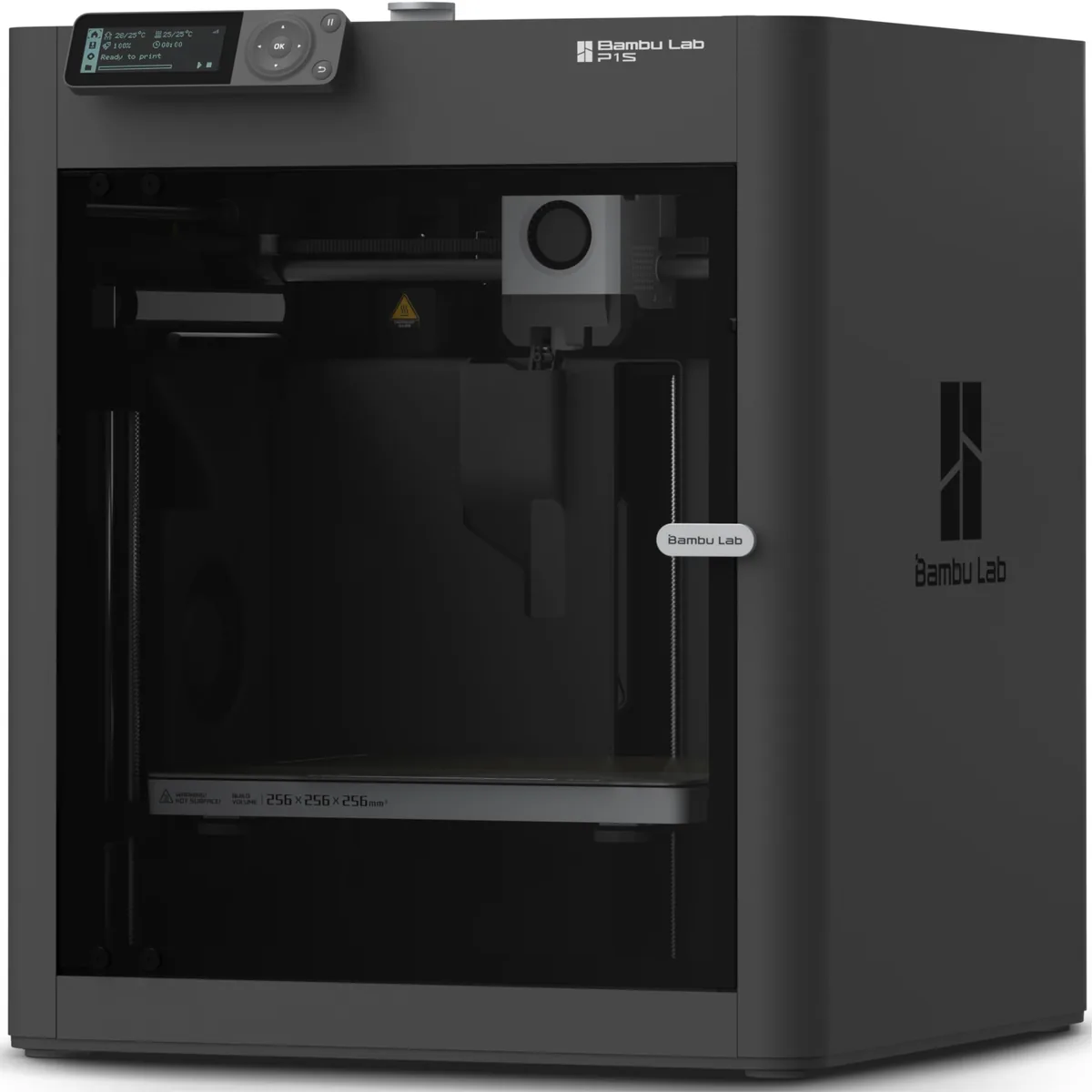
Bambu Lab P1S Enclosed 3D Printer
Pros
- Fully enclosed CoreXY chassis with auxiliary cooling fan, Seamless multi-color / multi-material integration with Bambu AMS, Reliable out-of-the-box first layers with dual automated bed leveling, Active vibration compensation and belt tension monitoring
- Enclosed design maintains stable temps for better layer adhesion.
- High-speed capabilities for rigid filaments.
Cons
- Proprietary closed ecosystem
- Chamber is passively heated by the bed rather than a dedicated PTC heater
- Upgrading to hardened nozzle for carbon fiber requires separate swap
The Final Check: Is Your Printer Ready for TPU?
Printing TPU is a system check for your entire printer. It exposes weaknesses in your extruder, hotend, and filament handling practices. By following a methodical approach: drying your filament, choosing the right hardware, and starting with a slow, conservative slicer profile, you can achieve amazing results.
Start slow. Calibrate your settings. And most importantly, keep your filament dry. Master these principles and you’ll be producing tough, flexible parts that rigid materials can only dream of. For more deep dives into materials, check out the other guides in the Filaments & Resins category.