
Thermoplastic Polyurethane, or TPU, is more than just a squishy filament. It is a powerful class of engineering materials that unlocks functional parts rigid plastics can’t produce: impact-absorbing bumpers, custom-fit ergonomic grips, watertight gaskets, and durable living hinges.
But TPU has a reputation. It can be tricky. It jams, it strings, it buckles in the extruder. The good news is that these problems are almost always solvable with the right knowledge and a methodical approach. This guide gives you the technical settings to tame flexible filaments and get perfect results. This guide covers everything from choosing the right hardness to tuning the slicer settings that matter most.
Choosing Your Flex: Understanding Shore Hardness
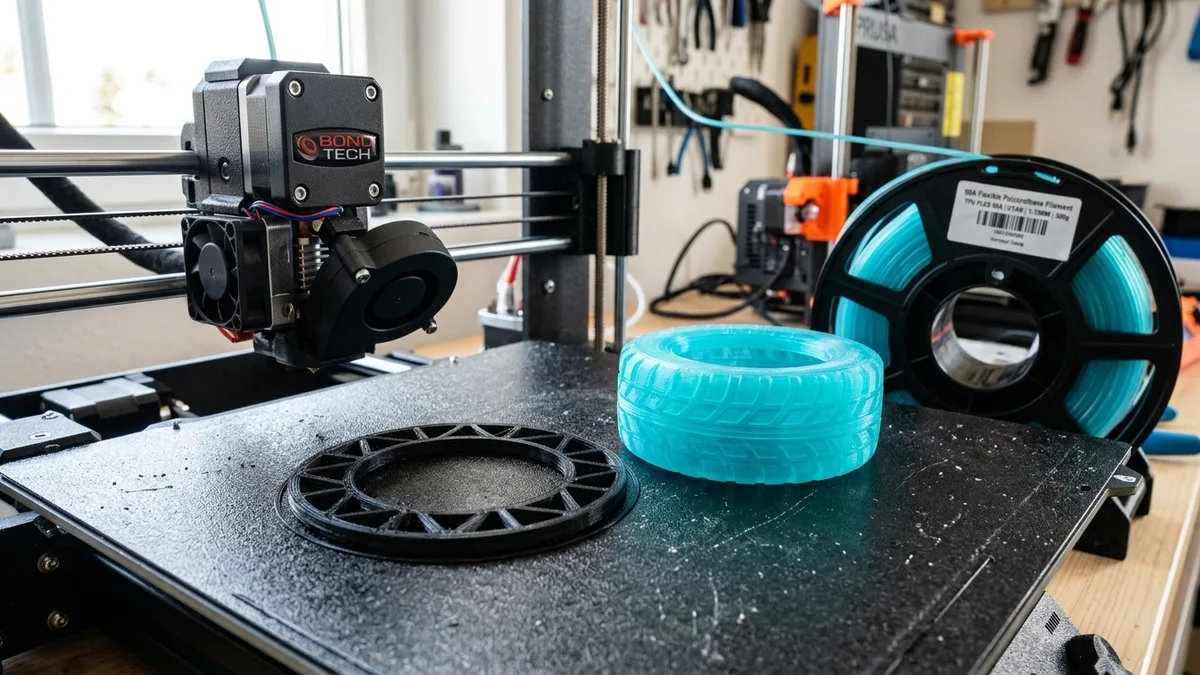
Not all TPU is the same. The most important property is its Shore Hardness, a scale used to measure the flexibility or hardness of a material. For 3D printing filaments, you will almost always see a number followed by the letter ‘A’ (for softer plastics).
- 95A to 98A TPU: This is the easiest flexible filament to print. It has a firmness similar to a skateboard wheel. It is stiff enough to be handled by most extruders, including some well-tuned Bowden systems. It is perfect for phone cases, durable protective covers, and firm grips where you want some give but also structural integrity.
- 85A TPU: This is the sweet spot for many functional applications. It feels like a shoe sole. It is flexible enough for excellent vibration dampening and creating watertight seals, but it is significantly more difficult to print than 95A. It requires a direct drive extruder and slow, careful printing.
- 75A and Below: This is expert territory. These materials are extremely soft and behave like a cooked noodle in the extruder. They require specialized extruders with a fully constrained filament path and very slow printing speeds. These are used for applications requiring extreme flexibility, like soft robotic grippers or medical models.
For your first time printing flexibles, always start with 95A. Master it before moving to softer variants.
The Absolute Requirement: Dry Your Filament
TPU is extremely hygroscopic. It absorbs moisture from the air much faster than PLA or PETG. Printing with “wet” TPU is a primary source of failure. You will see:
- Excessive stringing and oozing
- Popping or cracking sounds from the nozzle as water turns to steam
- A foamy, rough surface finish
- Extremely poor layer adhesion, resulting in weak parts
The solution is simple. You must use a filament dryer. A repurposed food dehydrator or the oven (at your own risk) can work, but a dedicated filament dryer provides consistent, safe temperature control. Read our guide to compare filament dryers to evaluate different heating mechanisms and capacities.
Dry your TPU spool at 50-55°C for at least 4 to 6 hours before you start printing. For very humid environments, printing directly from the dryer is the best practice. This single step will solve over half of all common TPU printing problems. A small investment in a dryer saves hours of frustration and kilograms of wasted filament.

Creality Space Pi Filament Dryer
Pros
- Heats up quickly and circulates air effectively.
- The LCD screen shows both temperature and humidity.
- Can be used to print directly from the dryer.
Cons
- Only holds a single spool at a time.
Slicer Settings: A Technical Deep Dive
Success with TPU lives in the slicer. The key is to reduce stress on the filament and give the extruder full control. Pushing a soft, flexible rope is much harder than pushing a rigid rod. These settings are designed to make it easier. Review the TPU Filament Printing Guide: Settings & Extruder Setup for comprehensive tuning workflows.
Extruder & Feeding Path
Your printer’s hardware is the biggest factor.
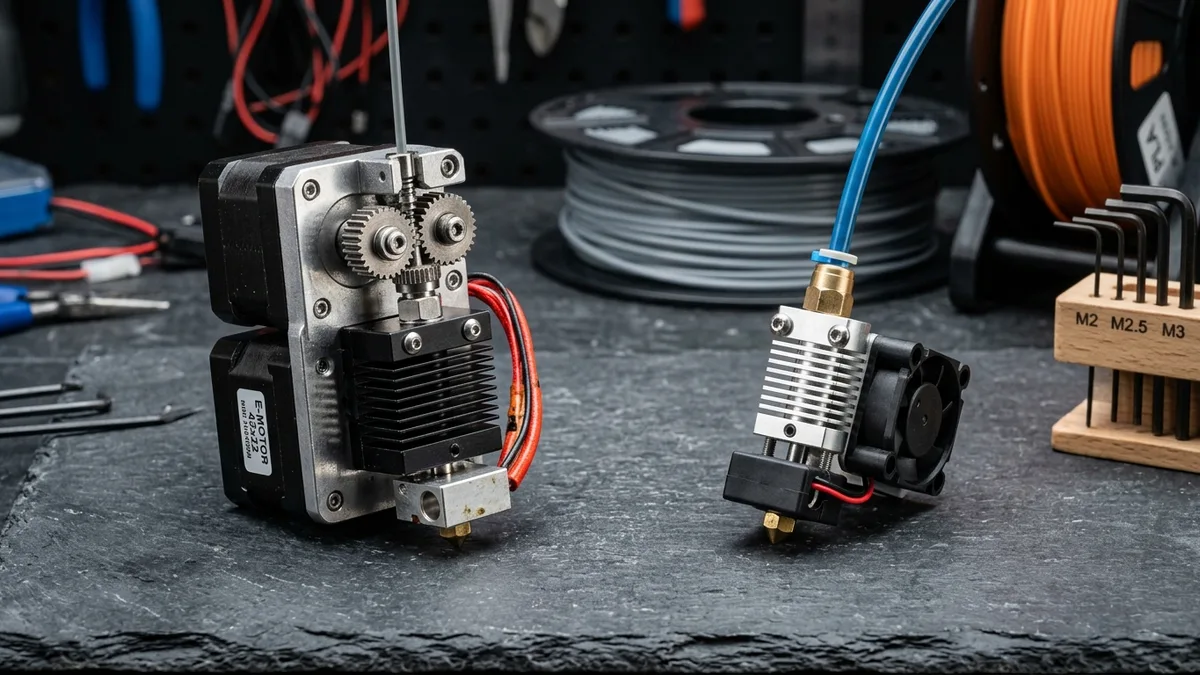
- Direct Drive: This is the best setup for TPU. The extruder gears are mounted directly on the print head, creating a very short, constrained path to the nozzle. This gives the filament very little room to bend or buckle.
- Bowden: This setup is challenging. The extruder is mounted on the printer’s frame, pushing filament through a long PTFE tube. The friction and distance make it easy for soft filament to compress and jam. If you must use a Bowden printer, stick to 95A TPU and print very, very slowly.
Core Slicer Settings (Baseline vs. TPU)
Use these values as a starting point. Your specific filament and printer may require fine-tuning.
| Slicer Setting | Baseline (PLA) | Safe Start (95A TPU) | Advanced (85A TPU) |
|---|---|---|---|
| Print Speed (mm/s) | 60 - 150 | 20 - 40 | 15 - 25 |
| Wall/Perimeter Speed | 30 - 80 | 15 - 25 | 10 - 20 |
| Travel Speed (mm/s) | 150 - 250 | 30 - 60 | 25 - 40 |
| Nozzle Temp (°C) | 190 - 220 | 220 - 240 | 225 - 245 |
| Bed Temp (°C) | 50 - 60 | 40 - 60 | 40 - 60 |
| Retraction (Direct) | 0.5 - 2 mm | 0.5 - 1.5 mm | 0.5 - 1.0 mm |
| Retraction Speed (mm/s) | 30 - 50 | 20 - 25 | 15 - 20 |
| Cooling Fan (%) | 100% | 20 - 50% | 0 - 30% |
A few critical notes on these settings:
- Speed: Slow down. This is the golden rule. Fast movements will cause the filament to compress and jam in the extruder gears. Slow, consistent pressure is key.
- Retraction: This is the enemy of TPU. Fast, long retractions will pull the soft filament back and forth, causing it to buckle. Use a short, slow retraction. For some very soft TPUs, or if you still get jams, turn retraction off completely. You will have more stringing, but a stringy print is better than a failed print. You can clean up strings with a hot air gun or snips.
- Cooling: Too much part cooling can cause poor layer adhesion. TPU layers need to stay molten long enough to fuse properly. Reduce your fan speed significantly, or turn it off for the first few layers. If you have severe overhangs, you can increase it slightly. Good 3D printer maintenance and calibration will help you understand your machine’s cooling performance.
The Right Machine for the Job
While you can coax TPU out of many printers, a modern direct-drive machine makes the process far more reliable. The tight filament path, robust extruder, and stable frame of a CoreXY printer provide an excellent platform for printing engineering-grade flexibles. The Bambu Lab P1S is a prime example of a machine that handles TPU with ease right out of the box, thanks to its high-quality direct drive extruder. Comparing it against other machines like the K1C shows how far this technology has come.
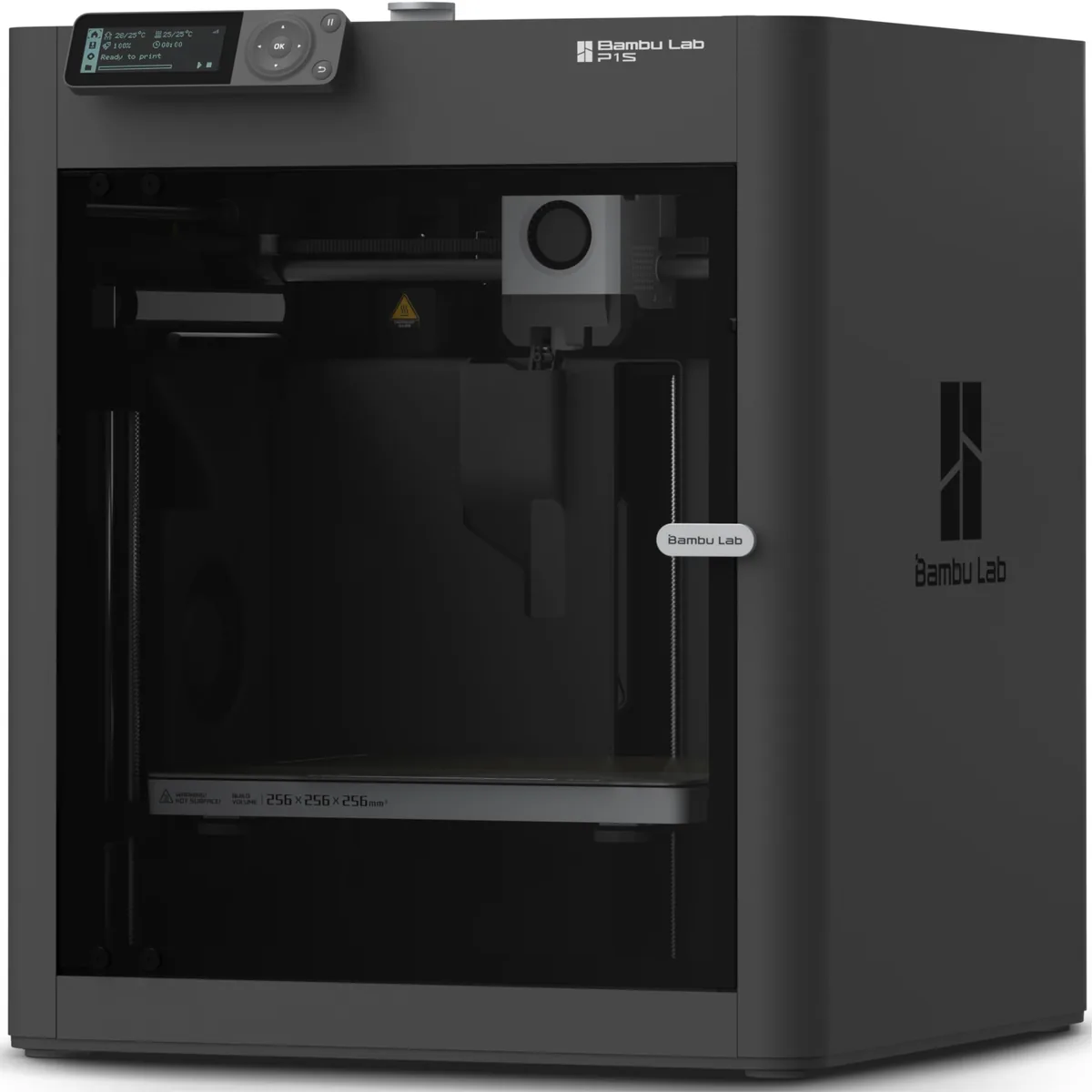
Bambu Lab P1S Enclosed 3D Printer
Pros
- Fully enclosed CoreXY chassis with auxiliary cooling fan, Smooth multi-color / multi-material integration with Bambu AMS, Reliable out-of-the-box first layers with dual automated bed leveling, Active vibration compensation and belt tension monitoring
- Enclosed build chamber maintains stable ambient temperature.
- Very fast printing speeds are possible with stiffer TPUs.
Cons
- Proprietary closed ecosystem
- Chamber is passively heated by the bed rather than a dedicated PTC heater
- Upgrading to hardened nozzle for carbon fiber requires separate swap
Designing for Flexibility: Application Tips
How you design and slice your part is just as important as your print settings.
- Grips and Handles: Use slicer features like “Fuzzy Skin” to add an instant, high-friction texture. When designing an overmold (a TPU grip for a rigid tool), model the TPU part 1-2% smaller than the cavity it will fit into for a tight, compression fit.
- Seals and Gaskets: Print these with 100% infill. Use a “Concentric” top and bottom layer pattern. This creates continuous toolpaths that are less likely to have small gaps where leaks could occur. Pay close attention to your Z-seam placement, and set it to a corner if possible.
- Bumpers and Protective Cases: For impact absorption, wall count is more important than infill percentage. Use at least 3-4 walls. A lower infill percentage (15-25%) with a strong pattern like Gyroid or Cubic will allow the internal structure to compress and absorb energy.
- Living Hinges or Straps: Always orient the part on the build plate so that the layer lines run parallel to the bending axis. If you print a strap standing up, it will snap along the layer lines on the first bend. The part’s strength comes from the continuous extrusion paths, not the layer-to-layer bond.
By methodically addressing moisture, speed, retraction, and part geometry, you can transform TPU from a frustrating material into a reliable tool for creating incredibly useful, functional parts. Start with 95A, dry your filament, and print slow. You’ll be printing perfect flexible parts in no time. Browse the full collection of filament and resin selection guides to find specific technical data sheets.