
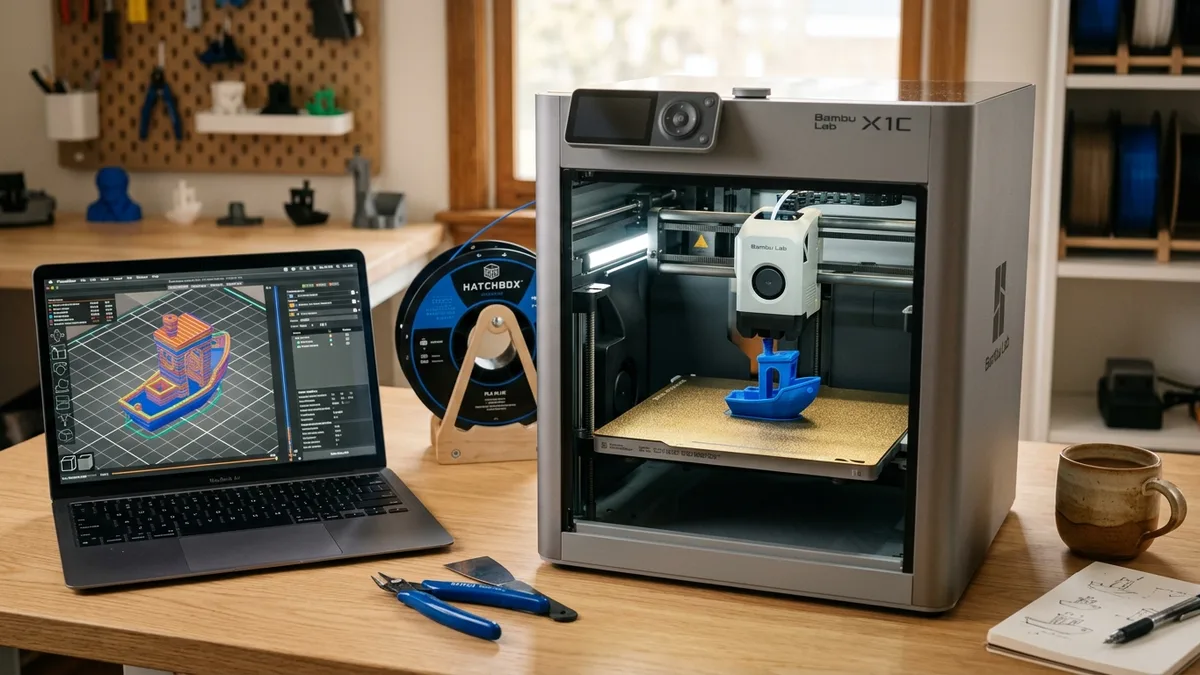
3D print file formats like STL, 3MF, OBJ, STEP, and G-code store and communicate geometry, color, and machine instructions to a 3D printer. Understanding these formats allows you to avoid printing errors like bad meshes or wrong scales. This guide covers the difference between mesh and parametric models, the slicing workhorses (STL, OBJ, 3MF), the engineering standard (STEP), the final machine code (G-code), and a practical workflow for makers.
The Core Difference: Mesh vs. Parametric
The core difference between mesh and parametric formats is that a mesh describes only the surface geometry using flat polygons, while a parametric model defines a solid mathematical object with exact curves and features.
A Mesh Model is a hollow shell made of flat polygons. Think of it as digital papercraft. It only describes the surface of the object using a collection of points (vertices) connected into faces (usually triangles). It has no concept of what’s inside or how it was built. STL, OBJ, and 3MF are mesh formats.
A Parametric Model (also called B-Rep or Boundary Representation) is a solid mathematical object. It stores the object as a set of instructions and relationships. It knows a hole is a cylinder of a specific diameter subtracted from a block. It has true, curved surfaces. This is how designs exist in CAD software like Fusion 360 or SolidWorks. STEP is the universal format for this.
A mesh is like a PNG image: a grid of pixels. A parametric model is like an SVG vector file: a set of mathematical equations. You can’t easily edit the PNG, but you can scale the SVG infinitely and change its curves with precision.
The Slicing Workhorses: STL, OBJ, and 3MF
The slicing workhorses STL, OBJ, and 3MF are mesh formats fed directly into slicer software like Cura or Bambu Studio to generate printable toolpaths. They are all meshes, but they are not created equal.
STL (Standard Tessellation Language)
STL (Standard Tessellation Language) is a simple, legacy mesh format that represents 3D surfaces as a raw list of triangles without any unit or color data. For decades, the STL was the default, and its legacy means you’ll find it everywhere.
Technical Breakdown: An STL file is nothing more than a long list of triangular facets. Each triangle is defined by the X, Y, and Z coordinates of its three vertices and a normal vector (which way the face is pointing). That’s it.
- Pro: Universal support. Every 3D program in existence can open an STL.
- Con: It lacks necessary printing data.
- Unitless: Does your part measure 20mm or 20 inches? The STL doesn’t know. The slicer has to guess. This is the #1 reason parts import at the wrong scale.
- No Metadata: It cannot store color, material, author, or copyright info. It’s just geometry.
- Inefficient: For a smooth, curved surface, you need tons of triangles. This makes files huge. An ASCII STL is a human-readable text file and is absurdly large. A binary STL is smaller but still clunky.
- Error-Prone: STLs can easily contain geometric errors like holes, flipped normals, or non-manifold edges that will confuse a slicer and cause print failures.
Bottom line: Use STL only when you have no other choice. It’s a format for legacy compatibility, not for modern workflows.
OBJ (Object File)
The OBJ format is a mesh format developed for 3D graphics that can store basic color and texture data using an external material template library (.mtl) file.
Technical Breakdown: An OBJ file is also a mesh, but it’s more descriptive. It lists vertices, texture coordinates, normals, and the faces that connect them. Critically, it can reference an external Material Template Library (.mtl) file to define color and texture properties.
- Pro: Can store basic color and texture map information.
- Con: The color data is in a separate.mtl file. If that file gets lost or unlinked when you zip and share your project, the color information is gone. Slicer support for.mtl files can also be inconsistent.
Bottom line: OBJ is better than STL if you need to transfer simple color or textures, like for a 3D scan or a game asset. But for mechanical printing, it offers little advantage and has its own points of failure.
3MF (3D Manufacturing Format)
3MF (3D Manufacturing Format) is a modern, all-in-one mesh standard packaged as a ZIP archive that stores geometry, units, colors, materials, and slicer settings in a single file.
Technical Breakdown: A 3MF file is actually a standard ZIP archive that you can rename to .zip and explore. Inside, you’ll find a clear folder structure with:
- A 3D model file (
.model) containing the mesh geometry in an XML format. - Material and color definitions.
- Thumbnail images.
- Slicer settings, support structures, and part orientation.
It’s a complete, self-contained project in a single file.
- Pros:
- All-in-One: Contains geometry, units (no more scaling errors), color per-object or per-vertex, materials, and even full slicer project settings.
- Efficient: The format is well-compressed. A 3MF file is often drastically smaller than an equivalent high-resolution STL.
- Strong structure: The standard is designed to prevent common geometric errors found in STLs.
- Open Source: It’s a free and open standard. Major slicers like PrusaSlicer and Bambu Studio use it as their native project file format.
Bottom line: Use 3MF whenever possible. Export from your CAD software as 3MF. Save your slicer projects as 3MF. It is superior to STL in every practical way.
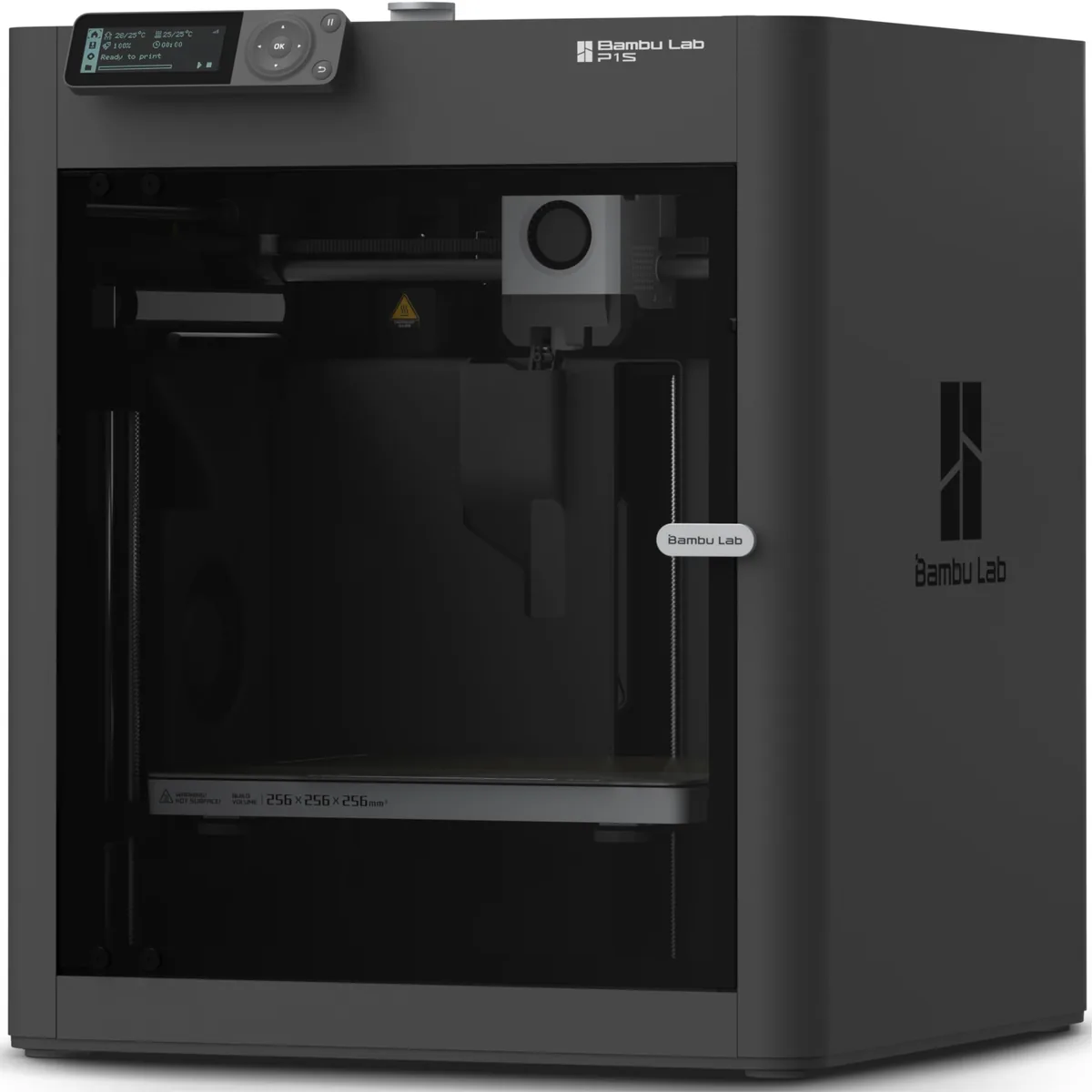
Bambu Lab P1S Enclosed 3D Printer
Pros
- Fully enclosed CoreXY chassis with auxiliary cooling fan, Smooth multi-color / multi-material integration with Bambu AMS, Reliable out-of-the-box first layers with dual automated bed leveling, Active vibration compensation and belt tension monitoring
- Fully enclosed for printing high-temp materials like ABS and ASA.
- Excellent print quality at very high speeds.
Cons
- Proprietary closed ecosystem
- Chamber is passively heated by the bed rather than a dedicated PTC heater
- Upgrading to hardened nozzle for carbon fiber requires separate swap
The power of 3MF becomes obvious with a multi-material system like the Bambu Lab AMS. You can assign different colors or materials to parts of your model, save it as a single 3MF, and the slicer knows exactly which filament to use for which feature. This is impossible with an STL.
The Engineering Standard: STEP
A STEP file (Standard for the Exchange of Product model data) is the engineering standard for parametric CAD modeling, used for design collaboration and archiving rather than direct 3D printing.
Technical Breakdown: This is a true parametric format. It doesn’t use a mesh. Instead, it uses precise mathematical definitions (NURBS curves) to describe solid bodies. It understands the difference between a face, an edge, and a hole.
Common STEP applications:
- Design Collaboration: This is the universal language for sharing designs between different CAD programs (Fusion 360, SolidWorks, Onshape, Inventor, etc.). It transfers the pure, editable geometry perfectly.
- Archiving a Design: A STEP file is the permanent, future-proof master copy of your part. You can open it in 10 years and accurately measure a feature or modify a fillet. You cannot do this reliably with an STL.
- Prepping for Other Manufacturing: If you ever need a part made by a machine shop and are considering a 3D printer vs CNC machine, they will demand a STEP file, not an STL.
Your workflow for a functional part should be: Design in CAD -> Save a master copy as a STEP file -> Export a 3MF file for slicing and printing.
The Final Command: G-code
G-code is the final machine instruction file containing sequential text commands that control the 3D printer’s movements, extrusion rates, and temperatures for a specific hardware configuration. After you configure layer height and temperatures in the slicer, it generates this code.
Technical Breakdown: G-code is a plain text file containing the specific instructions your printer’s firmware understands. It’s a sequential list of commands that control everything.
G1 X105.4 Y98.2 E0.0451 F3600tells the printer to move the toolhead to a specific XY coordinate while extruding a tiny amount of filament at a specific speed.M104 S210tells the printer to set the hotend temperature to 210°C.M190 S60tells the printer to set the bed temperature to 60°C and wait until it reaches that temperature.
This file is the print. It contains every single movement, temperature change, and fan speed adjustment for the entire job. This is the file you put on the SD card or send over WiFi to the printer.
Crucially, G-code is machine-specific. The G-code for a Prusa MK4 is different from the G-code for a Creality K1C. Each printer has a unique profile in the slicer that generates the correct “flavor” of G-code for its firmware (like Marlin or Klipper) and physical dimensions.
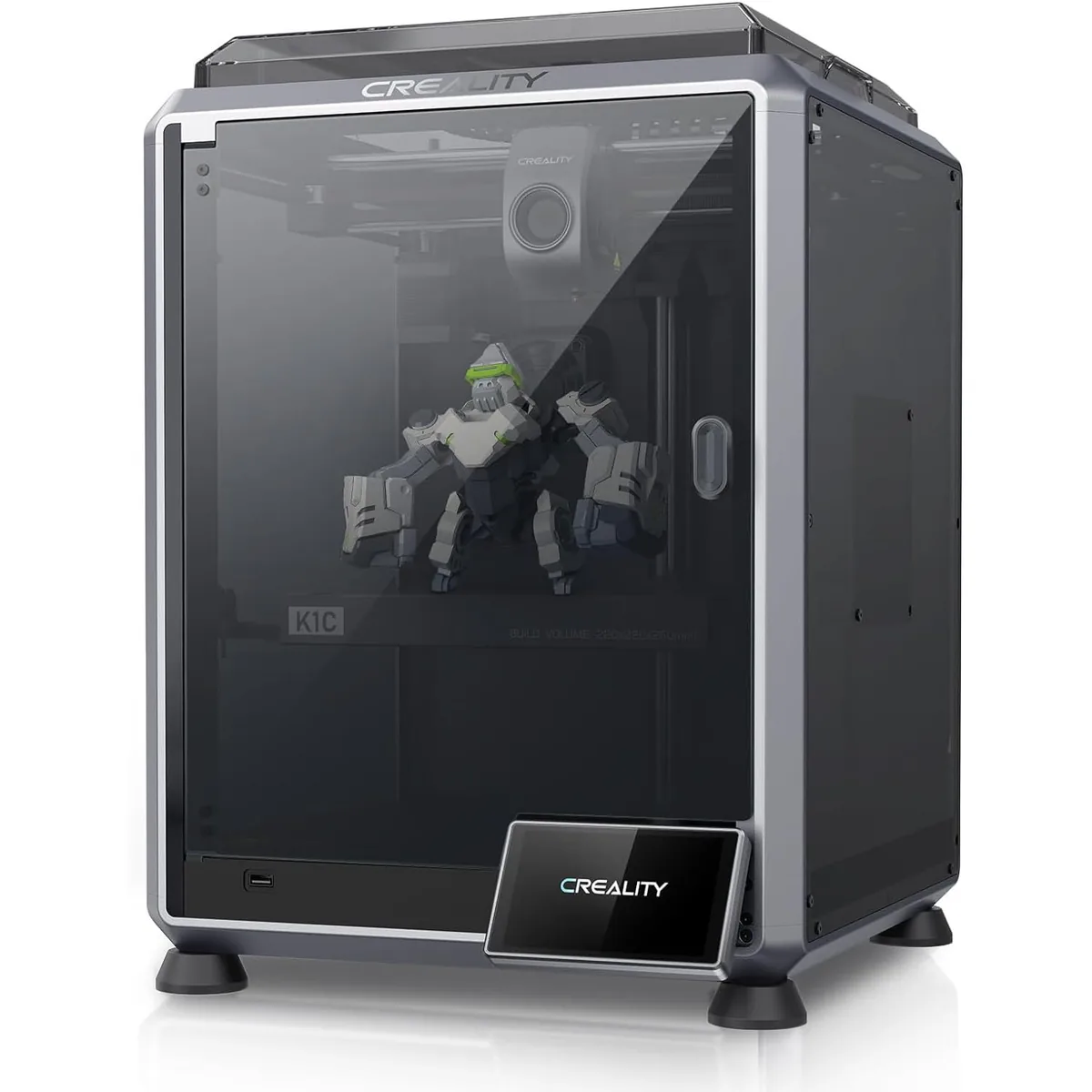
Creality K1C Carbon Fiber 3D Printer
Pros
- Hardened steel tri-metal Unicorn nozzle handles abrasive PA-CF and PET-CF without wear, Integrated AI camera provides automated spaghetti failure detection and time-lapses, 600mm/s CoreXY speed with 20,000mm/s² acceleration, Open-source Klipper-based Creality OS allows custom macros and root access
- “Unicorn” nozzle is hardened steel and copper alloy for abrasive filaments.
- AI-powered failure detection and spaghetti monitoring.
Cons
- Build volume (220x220x250mm) is slightly smaller than Bambu P1S
- Passive chamber relies on bed heat to reach ~48°C
Modern high-speed printers like the K1C rely on advanced firmware features like input shaping and pressure advance. These calculations are done by the slicer and baked directly into the G-code to ensure clean prints at 300+ mm/s. For a deeper dive, check our Bambu Lab P1S vs Creality K1C comparison.
Summary Comparison Table
| Feature | STL | OBJ | 3MF | STEP | G-code |
|---|---|---|---|---|---|
| Type | Mesh | Mesh | Mesh (in a ZIP package) | Parametric (B-Rep) | Machine Instructions |
| Stores Geometry | Yes (Triangles only) | Yes (Polygons) | Yes (Advanced Mesh) | Yes (Precise Solids) | No (Contains toolpaths) |
| Stores Color | No | Yes (via external.mtl file) | Yes (Natively) | Yes (Basic assignments) | No |
| Stores Units | No | No | Yes (Natively) | Yes (Natively) | N/A (Defined by firmware) |
| Stores Print Settings | No | No | Yes (Can be a full project file) | No | Yes (Defines the settings) |
| Editability | Poor | Poor | Poor | Excellent (in CAD) | Poor (Text-level tweaks only) |
| Typical Use Case | Legacy file sharing | 3D graphics, basic color models | Slicing, sharing print projects | CAD design, engineering, archiving | Sending the job to the 3D printer |
How to Choose a Desktop 3D Printer
File compatibility shouldn’t limit your hardware choices. When selecting a desktop 3D printer, evaluate whether the bundled slicer natively supports 3MF and direct STEP import.
Desktop 3D Printer Comparison Chart
Understanding format capabilities helps you evaluate machine specifications accurately. Reviewing a desktop 3D printer comparison clarifies which models leverage advanced slicer features through 3MF workflows.
A Practical Workflow for Makers
Stop thinking about which file is “best.” Start thinking about which file is right for the stage of your project.
-
If you are downloading a model to print:
- Look for a 3MF file first. It’s less likely to have scale or geometry errors.
- If only an STL is available, download it. Inspect it carefully in your slicer for any visual defects before you commit to a print.
-
If you are designing a functional part in CAD:
- Save your native CAD file (e.g.,
.f3dfor Fusion 360). This is your true source. - Export a STEP file. This is your master archive for collaboration or future editing.
- Export a 3MF file. This is what you will bring into the slicer for printing.
- Save your native CAD file (e.g.,
-
If you are creating a multi-color model:
- Assign your colors to the different bodies or faces in your CAD program.
- Export directly to 3MF. This format will preserve all your color assignments for slicers like Bambu Studio or PrusaSlicer. An STL will discard them.
-
If you are sharing a complete, ready-to-print project:
- Set up the model in your slicer: orient it, add supports, and dial in your print settings.
- Use “Save Project As…” and save it as a 3MF. Anyone you send it to can open it and get the exact same slice results without having to configure anything.
Choosing the right format is a simple, practical step that eliminates a huge number of common printing headaches. It lets you focus on the important things, like tuning your temperatures and getting that perfect first layer. You can reference additional 3D printing workflow guides to refine your preparation process.