
You’ve unboxed your printer, run a few test prints, and now you want to move beyond the pre-sliced files. You want control. This guide gives you that control. We are going to break down the core settings that define every Fused Deposition Modeling (FDM) print: layer height, nozzle size, walls, and infill.
Mastering these four parameters is the key to printing anything. You can dial in a part for beautiful surface quality, create a bracket that withstands mechanical stress, or produce a prototype at maximum speed. It’s a balancing act. Every setting is a trade-off. Let’s get our hands dirty and learn how to make the right choices for your project.
The Foundation: Nozzle Diameter and Layer Height
Everything starts at the hotend. The nozzle diameter and the layer height you choose are the absolute foundation of your print’s resolution, speed, and integrity.
Nozzle Diameter: The Gatekeeper of Filament
The nozzle diameter is the physical aperture through which molten plastic is extruded. The standard on almost every consumer printer is 0.4mm. It offers a great compromise between detail and print speed.
- Smaller Nozzles (0.2mm, 0.25mm): These are for high-detail work like miniatures or jewelry. They produce incredibly fine lines, making layer lines almost invisible. The trade-off is a massive increase in print time and a higher risk of clogs, especially with filaments containing particles (wood, carbon fiber, glow-in-the-dark).
- Larger Nozzles (0.6mm, 0.8mm, 1.0mm): These are for speed and strength. A 0.6mm nozzle can lay down significantly more material than a 0.4mm one. This is perfect for large functional parts, jigs, and rapid prototypes where fine surface detail is not the priority. The wider extrusion lines create stronger layer adhesion, resulting in tougher parts.
Workshop Rule: A 0.6mm nozzle is one of the best upgrades for any printer. It can cut print times by 30-50% for many functional parts with a minimal loss of perceived quality. You just need to increase your hotend temperature by 5-10°C to handle the higher volumetric flow.
Layer Height: The Z-Axis Resolution
Layer height is the thickness of each individual plastic layer. This is arguably the most famous slicer setting because its effect is so visible.
- Low Layer Height (0.08mm - 0.12mm): This gives you the best surface quality. Curves are smoother and the “stair-stepping” effect on sloped surfaces is minimized. You get beautiful prints. The cost is time. A lot of time. Halving the layer height nearly doubles the print time. These settings can drastically reduce the need for steps described in 3D Print Finishing: A Practical Post-Processing Guide.
- Standard Layer Height (0.16mm - 0.20mm): This is the sweet spot for most prints with a 0.4mm nozzle. It offers a good balance of detail and speed. Most of your day-to-day printing will happen here.
- High Layer Height (0.24mm - 0.32mm): This is for fast draft prints. The layer lines will be very obvious, but the part will print incredibly quickly. This is ideal for checking fit and function before committing to a long, high-quality print.
Workshop Rule: Your layer height should never exceed 75% of your nozzle diameter. For a 0.4mm nozzle, the practical maximum is 0.3mm. For a 0.6mm nozzle, it’s 0.45mm. Pushing beyond this limit leads to poor layer adhesion and weak, brittle parts. The layers just don’t get squished together properly.
Before you even touch these settings, make sure your filament is dry. Wet filament will pop and sizzle as it exits the nozzle, creating a weak and porous extrusion that ruins surface finish and layer adhesion. No amount of slicer tuning can fix it.
A dedicated filament dryer like the Creality Space Pi is a non-negotiable tool. Running a spool of PETG or Nylon through a 4-6 hour drying cycle at 65°C can be the difference between a failed print and a perfect one.
The Structure: Walls and Top/Bottom Layers
If the nozzle and layer height are the foundation, walls are the literal and figurative structure of your print. Infill gets a lot of attention, but walls are far more important for part strength.
Wall Count (Perimeters)
Walls, or perimeters, are the outlines of your model on each layer. The slicer traces the exterior and interior shapes of your part with a specific number of lines before it fills the inside.
- 2 Walls: This is a standard setting for decorative objects that won’t see any stress. It’s fast and uses less material.
- 3-4 Walls: This is a robust setting for general-purpose parts. It provides a good amount of strength and rigidity without a huge time penalty. For a functional part, 3 walls is my absolute minimum.
- 5+ Walls: Use this for mechanically stressed parts. Brackets, gears, and mounting plates benefit from a high wall count. The strength gained by adding a 4th or 5th wall is far greater than the strength gained by increasing infill from 20% to 50%.
Workshop Rule: When printing threads or parts that need to be tapped, increase your wall count significantly. With 5-6 walls, you can often drill and tap the plastic directly, creating surprisingly strong threads. These principles are explored further in Design for 3D Printing: Walls, Holes, and Overhangs. For precise clearance guidelines, consult Dimensional Accuracy, Tolerances, Fits, and Threads.
Top and Bottom Layers
These are the solid layers that form the “skin” of your part’s top and bottom surfaces. Too few, and you’ll see the infill pattern through the top surface (an effect called “pillowing”).
- 3-4 Layers: This is often insufficient, especially with lower infill percentages. You’ll likely see gaps or pillowing.
- 5-6 Layers: A solid baseline. This ensures a smooth, fully closed top surface for most prints with layer heights around 0.2mm.
- 7+ Layers: If you are using a very low layer height (e.g., 0.12mm) or a very large nozzle (e.g., 0.8mm), you may need more top layers to build up a solid surface.
Workshop Rule: A good rule of thumb is to have a total top/bottom thickness of at least 0.8mm to 1.2mm. So for a 0.2mm layer height, you need 4-6 top layers (0.2mm * 5 = 1.0mm). For a 0.3mm layer height, 3-4 top layers might be enough (0.3mm * 4 = 1.2mm).
The Core: Infill Percentage and Pattern
Infill is the internal support structure printed inside your model. It’s often misunderstood. Higher infill does not always mean a proportionally stronger part.
Infill Percentage
This setting, from 0% to 100%, determines how much of the inside of your part is filled with plastic.
- 0-10%: For purely cosmetic models. This is basically a hollow shell and is very weak. Use this for display pieces only.
- 15-25%: The workhorse range. This provides excellent internal support for top layers and adds significant rigidity to the part without consuming too much time or material. Most functional parts live happily here.
- 30-50%: For parts that need to be heavy or resist crushing forces. The strength gains start to diminish rapidly in this range.
- 51-100%: Rarely necessary. The increase in print time, material cost, and internal stress is huge, with very little practical strength benefit over a part with more walls and 50% infill. A 100% infill part is often weaker than a properly injection-molded part due to the nature of FDM layer lines.
Infill Pattern
The shape of the internal structure matters. Modern slicers like PrusaSlicer, Bambu Studio, and Cura offer dozens of patterns. Here are the most useful ones:
- Grid: Fast to print, good rigidity. Its main weakness is that the nozzle crosses over itself at intersections, which can cause noise and artifacts.
- Lines / Rectilinear: The fastest pattern. Great for prints where infill is just there to support top surfaces. Offers very little strength.
- Gyroid: My personal favorite. It’s a 3D wave pattern that provides good, uniform strength in all directions. It prints relatively quickly and without the nozzle crossing over itself, making it quiet. It’s the best all-around pattern.
- Cubic / Adaptive Cubic: These patterns concentrate infill density closer to the walls of the part, saving material in the center where it’s less needed. Excellent for functional parts.
Slicer Settings Decision Framework
Stop guessing. Use this framework to choose your settings.
| Setting | For Max Detail (Miniatures) | For Balance (General Parts) | For Max Strength (Functional) | For Max Speed (Prototypes) |
|---|---|---|---|---|
| Nozzle | 0.25mm | 0.4mm | 0.6mm | 0.6mm or 0.8mm |
| Layer Height | 0.08mm - 0.1mm | 0.16mm - 0.2mm | 0.24mm | 0.3mm - 0.45mm |
| Walls | 2 | 3 | 4 - 6 | 2 |
| Top/Bottom Layers | 6 - 8 | 5 - 6 | 6 - 7 | 3 - 4 |
| Infill % | 10% | 15% | 20-40% | 10% |
| Infill Pattern | Lines | Gyroid | Gyroid / Cubic | Lines / Lightning |
This framework is a starting point. High-speed CoreXY printers can push these boundaries, especially on speed. A machine built for performance can lay down a 0.2mm layer with 3 walls and 15% gyroid infill at speeds that would shake a lesser printer apart. Reviewing a Desktop 3D Printer Comparison Chart can help identify machines capable of these aggressive profiles.
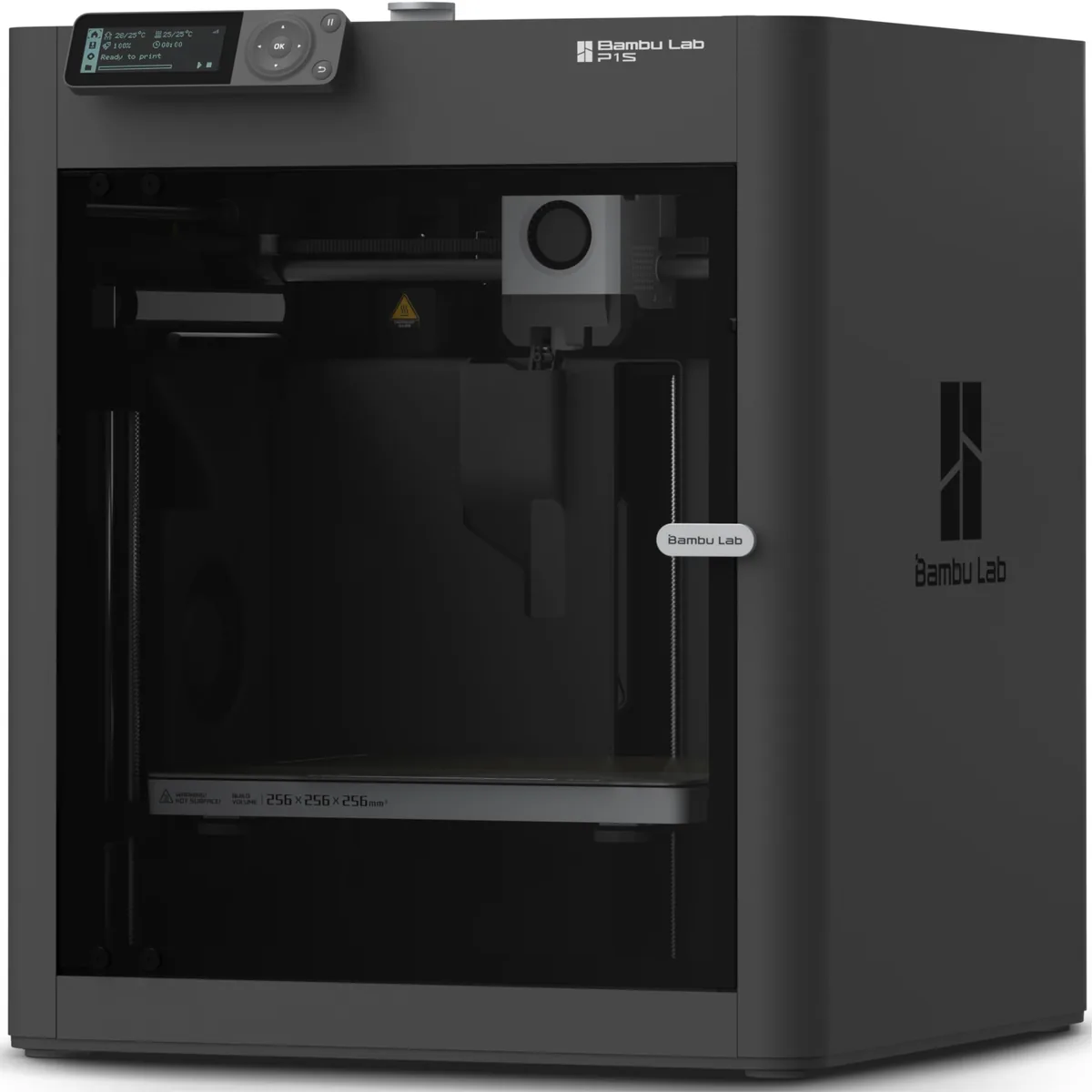
Bambu Lab P1S Enclosed 3D Printer
Pros
- Fully enclosed CoreXY chassis with auxiliary cooling fan, Smooth multi-color / multi-material integration with Bambu AMS, Reliable out-of-the-box first layers with dual automated bed leveling, Active vibration compensation and belt tension monitoring
- Enclosed chamber is great for ABS and ASA
- Excellent print quality with minimal tuning
Cons
- Proprietary closed ecosystem
- Chamber is passively heated by the bed rather than a dedicated PTC heater
- Upgrading to hardened nozzle for carbon fiber requires separate swap
The Bambu Lab P1S is a prime example of modern hardware enabling aggressive slicer profiles. Its rigid CoreXY motion system and input shaping allow it to print cleanly at very high speeds, making the trade-off between speed and quality much less severe. You can get prints in 4 hours that might take 12 hours on an older bed-slinger, using the exact same settings.
Putting It All Together: A Practical Example
Let’s say you need to print a mounting bracket for a shelf. This is a functional part that needs to be strong.
- Goal: Strength and reliability. Speed is secondary, perfect detail is not needed.
- Nozzle Choice: 0.6mm. It will create thicker, stronger lines and print faster.
- Layer Height: 0.24mm to 0.3mm. A thicker layer height for speed and strength.
- Walls: 5. This is critical. The walls will provide the majority of the part’s resistance to bending and shear forces.
- Top/Bottom Layers: 6. This ensures the mounting holes are solid and the surfaces are robust.
- Infill: 25% Gyroid. This provides excellent internal support and resistance to crushing without wasting tons of material.
By making these deliberate choices, you create a part that is optimized for its purpose. For a deeper dive into these techniques, read our Guide to Designing Strong Functional 3D Printed Parts. You’ve used your slicer as a powerful engineering tool, not just a “make it 3D” button. Tinker with these settings, run some tests, and you’ll soon develop an intuition for how to get the exact print you need, every single time. Explore our other 3D Printing Guides for more techniques.