
Your 3D print just snapped. Again. That bracket you designed to hold a shelf, the custom gear for your workshop project, or the replacement clip you were so proud of. It failed right at the layer lines, or a sharp corner sheared straight off.
This is a common story. A 3D printer isn’t a magic box that spits out parts with the same properties as a solid, injection-molded equivalent. Fused Deposition Modeling (FDM) parts are anisotropic. Their strength is not uniform in all directions.
The good news is that you can design and print parts that are incredibly strong. You just have to understand the rules of the game. This is about thinking like a mechanical engineer and a machinist, not just a modeler. This guide covers the core principles: from part orientation and geometry in your CAD software to the specific slicer settings that make the difference between a prototype and a permanent fix.
The Anisotropic Truth: Master Your Print Orientation
The single most important factor for strength is print orientation. Your print is a stack of fused layers. The bond between individual layers (along the Z-axis) is always the weakest link.
Imagine a simple hook. If you print it standing up, the layers are stacked vertically. When you hang weight on the hook, the force pulls these layers apart. This is called tensile stress along the Z-axis, and it’s where prints love to fail. Your part’s Z-axis strength might only be 30-50% of its strength in the XY plane.
The Rule: Always orient your part so that the primary tensile and shear forces are applied parallel to the print bed, along the XY axes.
Let’s break this down:
- Tensile Strength (Pulling): If a part is going to be pulled, orient it so the pull is happening along the length of the extruded lines, not pulling the layers apart.
- Shear Strength (Slicing): If a force tries to slice through the part, orient it so the force has to cut through the plastic itself, not just pop the layers apart like a deck of cards.
Before you even think about slicing, load your STL into your slicer and ask: “Where will the force be applied?” Rotate the model until the layer lines are best positioned to resist that force.
Geometry is King: Designing for Strength in CAD
Strength starts in your design software, long before you heat up the nozzle. A few simple geometric changes can multiply the durability of your part.
Kill Sharp Corners with Fillets
Sharp internal 90-degree corners are massive stress concentrators. When a part is under load, the stress flows through it like water. A sharp corner creates an eddy, a point where stress builds up until it exceeds the material’s strength. Then, crack.
The fix is a fillet. A fillet is a rounded internal corner. This simple curve gives the stress a smooth path to follow, distributing it over a much larger area.
Actionable Tip: Use a fillet radius that is at least 3 times your intended layer height. For a 0.2mm layer height, a minimum 0.6mm radius is a start, but 2-5mm is often better for distributing serious loads.
Use Chamfers for Holes and Edges
A chamfer is a beveled or angled edge. While fillets are best for internal corners, chamfers are your best friend for bolt holes and external edges.
- For Bolt Holes: A chamfer on the top surface of a bolt hole provides a perfect seat for the head of a countersunk screw. For standard bolts, it helps distribute the clamping force from the bolt head, preventing the top layers from being crushed or splitting.
- For First Layers: Adding a small (0.4-0.8mm) chamfer to the bottom edge of your model can counteract “elephant’s foot,” where the first layer squishes out. This gives you a clean, precise fit.
Add Ribs and Gussets
If you have a long, flat section that is likely to bend or flex, don’t just make it thicker. That’s inefficient and wastes material. Instead, add ribs or gussets.
- Ribs: These are thin walls of material added perpendicular to the bending force. Think of the underside of a plastic storage bin lid. Those thin crossing lines are ribs that provide massive stiffness with minimal material.
- Gussets: These are triangular supports that reinforce a 90-degree joint, like the joint between a wall and a baseplate. They turn a weak corner into a robust, supported structure.
Slicer Settings for Mechanical Parts
Your slicer is the command center. Default profiles are tuned for speed and aesthetics, not mechanical performance. Here are the settings you need to master.
Walls (Perimeters): Your First Line of Defense
Walls are the outer shell of your print. They contribute far more to the part’s overall strength than infill does. For any functional part, the default of 2-3 walls is not enough.
- Standard Prints: 2-3 walls
- Strong Functional Prints: 4-6 walls
- Extreme Load Parts: 8+ walls, or enough to make the part nearly solid.
Increasing your wall count is the single most effective slicer change you can make for a stronger print.
Infill: Density and Pattern Matter
Infill provides internal support and helps the top surfaces print cleanly, but its role in strength is often misunderstood. A part with 6 walls and 25% infill is almost always stronger than a part with 2 walls and 80% infill.
- Density: For functional parts, forget 15-20%. Start at 40% and go up from there. 40-60% is a good range for most brackets and mounts.
- Pattern:
- Gyroid: The best all-around pattern for strength. Its unique 3D curvature provides excellent strength in all directions, especially against compression and shear. It is the standard recommendation for anything that needs to be tough.
- Grid / Cubic: Good, strong, and generally faster to print than Gyroid. Excellent choices for general-purpose functional parts.
- Lines: Only use for parts where the load is purely perpendicular to the line direction. It’s weak in other directions.
Slicer Settings for Strength: A Comparison
| Setting | Standard Profile (e.g., Figurine) | Strong Functional Profile |
|---|---|---|
| Walls/Perimeters | 2-3 | 4-6+ |
| Top/Bottom Layers | 3-4 | 5-6 |
| Infill Density | 10-20% | 40-80% |
| Infill Pattern | Grid / Lines | Gyroid / Cubic |
| Layer Height | 0.12 - 0.2mm | 0.2 - 0.28mm (for better fusion) |
| Print Temperature | Mid-range of filament spec | High-end of filament spec |
| Cooling Fan | 50-100% | 20-50% (or off for ABS/ASA) |
Material Selection: Choosing the Right Plastic
PLA is fantastic, but it’s not the answer for every problem. It’s stiff and strong but also very brittle. It shatters under impact and deforms in a hot car.
- PETG: The workhorse. It’s tougher and more temperature-resistant than PLA. It has a bit of flex, which allows it to absorb impacts that would shatter PLA. It requires a dry environment, as it’s hygroscopic (absorbs moisture).
- ABS/ASA: The engineering standards. Both offer high temperature and UV resistance (especially ASA). They are very tough and can be solvent-welded for even stronger assemblies. The catch? They require an enclosed printer to prevent warping and to manage fumes. A machine with a heated chamber is even better.
- Nylon and Composites (PC-CF, PA-CF): The top tier. These are for when you need maximum performance. They offer incredible strength, stiffness, and temperature resistance. They are extremely hygroscopic and absolutely require a filament dryer. They can also be abrasive, requiring a hardened steel nozzle.
To print temperature-sensitive materials like ABS and ASA reliably, an enclosed printer is non-negotiable. It maintains a stable, warm environment around the part, preventing layer splitting and warping.
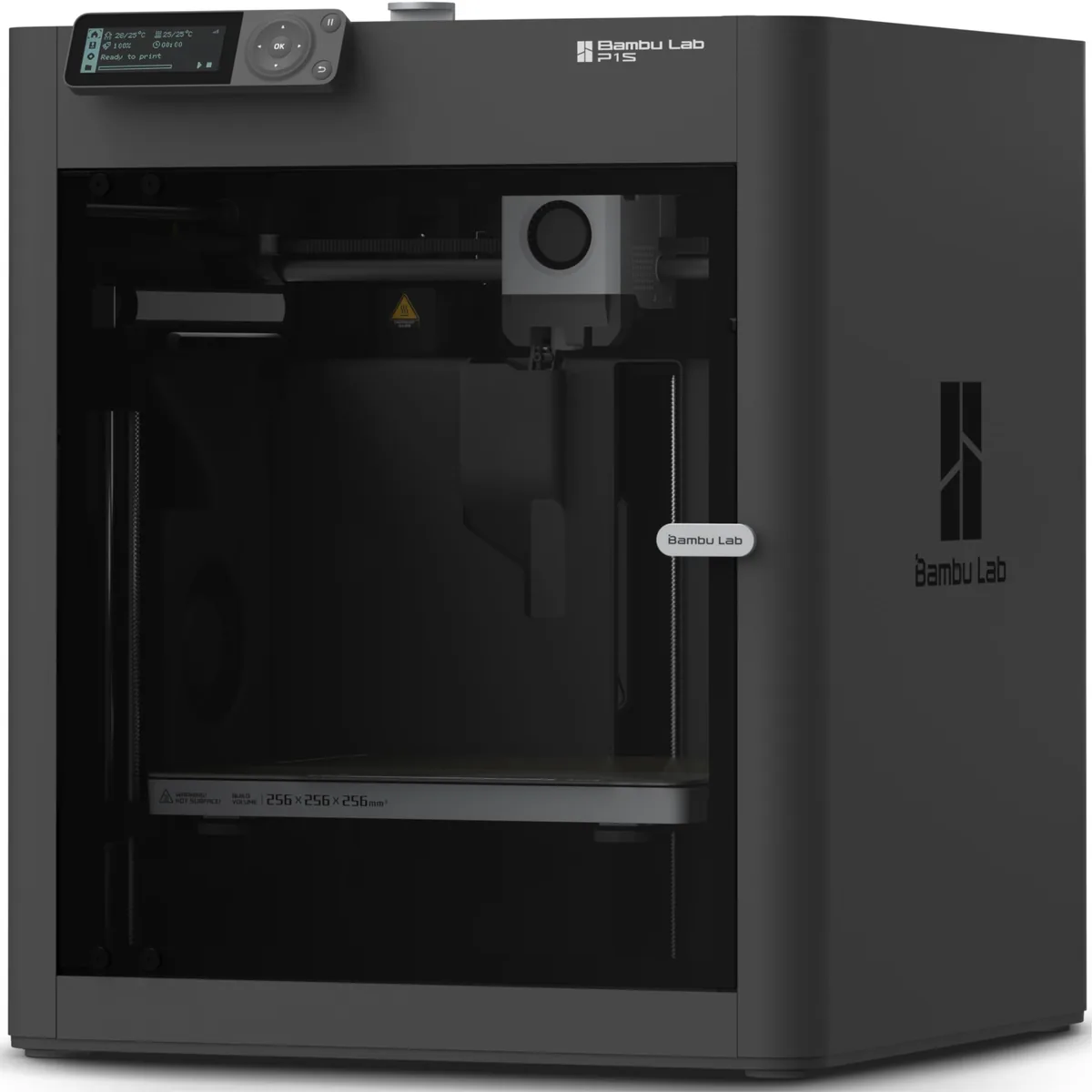
Bambu Lab P1S Enclosed 3D Printer
Pros
- Fully enclosed CoreXY chassis with auxiliary cooling fan, Smooth multi-color / multi-material integration with Bambu AMS, Reliable out-of-the-box first layers with dual automated bed leveling, Active vibration compensation and belt tension monitoring
- Very fast and reliable out of the box.
- AMS allows for multi-color or multi-material prints.
Cons
- Proprietary closed ecosystem
- Chamber is passively heated by the bed rather than a dedicated PTC heater
- Upgrading to hardened nozzle for carbon fiber requires separate swap
For materials like PETG, Nylon, and any carbon fiber composite, keeping them dry is critical. Wet filament boils as it exits the nozzle, creating steam bubbles in your print. This results in weak layer adhesion, stringing, and a brittle final part. A dedicated filament dryer is an essential piece of workshop gear.
Test, Break, and Iterate
The final step is the most important: test your parts to failure. You can’t be sure a part is strong until you find its breaking point.
- Print It: Use the orientation, geometry, and slicer settings you’ve chosen.
- Abuse It: Put it in a vise. Clamp it to your workbench. Stand on it (carefully!). Use wrenches and weights to apply force where it will see it in the real world.
- Analyze the Failure: Where did it break?
- Clean snap between layers? A Z-axis weakness. Try re-orienting the part or increasing print temperature for better layer fusion.
- Crack originating from a sharp corner? You need a bigger fillet.
- Part bent and deformed? It needs more stiffness. Add ribs, increase the wall count, or switch to a stiffer material like a carbon fiber composite.
Document your settings and the results of your break tests. This iterative process of designing, printing, breaking, and analyzing is how you develop an intuition for creating truly robust functional parts. It also helps you understand what to look for in a 3D printer for future projects. You can easily evaluate different models using a 3D printer spec comparison. Find more techniques in our desktop 3D printing guides components.