
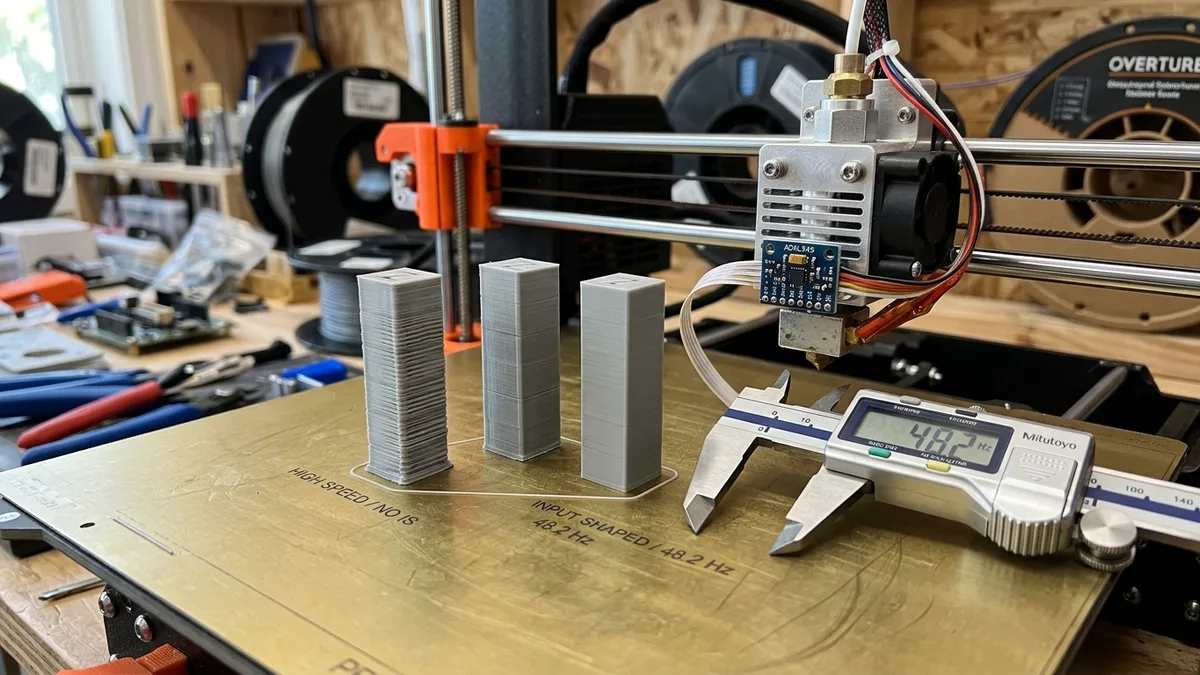
Tuning Input Shaping and Pressure Advance in Klipper involves measuring resonance with an accelerometer and printing a tower model to calibrate filament flow, eliminating ghosting and corner bulges during high-speed printing. This guide explains the physics of failure at speed, how to configure Input Shaping to cancel vibration, the steps for Pressure Advance to control flow, and concludes with a high-speed tuning summary. These are physics-based compensation tools. We’re going to break down exactly how to measure your machine’s quirks and tell the firmware how to correct them. Get your digital calipers and your hex keys ready.
The Physics of Failure at Speed
The physics of failure at high print speeds involve intense vibrations and fluid dynamics issues that degrade print quality. When you command a print head to move at 200 mm/s and change direction instantly, things get violent. Two main problems ruin your prints:
-
Vibrational Resonance (Ringing/Ghosting): Your printer’s frame, belts, and gantry have mass and elasticity. When the print head makes a sharp turn, it sends a shockwave through the system. The entire machine rings like a bell, and the nozzle transfers that ringing directly onto your print’s surface. You see this as wavy artifacts or “ghosts” of features like holes and corners.
-
Nozzle Pressure Dynamics (Corner Bulge): Molten filament inside your hotend doesn’t behave like water. It’s compressible and viscous. When the nozzle is extruding on a long straightaway, pressure builds up. As the printer slows down for a corner, this built-up pressure continues to push filament out, creating a telltale bulge. The opposite happens coming out of the corner, leading to underextrusion as the pressure rebuilds.
Input Shaping attacks the ringing. Pressure Advance manages the nozzle pressure. You need both.
Input Shaping: Canceling the Shake
Input Shaping cancels the shake by applying an open-loop control algorithm that tells your printer’s motion system to make tiny counter-movements, neutralizing its own vibrations. To do this, it first needs to know your printer’s specific resonance frequencies. The best way to find them is with an accelerometer.
What You Need
To successfully tune Input Shaping, you need the following hardware and software components:
- A Klipper-based printer: This guide is focused on Klipper’s implementation.
- An ADXL345 Accelerometer: These are cheap and effective. Get one with a proper PCB and connector.
- A Secure Mount: You need to mount the accelerometer rigidly to your print head. Print one from a rigid material like PETG, ABS, or ASA. A wobbly mount gives you garbage data.
- Wiring: You’ll connect the ADXL to your control board or a Raspberry Pi’s GPIO pins. Double-check your board’s pinout diagram.
The Tuning Process
The tuning process for Input Shaping involves these detailed steps:
-
Mechanical Check: Before you even plug in the accelerometer, do a full mechanical shakedown. Tighten every bolt on the frame. Check your belt tension; they should make a low “twang” sound when plucked, not feel sloppy or guitar-string tight. A loose machine will have multiple, chaotic resonant frequencies that are impossible to tune out.
-
Mount the Accelerometer: Securely attach the ADXL345 to your toolhead. The orientation is critical. Ensure the axes of the sensor match the X and Y axes of the printer.
-
Configure Klipper: Add the
[adxl345]and[resonance_tester]sections to yourprinter.cfgfile. Specify the correct SPI or I2C connection pins.[mcu rpi] serial: /tmp/klipper_host_mcu [adxl345] cs_pin: rpi:None [resonance_tester] accel_chip: adxl345 probe_points: 100, 100, 20 # Adjust to be the center of your bed -
Measure Resonance: Heat up your bed to its typical operating temperature (e.g., 60°C for PLA). Heat expansion changes the mechanics slightly. In your Klipper console, run the calibration command:
SHAPER_CALIBRATEThe printer will perform a series of rapid moves along the X and Y axes. This process generates a frequency sweep, and the accelerometer measures the response.
-
Analyze the Results: Klipper will generate CSV files (e.g.,
/tmp/calibration_data_x_...csv) and suggest a shaper for you. For a deeper look, you can use Klipper’s scripts to generate a graph.- What you want to see: A clean graph with one or two distinct, sharp peaks. This shows a rigid machine with clear resonant frequencies.
- What you don’t want to see: A noisy graph with many small peaks. This indicates mechanical issues like a loose belt, a bad bearing, or a wobbly frame. Fix these issues first.
-
Apply and Save: The
SHAPER_CALIBRATEcommand will automatically suggest the best shaper type (likeMZVorEI) and the frequency. To accept the suggestion and save it permanently, run:SAVE_CONFIGThis will add an
[input_shaper]section to yourprinter.cfg.[input_shaper] shaper_freq_x: 55.4 shaper_type_x: mzv shaper_freq_y: 42.6 shaper_type_y: mzvYour values will be different. Now, your printer is actively fighting its own vibrations. You can now safely push your acceleration settings. A well-tuned bedslinger might handle 5000 mm/s², while a rigid CoreXY can reach 15,000-20,000 mm/s².
Pressure Advance: Controlling the Flow
Pressure Advance controls the flow of filament by anticipating pressure buildup inside the nozzle, reducing corner bulges and gaps during speed changes. With ringing eliminated, you’ll notice those ugly corner bulges even more. It tells the firmware to stop extruding just before a corner and then restart extrusion with an extra push just after the corner. This keeps nozzle pressure consistent through speed changes.
The Tuning Process
The tuning process for Pressure Advance requires generating and evaluating a specific test print through these steps:
-
Prerequisites: Your extruder must be perfectly calibrated. This means you must Calibrate E-Steps and Extrusion Multiplier Accurately so you get exactly 100mm of filament when you ask for 100mm. Your hotend PID also needs to be stable.
-
Generate the Tuning Model: Klipper has a built-in tool for this. Use the
TUNING_TOWERcommand to generate G-code for a tall, sharp-cornered square. This model automatically varies the Pressure Advance value as it prints higher.TUNING_TOWER COMMAND=SET_PRESSURE_ADVANCE PARAMETER=ADVANCE START=0 FACTOR=.005This command starts PA at 0 and increases it by 0.005 for every Z-level change. For a Bowden system, you might need a larger factor, like
FACTOR=.02. -
Print the Tower: Slice and print the generated G-code using your target filament and a moderate speed (e.g., 80-100 mm/s). Make sure you have good layer adhesion.
-
Measure and Choose: Let the print finish. Now, closely inspect the corners of the tower.
- At the bottom (low PA), the corners will be rounded and bulged.
- As you go up, the corners will get sharper.
- Too high (at the top), the corners will start to look starved, with gaps or breaks in the line.
You are looking for the “sweet spot” where the corner is sharpest without any defects. Use a digital caliper to measure the height from the bed to that perfect corner.
-
Calculate and Set Your Value: Use this formula to find your PA value:
PA = START + (height_of_best_layer * FACTOR)For our example: if your best layer is at 25mm height, the calculation is
0 + (25 * 0.005) = 0.125.Now, add this value to the
[extruder]section of yourprinter.cfg.[extruder] ... pressure_advance: 0.125 ...Run
SAVE_CONFIGagain. That’s it. Your corners should now be crisp and clean even at high speeds. Remember: different filaments and temperatures require a different PA value. Keep your filaments dry in a good dryer for consistent results.
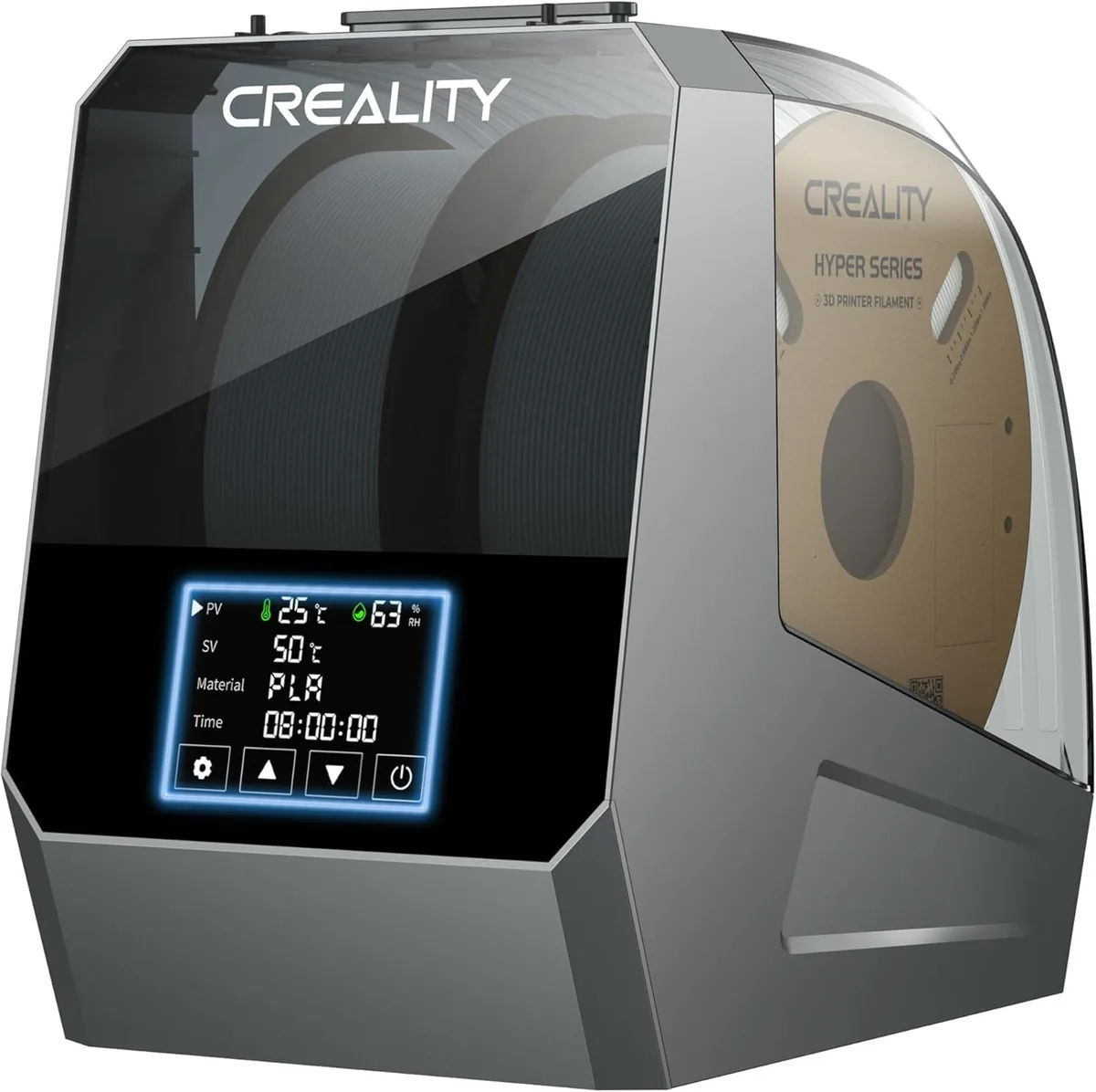
Creality Space Pi Plus Dual-Spool Filament Dryer
Pros
- 160W double PTC heating system warms two 1kg spools simultaneously, Independent roller bearings allow smooth feeding for two separate extruders or AMS Lite, Real-time dual humidity monitoring with automated timer shutoff, Accommodates both 1.75mm and 2.85mm spools
- “PTC heating is safer and more even than simple heating pads.”
- “Presets for common materials take the guesswork out of drying times and temps.”
Cons
- Takes up larger workbench footprint (approx. 315 x 240 x 300 mm)
- Weighs 2.2kg empty
The Easy Way: Automated Systems
Manually tuning these parameters gives you the most control, but many modern printers automate the process.
Printers like the Bambu Lab P1S use a combination of sensors and intelligent firmware to perform these calibrations automatically. The printer has a process to vibrate the toolhead and use motor feedback to measure resonance, setting Input Shaping for you. It also prints a series of test lines on the build plate to auto-calibrate Pressure Advance (what they call “Flow Dynamics”). This makes high-speed printing accessible right out of the box.
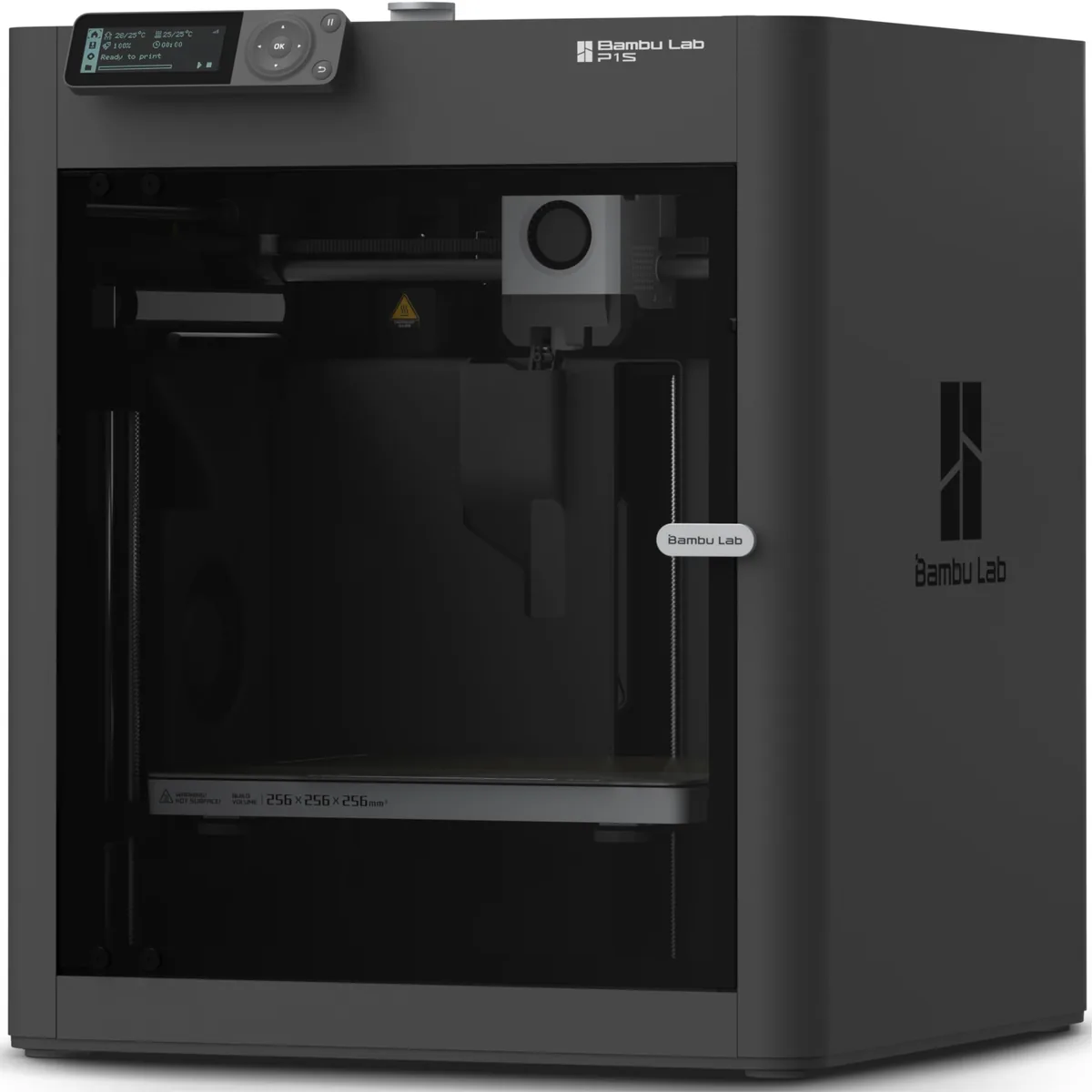
Bambu Lab P1S Enclosed 3D Printer
Pros
- Fully enclosed CoreXY chassis with auxiliary cooling fan, Seamless multi-color / multi-material integration with Bambu AMS, Reliable out-of-the-box first layers with dual automated bed leveling, Active vibration compensation and belt tension monitoring
- “Enclosed design is great for high-temp materials like ABS and ASA.”
- “Optional AMS for multi-color and multi-material printing.”
Cons
- Proprietary closed ecosystem
- Chamber is passively heated by the bed rather than a dedicated PTC heater
- Upgrading to hardened nozzle for carbon fiber requires separate swap
Even with these automated systems, understanding the manual process is invaluable. If your auto-calibrated prints look off, you’ll know that the issue might be a loose belt affecting the resonance measurement, or wet filament skewing the flow dynamics test.
High-Speed Tuning Summary
Getting clean prints at high speed is a systematic process. The wrong order of operations will have you chasing your tail. This table compares baseline print parameters against safe and aggressive high-speed tuning targets.
| Parameter | Baseline (Slow, No Tuning) | Safe High-Speed Target | Aggressive High-Speed Target |
|---|---|---|---|
| Print Speed | 40-60 mm/s | 150-250 mm/s | 300-500+ mm/s |
| Acceleration | 500-1000 mm/s² | 5000-8000 mm/s² | 10000-20000 mm/s² |
| Input Shaper | Off | MZV @ 45-60 Hz | EI @ 70-100 Hz |
| Pressure Advance | 0.00 | 0.02-0.05 (Direct Drive) | 0.04-0.08 (Direct Drive) |
Your printer is a physical system. Master these tuning steps, and you’ll be able to push that system to its absolute limits, turning out strong, beautiful parts in a fraction of the time. Now go make something. Understanding these hardware limits helps you choose a 3D printer that matches your speed goals. Running machines at maximum speed can also increase wear, which factors into 3D printer running costs. A disciplined approach is critical across all maintenance and troubleshooting guides operations.