
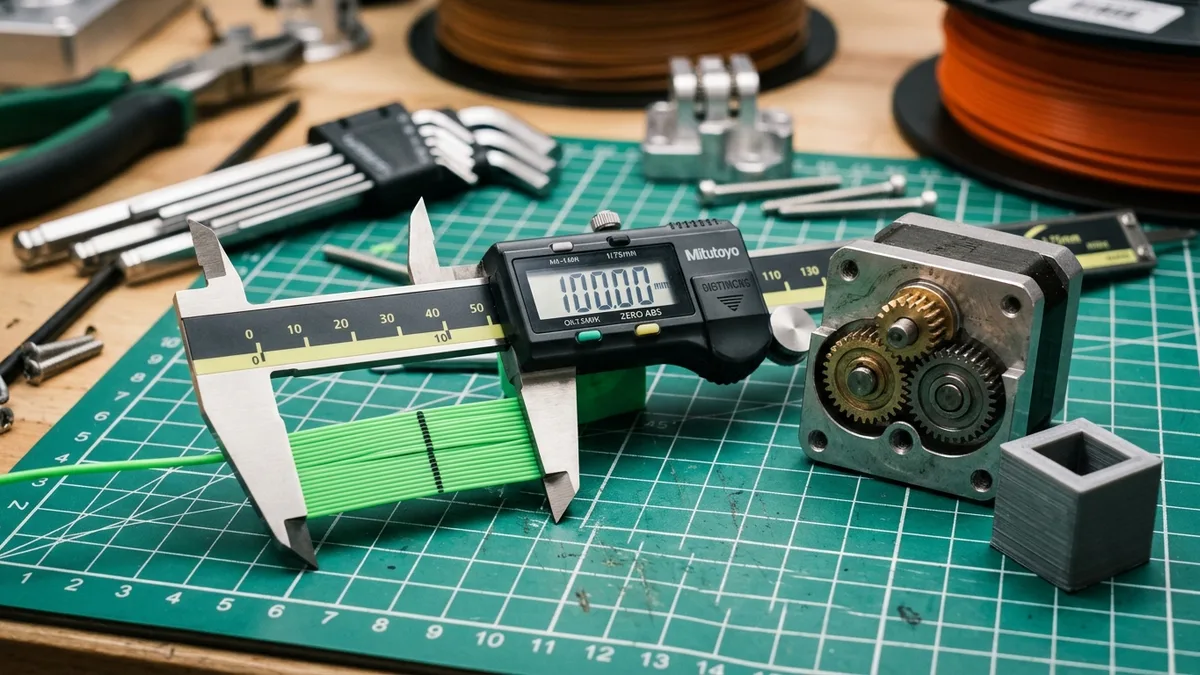
Calibrating E-steps and the extrusion multiplier controls accurate material flow to eliminate poor layer adhesion, inconsistent surface finish, and dimensionally inaccurate parts. Without accurate material flow, prints suffer from poor layer adhesion, inconsistent surface finish, and parts that simply do not fit. Getting these two critical calibrations right transforms a 3D printer into a reliable manufacturing tool.
This guide provides a technical walkthrough for calibrating both settings using standard workshop tools and common G-code commands.
Understanding E-Steps and Extrusion Multiplier
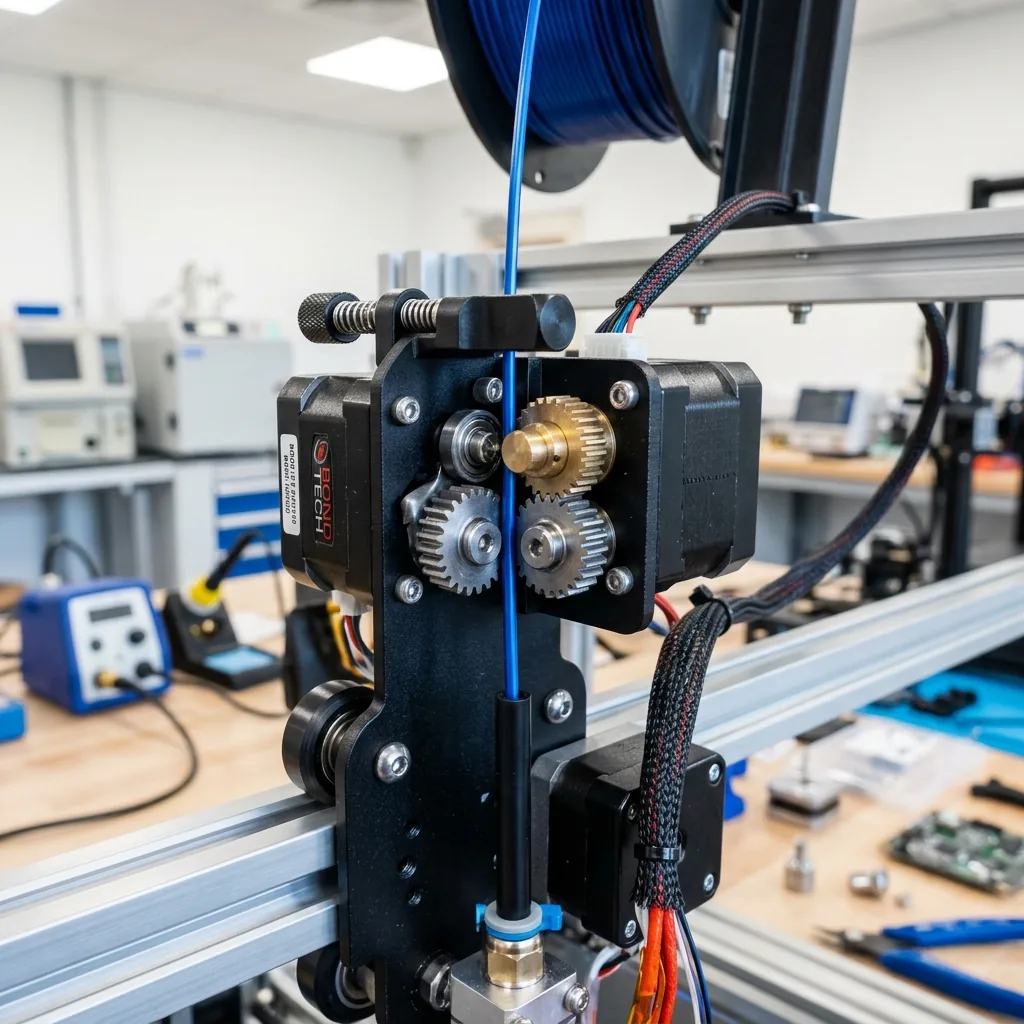
Understanding E-steps and the extrusion multiplier requires defining the mechanical limits of the extruder and the volumetric flow of the slicer.
E-Steps (Extruder Steps Per Millimeter)
E-steps represent the number of motor steps the extruder takes to push exactly 1 millimeter of filament, accounting for stepper motor resolution, gear ratio, and drive gear diameter.
A miscalibrated E-steps value means the printer either pushes too much filament (over-extrusion) or too little (under-extrusion) at the mechanical level, regardless of what your slicer dictates. This is a fundamental machine setting. It should be calibrated once for your extruder assembly, and only re-checked if you change major extruder components like the motor or gears.
Extrusion Multiplier (Flow Rate)
The extrusion multiplier is a slicer setting that fine-tunes the actual volume of plastic exiting the nozzle based on real-world filament properties. It is typically expressed as a percentage or a decimal (e.g., 100% or 1.0). While E-steps deal with the mechanical delivery of filament, the extrusion multiplier handles the actual volume of plastic exiting the nozzle.
Why is this separate? Filament varies in true diameter, density, and how it compresses in the melt zone. A filament specified as 1.75mm might be 1.70mm or 1.78mm. The hot end’s internal geometry and thermal characteristics also affect flow. The extrusion multiplier compensates for these variables. This setting is filament-specific.
Tools Required
The tools required for extrusion calibration ensure precise measurement and accurate firmware communication.
The essential calibration toolkit includes:
- Digital Caliper: Accurate to 0.02mm, essential for precise measurements.
- Ruler or Measuring Tape: For initial filament marking.
- Permanent Marker: To mark the filament.
- Terminal Software: Pronterface, OctoPrint terminal, Repetier-Host, or your printer’s direct control interface (Klipper firmware users interact directly with
printer.cfg). - Small Pliers or Wrench: To remove the Bowden tube, if applicable.
- Single-Wall Calibration Cube STL: Download a standard 20x20x20mm single-wall cube model.
Step 1: Calibrating E-Steps
Calibrating E-steps measures the mechanical accuracy of the extruder to ensure the printer feeds the exact requested length of filament. This is a critical part of FDM Printer Extrusion, Temperature, and Motion Calibration.
Preparation
The preparation sequence for E-steps calibration involves heating the nozzle, disabling steppers, and marking the filament.
The preparation steps are:
- Heat the Nozzle: Heat your hot end to a typical printing temperature for your chosen filament (e.g., 200°C for PLA). Do not heat the print bed.
- Disable Steppers: Send
M18orM84G-code to disable the stepper motors. This allows you to manually push and pull filament. - Extrude Filament: Manually push about 10-20mm of filament through the nozzle to ensure there is no clog and flow is free.
- Mark Filament (Critical for Bowden Systems):
- Bowden Extruders: Disconnect the Bowden tube from the hot end. This removes back pressure during extrusion. If you cannot easily disconnect it, you can leave it connected but understand your measurement may be slightly off. Mark the filament exactly 120mm from the entry point of your extruder.
- Direct Drive Extruders: Mark the filament exactly 120mm from the point where it enters the extruder body.
- Reconnect Tube (if applicable): If you disconnected the Bowden tube, reconnect it.
The Measurement
The measurement process uses relative positioning to extrude exactly 100mm of filament via terminal commands.
The steps to execute the extrusion measurement are:
- Set Extruder Mode: Send
M83G-code. This sets the extruder to relative positioning mode, which is safer for this test. - Extrude 100mm: Use your terminal software to send the command
G1 E100 F60.G1: General movement command.E100: Extrude 100mm of filament.F60: Extrude at a slow feed rate of 60mm/minute (1mm/second) to avoid skipping steps or grinding filament.
- Wait for Extrusion: Allow the extruder to run its course. It might take a minute or two.
- Measure Remaining Filament: Once the extrusion stops, use your digital caliper to measure the distance from the extruder’s entry point to your original mark.
Calculation and Update
The calculation and update phase uses the remaining filament length to determine the new E-steps value and saves it to the firmware.
The formulas and commands to update E-steps are:
- Calculate Extruded Length:
Actual Extruded Length = 120mm (Initial Mark) - Measured Remaining LengthExample: If you measure 21.5mm remaining, yourActual Extruded Length = 120 - 21.5 = 98.5mm. - Calculate New E-Steps Value:
New E-Steps = (Current E-Steps * 100) / Actual Extruded Length- To find your current E-steps value, send
M503(for Marlin) or check your Klipperprinter.cfg. Look for theM92command or thesteps_per_mmparameter under the[extruder]section. Example: If yourCurrent E-Stepswere 93, and yourActual Extruded Lengthwas 98.5mm:New E-Steps = (93 * 100) / 98.5 = 94.416
- To find your current E-steps value, send
- Apply New E-Steps:
- Marlin Firmware: Send
M92 E94.42(round to two decimal places). Then sendM500to save this setting to the printer’s EEPROM. WithoutM500, the setting will revert after a power cycle. - Klipper Firmware: Edit your
printer.cfgfile. Locate the[extruder]section and update thesteps_per_mmvalue:steps_per_mm: 94.416. Save the file and restart Klipper.
- Marlin Firmware: Send
This completes your E-steps calibration. Now, your printer mechanically feeds filament with accuracy.
Step 2: Calibrating Extrusion Multiplier (Flow Rate)
Calibrating the extrusion multiplier fine-tunes the volumetric output of the hot end to match the exact density and diameter of specific filament types.
Preparation
The preparation for flow rate calibration requires printing a single-wall cube with specific slicer settings.
The slicer configuration steps for the calibration cube are:
- Choose Filament: Use the specific filament you intend to calibrate. Filament properties differ.
- Slice a Single-Wall Calibration Cube:
- Load a standard 20x20x20mm single-wall cube STL into your slicer (PrusaSlicer, Cura, etc.).
- Key Slicer Settings:
- Layer Height: 0.2mm (standard for accurate measurement).
- Line Width (Perimeters): Set this explicitly to your nozzle diameter (e.g., 0.4mm for a 0.4mm nozzle).
- Top Layers: 0
- Bottom Layers: 0
- Infill: 0%
- Perimeters/Wall Line Count: 1
- Retraction: Enable your standard retraction settings.
- Print Speed: Use your typical print speed for perimeters (e.g., 50-60mm/s).
- Ensure print cooling is on if your filament requires it (e.g., PLA).
- Print the Cube: Print the single-wall cube. A perfect cube should have precisely one wall thickness.
The Measurement
The measurement process evaluates the actual wall thickness of the printed calibration cube against the target width.
The steps for measuring the single-wall cube are:
- Inspect the Print: The cube should have only side walls, no top or bottom. It will likely be flimsy.
- Measure Wall Thickness: Use your digital caliper to measure the wall thickness at several points (e.g., 5-10 measurements) on all four sides of the cube. Avoid measuring near the corners, which can be inconsistent. Average these readings. Example: Target line width is 0.4mm. You measure: 0.43mm, 0.42mm, 0.44mm, 0.43mm, 0.42mm. The average is 0.428mm.
Calculation and Update
The calculation and update phase determines the final flow percentage required to achieve dimensionally accurate walls.
The formula to calculate the new extrusion multiplier is:
- Calculate New Extrusion Multiplier:
New Extrusion Multiplier = (Target Wall Thickness / Average Measured Wall Thickness) * Current Extrusion MultiplierTarget Wall Thickness: This is your set Line Width in the slicer (e.g., 0.4mm).Current Extrusion Multiplier: This is usually 1.0 (or 100%) by default in your slicer. Example:New Extrusion Multiplier = (0.4 / 0.428) * 1.0 = 0.9345
- Apply New Extrusion Multiplier:
- Go to your slicer’s “Filament Settings” or “Print Settings” and find the “Extrusion Multiplier” or “Flow Rate” setting.
- Enter the new calculated value (e.g., 0.93 or 93%).
- Save this filament profile. Remember, this is specific to this filament.
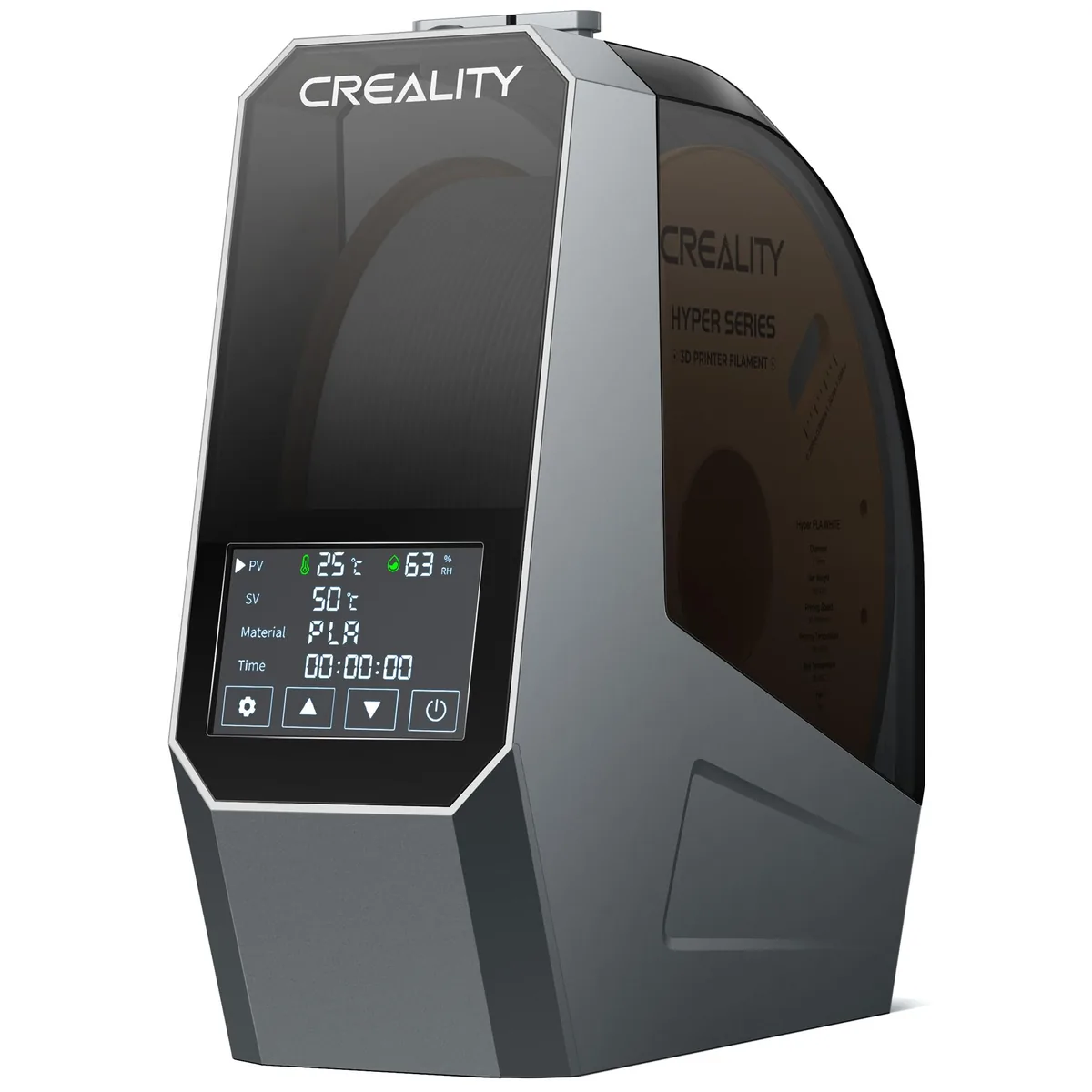
Creality Space Pi Filament Dryer
Pros
- Consistent filament moisture control
- improves print quality
- prevents stringing and brittle prints.
Cons
- Internal fan can be a bit loud.
Refinement and Verification
Refinement and verification confirms the calibration by printing a dimensionally accurate 20x20x20mm solid test cube. A good option is a dimensionally accurate calibration cube (e.g., 20x20x20mm solid cube). Measure its external dimensions with your digital caliper. They should be very close to 20.00mm. If your X and Y dimensions are accurate, but Z is off, you may need to check your Z-steps or lead screw calibration.
For complex models, subtle over-extrusion can accumulate, leading to parts that are slightly too large or internal features that are too small. Consistent dimensional accuracy ensures part fitment and print reliability.
Common Issues and Troubleshooting
Common issues and troubleshooting steps address inconsistent extrusion and mechanical failures during calibration.
The most frequent calibration failures and their solutions are:
- Inconsistent Measurements:
- Filament Snagging: Ensure your filament spool unwinds freely.
- Hot End Issues: A partially clogged nozzle can cause erratic flow. Perform a cold pull.
- Heat Creep: Ensure your hot end cooling fan operates correctly. High temperatures in the cold zone can soften filament prematurely, causing drag.
- Moisture in Filament: Damp filament causes erratic extrusion and dimensional instability. Use a filament dryer.
- Stepper Motor Skipping: If your extruder motor grinds or skips steps during E-steps calibration, increase the
Fvalue (feed rate) slightly, or reduce the extrusion length. Check stepper motor VREF if persistent. - Slicer Discrepancies: Different slicers can handle line width and flow slightly differently. Stick to one slicer for calibration tests.
Calibration Values: Baseline vs. Safe Ranges
The calibration values table compares baseline defaults with safe adjustment ranges to prevent hardware damage.
| Parameter | Baseline (Typical) | Calibrated Example | Safe Adjustment Range | Impact of Error |
|---|---|---|---|---|
| E-Steps | 93-100 steps/mm | 94.42 steps/mm | +/- 5-10% | Incorrect material volume at source |
| Extrusion Multiplier | 1.0 (100%) | 0.93 (93%) | 0.90-1.10 (90-110%) | Incorrect wall thickness, poor layer adhesion |
Decision Framework: When to Calibrate
The decision framework dictates exactly when to recalibrate E-steps versus the extrusion multiplier based on machine changes.
| Scenario | Action Recommended | Details |
|---|---|---|
| New 3D Printer | E-steps, then Extrusion Multiplier | Essential initial setup for any new machine. |
| New Filament Type/Brand | Extrusion Multiplier | Different plastic compounds and manufacturing tolerances require flow adjustment. |
| Changing Extruder Hardware | E-steps, then Extrusion Multiplier | New drive gears or motor will alter the mechanical steps/mm. |
| Observing Dimensional Errors | Re-check E-steps, then Extrusion Multiplier | If objects are consistently too large/small, revisit both calibrations. |
| Poor Layer Adhesion/Surface Finish | Extrusion Multiplier (first), then E-steps | Often related to under/over-extrusion, which the flow rate directly controls. |
| After Firmware Update (Marlin) | Re-check E-steps | Some firmware updates might reset EEPROM. Verify your M503 output. |
Consistent calibration ensures your prints are not merely aesthetic but functionally precise. This is the foundation for successful part manufacturing, especially when fitting multiple components or printing enclosures. Accurate calibration also helps manage the long-term cost of owning a 3D printer. You can see how different brands approach calibration when you compare 3D printer brands and models fairly. Find more guides like this in our 3D printer troubleshooting guides section.
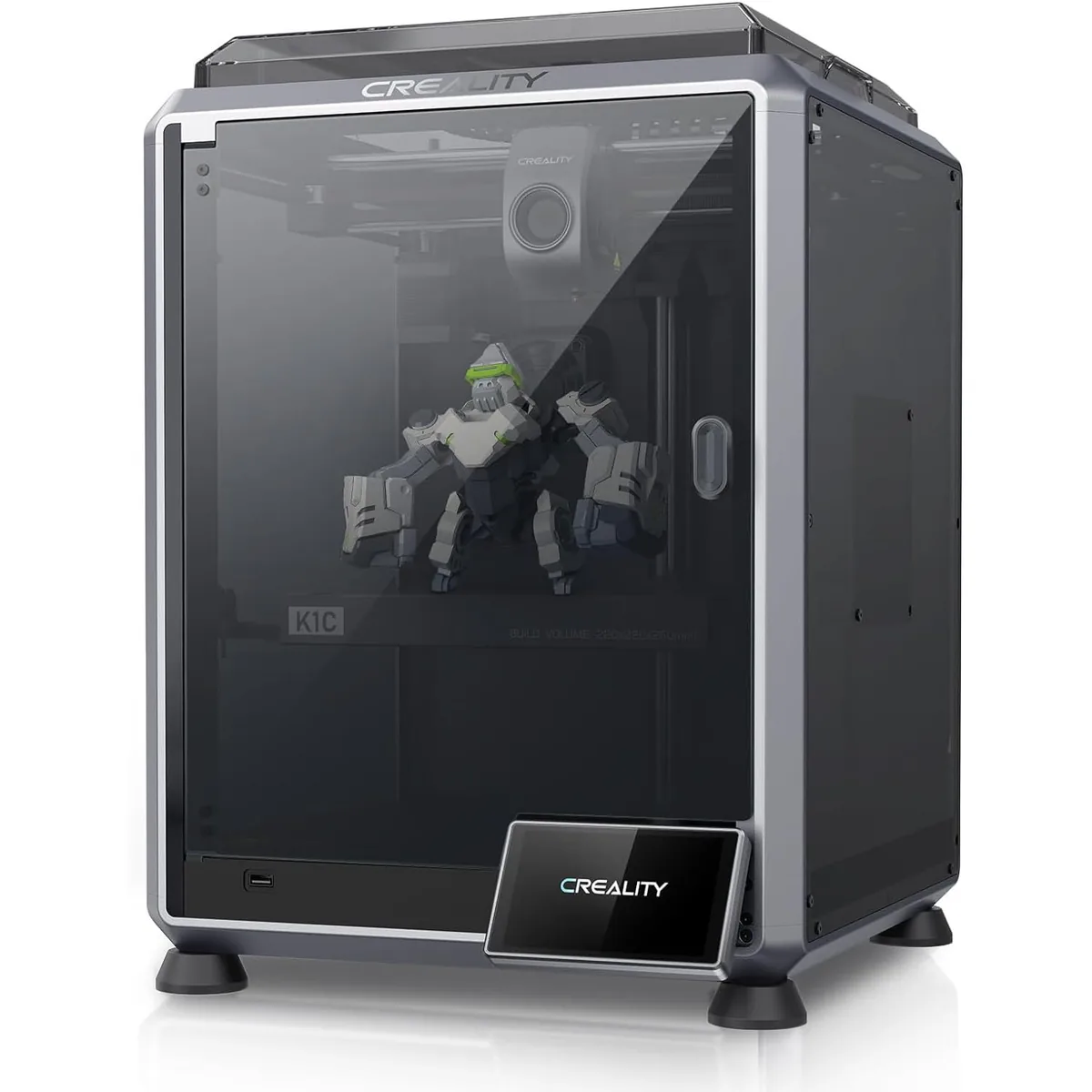
Creality K1C Carbon Fiber 3D Printer
Pros
- Hardened steel tri-metal Unicorn nozzle handles abrasive PA-CF and PET-CF without wear
- Integrated AI camera provides automated spaghetti failure detection and time-lapses
- 600mm/s CoreXY speed with 20
- 000mm/s² acceleration
- Open-source Klipper-based Creality OS allows custom macros and root access
Cons
- Build volume (220x220x250mm) is slightly smaller than Bambu P1S
- Passive chamber relies on bed heat to reach ~48°C