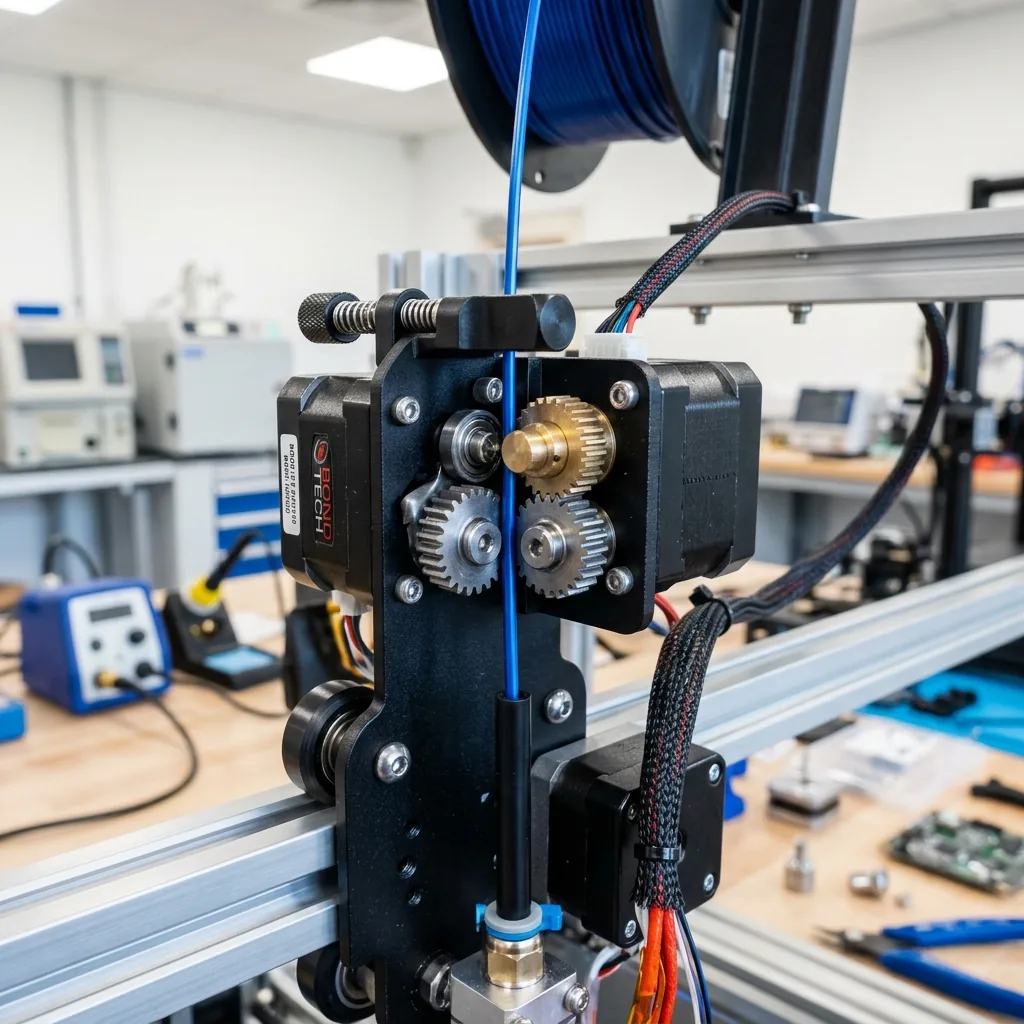
FDM printer calibration requires a methodical sequence of mechanical checks, temperature tuning, flow rate adjustment, and motion system resonance compensation to eliminate inconsistent layers and stringing. Inconsistent layers, stringing, and dimensional inaccuracies are not random events. They are symptoms of a poorly calibrated machine. Calibrating any FDM printer, from a bed-slinger to a high-speed CoreXY, requires a methodical sequence.
The calibration order builds sequentially from hardware to firmware. Each step builds on the last, preventing software adjustments from masking physical problems.
The Calibration Hierarchy: Do This First
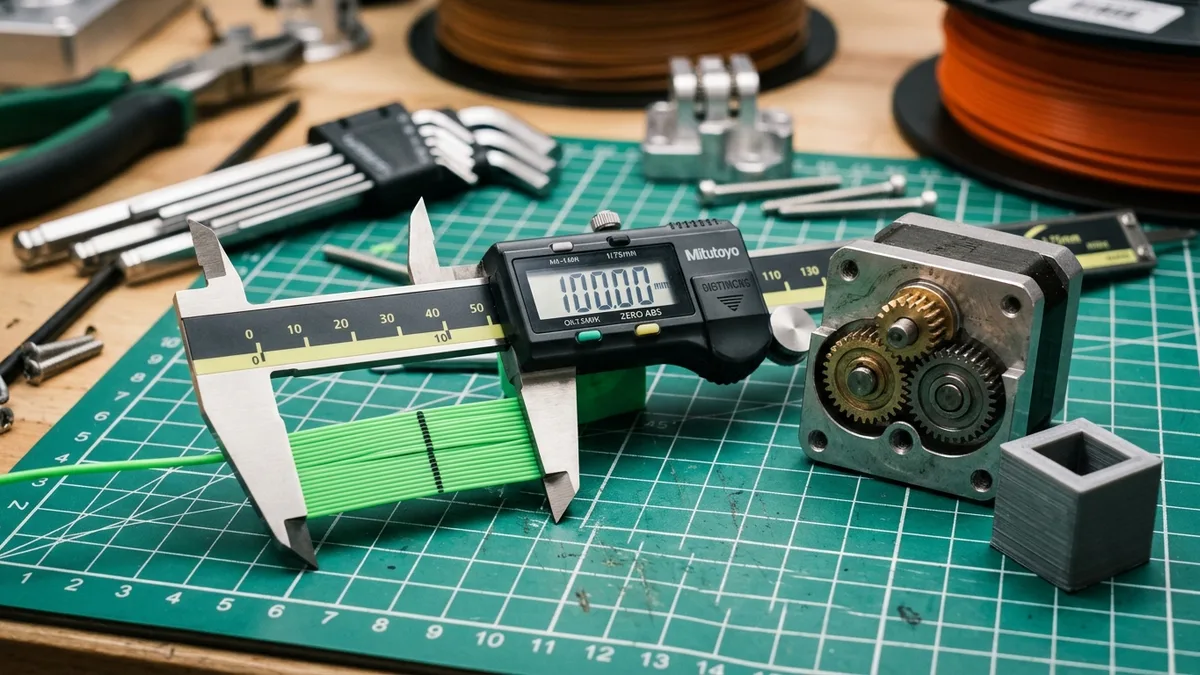
The calibration hierarchy prioritizes mechanical soundness and dry filament before adjusting any slicer settings because software cannot fix physical instability. Everything else depends on it.
Prerequisite 1: Use Bone-Dry Filament
Bone-dry filament prevents the moisture-induced steam, pops, and bubbles that ruin temperature and flow calibration tests. Wet filament is the single biggest source of calibration error.
You cannot “dry out” a roll by leaving it on a shelf. You need a dedicated filament dryer. It maintains a consistent, elevated temperature to actively remove moisture.
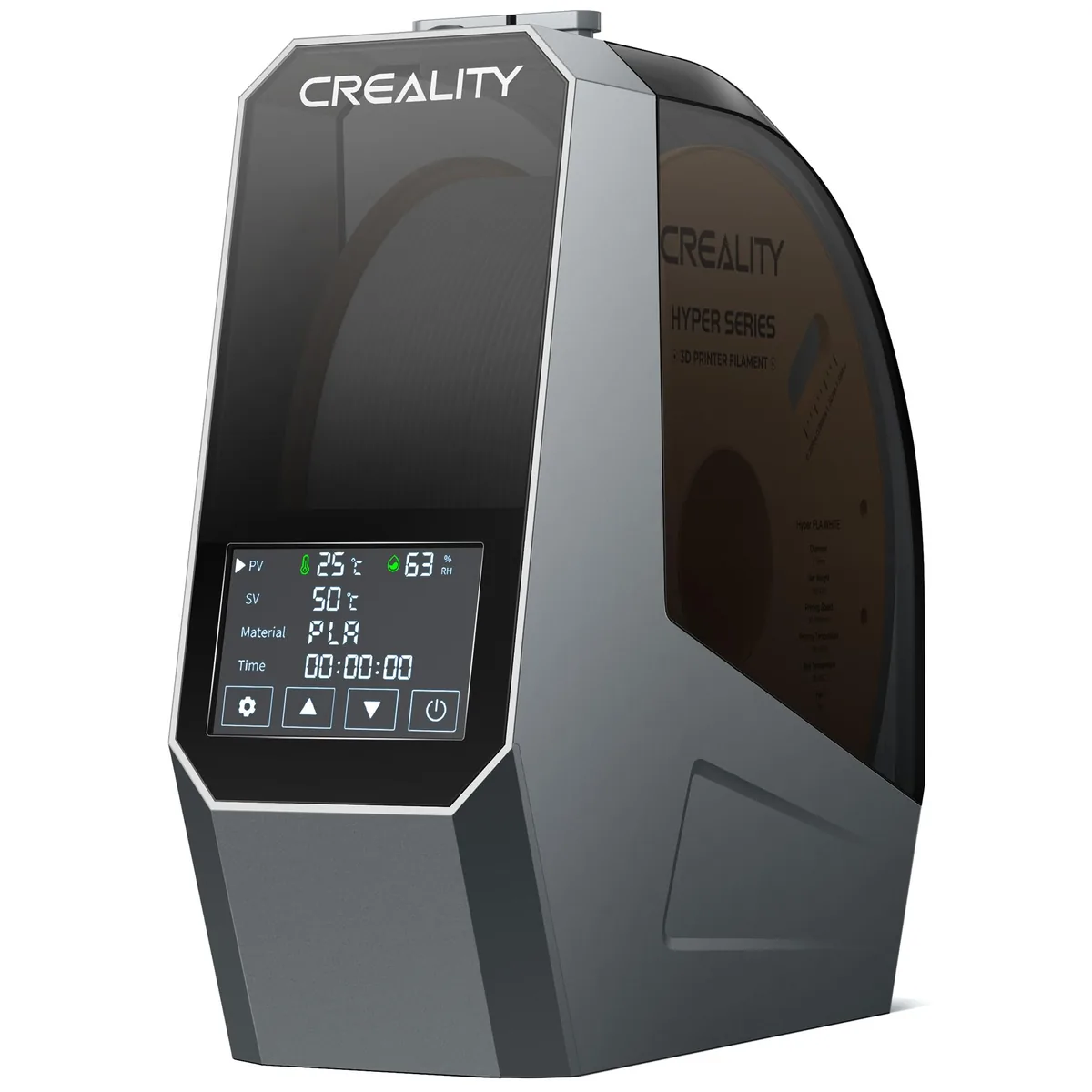
“Creality Space Pi Filament Dryer”
Pros
- “Actively removes moisture, unlike a sealed box.”
- “Adjustable temperature for different materials (PLA, PETG, ABS, TPU).”
- “Feeds directly to the printer during use.”
Cons
- “Only holds a single 1kg spool.”
Dry a fresh spool of PLA for at least 4-6 hours before starting. Don’t guess. Don’t skip it.
Prerequisite 2: Mechanical & Firmware Checks
Mechanical and firmware checks establish a stable platform by securing the frame, tensioning belts, and running PID tuning to prevent temperature swings. Your printer must be a stable platform.
The mandatory mechanical and firmware checks before extrusion calibration are:
- Frame & Gantry Check: Grab the frame. Try to rock it. Tighten every bolt until the structure is rigid. Check the printhead for any wobble on the X-axis rail. Adjust the eccentric nuts until it moves smoothly with zero play.
- Belt Tension: Belts that are too loose cause backlash and ringing (ghosting). Belts that are too tight wear out bearings and motors. They should be tight enough to produce a low “bass note” when plucked. For a more scientific approach, use a frequency tuner app on your phone. Aim for around 110Hz for most GT2 belts on printers like the Ender 3 or similar. CoreXY machines require careful, equal tension on both belts.
- PID Tuning: Your firmware needs to know how to manage your heater cartridge and bed. If you have ever changed your nozzle, heater block, or build surface, you must run a PID tune. Send
M303 E0 S210 C8for the hotend (at a typical PLA temperature) andM303 E-1 S60 C8for the bed. After the process finishes, save the new values withM500. This prevents temperature swings that destroy layer consistency.
With a solid frame, tight belts, and stable temperatures, you are now ready to calibrate the material flow path.
The Extrusion Calibration Cascade
The extrusion calibration cascade requires testing temperature, flow rate, retraction, and pressure advance in sequential order while changing only one variable at a time.
Step 1: Temperature Tower (Finding the Sweet Spot)
A temperature tower identifies the ideal balance of layer adhesion, surface finish, and overhang performance for a specific filament roll. Every filament roll is slightly different, even from the same brand.
The process for printing and analyzing a temperature tower involves:
- Download: Search for “Temperature Tower” on Thingiverse or Printables. Make sure it is compatible with your slicer’s post-processing script feature.
- Slice: Load the model. In your slicer (Cura, PrusaSlicer, OrcaSlicer), find the “Post-Processing Scripts” or equivalent. Add a script to “Change Temperature” at specific layer heights according to the tower’s design (e.g., start at 230°C, then 225°C at layer X, 220°C at layer Y, etc.).
- Print & Analyze: Print the tower with your baseline PLA settings (e.g., 0.2mm layer height, 60mm/s). Once finished, inspect it closely.
- Too hot: Stringy, droopy bridges, glossy finish.
- Too cold: Dull finish, poor layer adhesion (brittle), layer gaps.
- Just right: Strongest layer adhesion (try to break it), best bridging, clean details.
Pick the lowest temperature that still provides excellent layer adhesion and a clean finish. For PLA, this is often between 195°C and 215°C. Note this temperature. You will use it for all subsequent tests.
Step 2: Extrusion Multiplier / Flow Rate
Extrusion multiplier calibration ensures that when the slicer requests a specific volume of plastic, the extruder pushes out the exact amount by compensating for filament diameter variations. Most modern printers have well-calibrated E-steps from the factory, so calibrating the Slicer Flow/Extrusion Multiplier is sufficient.
The procedure for calibrating the extrusion multiplier using a flow cube is:
-
Download: Find a “Flow Calibration Cube” or “Hollow Cube” model. A simple 20mm x 20mm x 20mm hollow cube with a single wall (or two walls, for consistency) is perfect.
-
Slice: In your slicer, set the following:
- Layer Height: 0.2mm
- Top Layers: 0
- Infill: 0%
- Wall/Perimeter Count: 1 (or 2, but be consistent)
- Wall Width/Extrusion Width: 0.4mm (assuming a 0.4mm nozzle)
-
Print & Measure: Print the cube at the temperature you found in Step 1. Use a high-quality digital caliper to measure the thickness of the wall. Take several measurements on each side and average them.
-
Calculate & Adjust: Use this formula to find your new flow rate:
(Expected Wall Thickness / Actual Average Wall Thickness) * Current Flow Rate = New Flow RateExample: Your nozzle is 0.4mm, so you expect a 0.4mm wall. You measure an average of 0.43mm. Your current flow is 100% (or 1.0).
(0.40 / 0.43) * 100 = 93.0Your new Flow Rate is 93%. Enter this value into your slicer’s filament profile and save it. Print the cube again to verify the wall is now very close to 0.40mm.
Step 3: Retraction Tuning
Retraction tuning pulls filament back before travel moves to prevent oozing and stringing, with values depending heavily on the extruder type.
The primary extruder configurations affecting retraction are:
- Direct Drive: The extruder is mounted directly on the printhead. Retraction distance is short and fast. (e.g., AnkerMake M5C, Prusa MK4)
- Bowden: The extruder is mounted on the frame, pushing filament through a long PTFE tube. Requires longer retraction distances to account for slack in the tube. (e.g., Creality Ender 3)
The steps for tuning retraction distance and speed include:
- Download: Get a “Retraction Test” or “Stringing Test” model. These typically print two small towers with rapid travel moves between them.
- Slice & Print: Use a script or print multiple versions of the model, changing only one retraction setting at a time.
- Retraction Distance: Start with a baseline (e.g., 0.8mm for direct drive, 4mm for Bowden). Print tests increasing the distance in 0.2mm (DD) or 0.5mm (Bowden) increments. Find the lowest distance that eliminates stringing. Too much distance can cause clogs.
- Retraction Speed: Once the distance is set, test speed. Start around 35-40 mm/s. Test in 5 mm/s increments. Too slow won’t be effective. Too fast can grind the filament.
Modern high-speed printers often have well-tuned default profiles, but a quick test is always wise for a new filament.
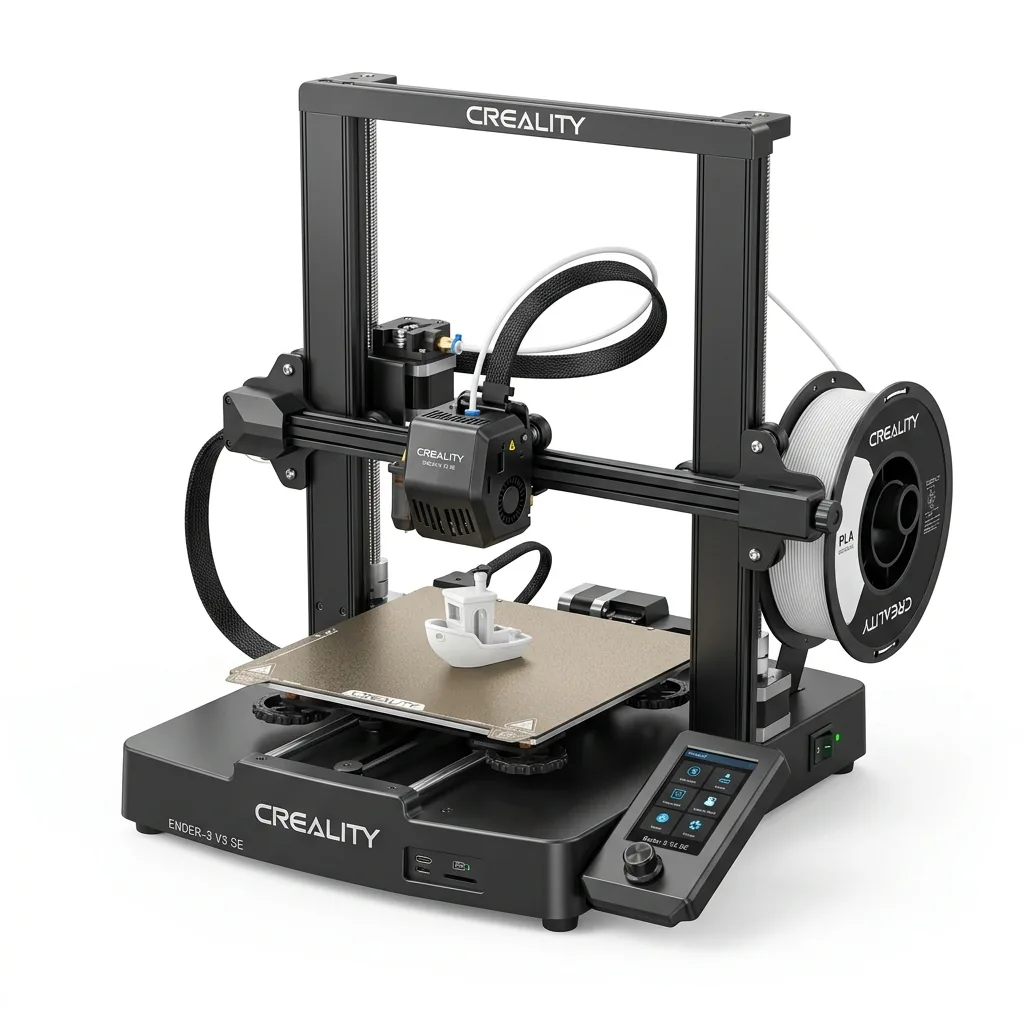
“Creality Ender 3 V3 SE 3D Printer”
Pros
- “Sprite direct drive extruder simplifies retraction tuning (0.8-1.2mm baseline).”
- “Automated CR Touch bed leveling and strain gauge Z-offset minimize first-layer calibration errors.”
- “Dual Z-axis lead screws keep motion stable during speed and flow calibration.”
Cons
- “Part cooling fan can be audible during high-speed travel calibration.”
Step 4: Pressure / Linear Advance
Pressure Advance (or Linear Advance in Marlin) builds pressure in the nozzle before a line starts and releases it before the line ends to produce sharp corners without bulging. This is a more advanced firmware feature that yields perfectly sharp corners and no blobbing.
The process for generating and analyzing a Pressure Advance test pattern is:
- Find a Test Pattern Generator: Your firmware documentation (Klipper, Marlin) will have a dedicated G-code command or web-based tool to generate a test pattern. This pattern prints a series of lines at increasing speeds with different compensation values.
- Print the Test: The pattern consists of a slow base line, a fast line, and a slow top line.
- Analyze and Measure: Look at the lines. At low PA/LA values, the transition from fast to slow will have a fat bulge. At high values, it will have a gap. You are looking for the line where the transition is the smoothest and the line width is most consistent. Use your calipers to measure the height from the bottom of the print to this perfect line. This height in mm is your PA/LA value.
- Set in Firmware: Enter this value into your
printer.cfg(Klipper) or Configuration.h (Marlin) and save.
The Motion System Calibration
Motion system calibration uses resonance compensation to handle high-speed printing while eliminating ringing and ghosting artifacts. Now that extrusion is perfect, you can fine-tune the motion system.
Input Shaping (Resonance Compensation)
Input shaping uses an accelerometer to measure printer frame resonance frequencies and creates a digital filter to cancel those vibrations in real-time. This is the key to high-speed printing without ringing or ghosting.
The hardware and firmware process for tuning Input Shaping involves:
- Hardware: You need an ADXL345 accelerometer connected to your control board or a Raspberry Pi.
- Firmware Process: Follow your firmware’s guide (Klipper has excellent documentation on this) to run the resonance test. This involves the printer performing a series of rapid shaking movements on the X and Y axes while the accelerometer records the data.
- Apply and Save: The firmware will analyze the data and provide the recommended input shaper type (e.g., MZV, ZV) and frequency values. Add these to your
printer.cfgand restart the firmware.
The difference is night and day. A printer with properly tuned Input Shaping can print at 150+ mm/s with cleaner results than an un-tuned printer at 50 mm/s. This is standard on many modern CoreXY printers and is a critical part of their speed.
Calibration Summary Table
The calibration summary table provides standard baseline values and safe tuning ranges for PLA filament.
| Parameter | Initial Baseline (PLA) | Safe Tuning Range | Telltale Sign of Failure |
|---|---|---|---|
| Nozzle Temperature | 205°C | 190°C - 220°C | Brittle prints (too cold), heavy stringing (too hot) |
| Flow/Extrusion % | 100% | 92% - 105% | Gaps in top surfaces (under), bulging corners (over) |
| Retraction (Direct) | 0.8mm @ 40mm/s | 0.4-2.0mm @ 30-50mm/s | Stringing/oozing (too low), nozzle clogs (too high) |
| Retraction (Bowden) | 4.0mm @ 45mm/s | 2.0-6.0mm @ 35-60mm/s | Stringing/oozing (too low), filament grinding (too high) |
| Pressure Advance | 0.0 | 0.01 - 0.08 (Direct) | Bulging/bloated corners (too low), gaps at corners (too high) |
| Belt Tension | “Snug” | ~110 Hz | Ringing/ghosting artifacts (too loose) |
Final Decision Framework
The final decision framework provides a troubleshooting sequence for identifying the correct calibration step based on specific print defects.
The diagnostic flow for common print quality issues is:
- Problem: Stringing or blobs.
- Is your filament dry? -> NO: Dry it. -> YES: Calibrate retraction distance and speed.
- Problem: Rough/gappy top surfaces.
- Have you calibrated flow? -> NO: Calibrate flow. -> YES: Check for partial nozzle clog or heat creep.
- Problem: Ringing/Ghosting artifacts.
- Are your belts tight? -> NO: Tension belts. -> YES: Calibrate Input Shaping.
- Problem: Parts don’t fit / are wrong size.
- Have you calibrated flow? -> NO: Calibrate flow. -> YES: Check for X/Y/Z dimensional accuracy with a calibration cube. Adjust rotation_distance/steps-per-mm only as a last resort.
Follow this system. Trust the process. Your prints will thank you. Understanding these calibration steps helps you manage the true cost of owning a 3D printer by preventing wasted filament. You should also master How to Level a 3D Printer Bed for consistent first layers. Find more solutions in our Troubleshooting & Maintenance section.