
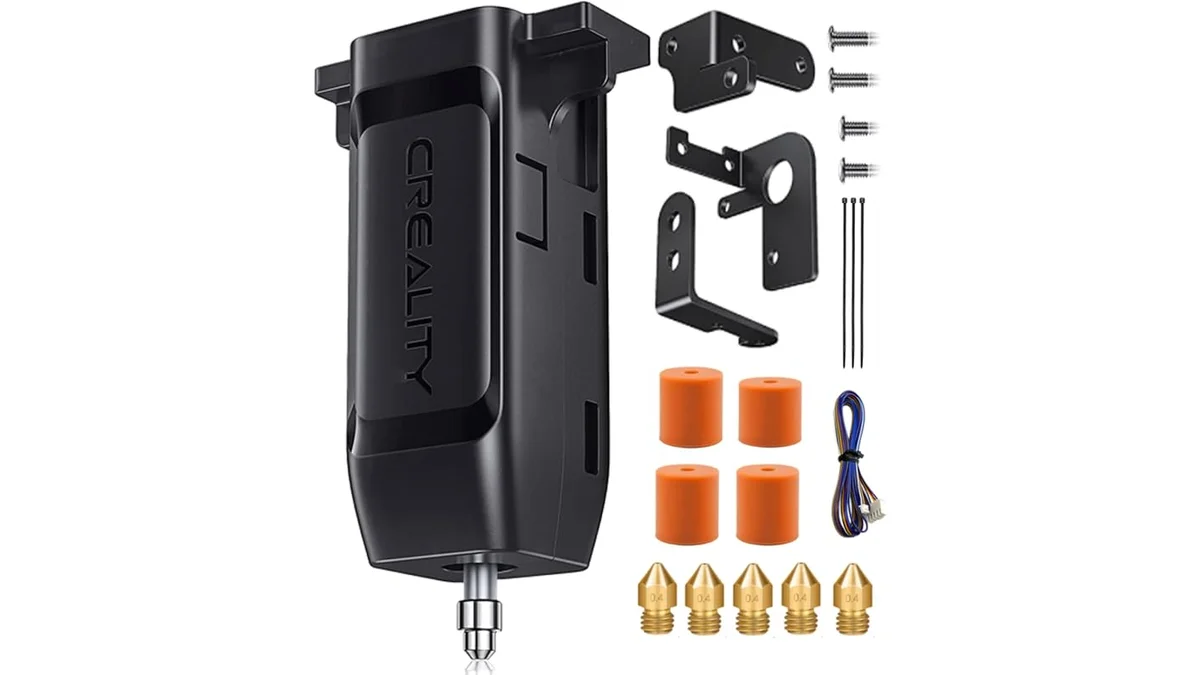
Replacing and leveling an auto-bed leveling sensor requires swapping the hardware, updating firmware if necessary, calibrating the Z-offset, and generating a new mesh. An auto-bed leveling (ABL) sensor is a workhorse component. It maps the microscopic hills and valleys of your print surface, creating a compensation mesh for a perfect first layer. But when it fails, your prints fail. A bent pin from a print collision, a wiring fault, or simple electronic failure can send your Z-axis into a tailspin.
This guide is a procedure for replacing and calibrating two of the most common ABL sensors: the Antclabs BLTouch and the Creality CR Touch. We will cover the physical swap, the firmware and power-on test, the critical Z-offset calibration, and the final mesh validation.
Part 1: Physical Sensor Replacement
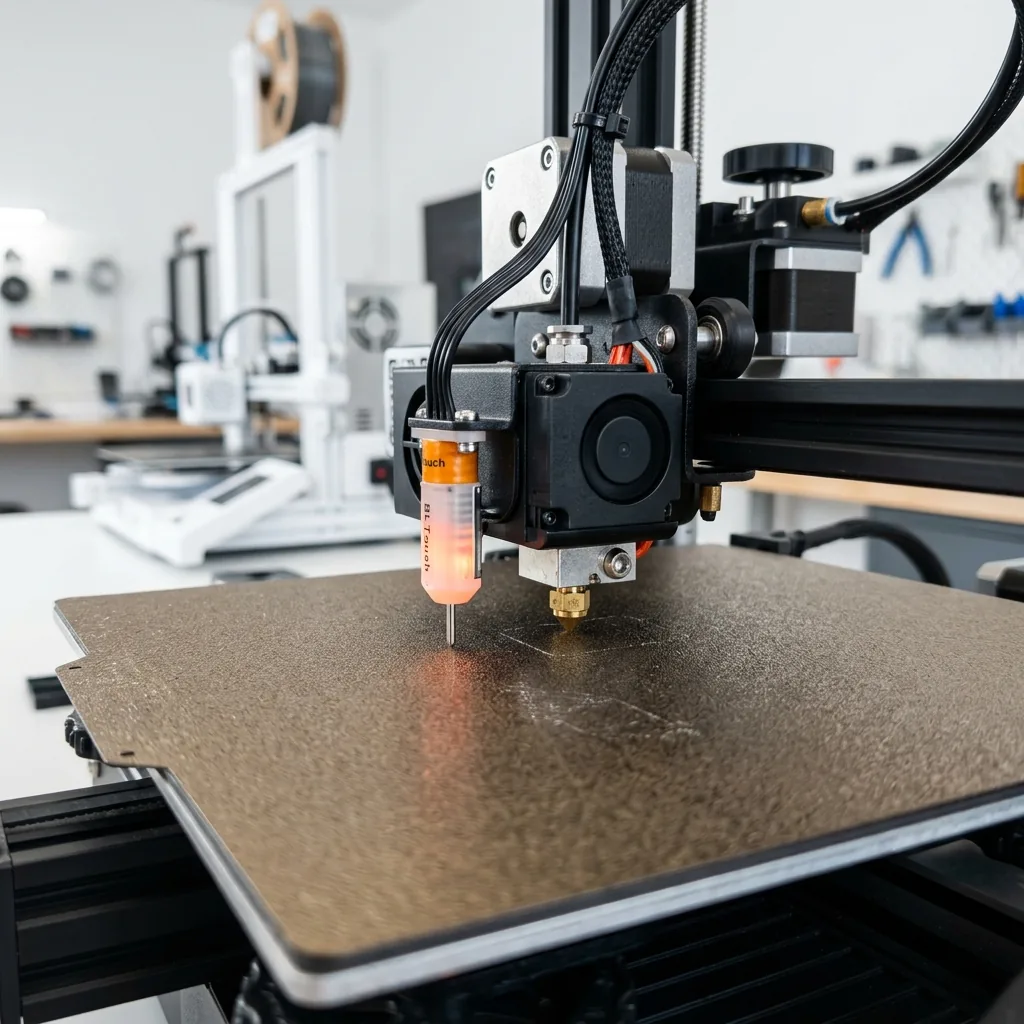
Before you touch any firmware, you must address the physical installation. Replacing the physical sensor involves removing the old unit and securing the new one tightly to prevent measurement errors. The mechanical installation must be solid. A wobbly sensor is a useless sensor. Users already working on the printhead can refer to How to Replace a 3D Printer PTFE Tube and Heatbreak for related maintenance.
Tools and Preparation
The tools needed for replacing an ABL sensor include hex keys, screwdrivers, wire cutters, zip ties, and measuring tools.
- Hex Keys: The set that came with your printer is usually enough.
- Screwdrivers: A small Phillips head is often needed.
- Wire Cutters / Snips: For cutting zip ties.
- New Zip Ties: To tidy up the new wiring tap into.
- Digital Caliper (Recommended): For precise measurements.
- Feeler Gauge (Optional): More accurate than paper for Z-offset.
Safety Check: Power down the printer. Unplug it from the wall. Don’t just turn it off. Wait for the hotend and bed to cool to room temperature. This prevents burns and accidental short circuits.
Step 1: Remove the Old Sensor
Removing the old sensor requires detaching it from the mounting bracket and unplugging its cable from the mainboard. First, get access to the extruder assembly. You may need to remove the fan shroud. Most are held on by two or three screws. Keep them organized.
Next, locate the ABL sensor. It’s typically mounted to the side of the hotend assembly with two screws.
- Unscrew the sensor from its mounting bracket.
- Carefully follow its wire back to the mainboard or a breakout board. Snip any zip ties holding it in place.
- Take a photo of the connector on the mainboard before you unplug it. This is your best insurance against wiring errors.
- Disconnect the 5-pin JST connector (or 3-pin and 2-pin connectors) from the mainboard. The connector might be held with a dab of hot glue; gently pry it off if needed.
Step 2: Mount and Wire the New Sensor
Mounting and wiring the new sensor involves securing it to the bracket and connecting the wires to the correct mainboard pins. Whether you are using a BLTouch or CR Touch, the process is similar.
- Secure the new sensor to the mounting bracket. Make sure it’s tight. Any play here will ruin your measurements.
- Route the new cable along the same path as the old one, following the wiring loom back to the mainboard.
- Consult your motherboard’s pinout diagram and the photo you took earlier. Connect the new sensor. Pay close attention to the wire order. Getting this wrong can damage the sensor or the mainboard. Black and white wires are typically for the Z-stop (endstop), while the other three (red, brown, orange/yellow) are for power and signal.
- Loosely secure the new cable with zip ties. You might need to adjust it later.
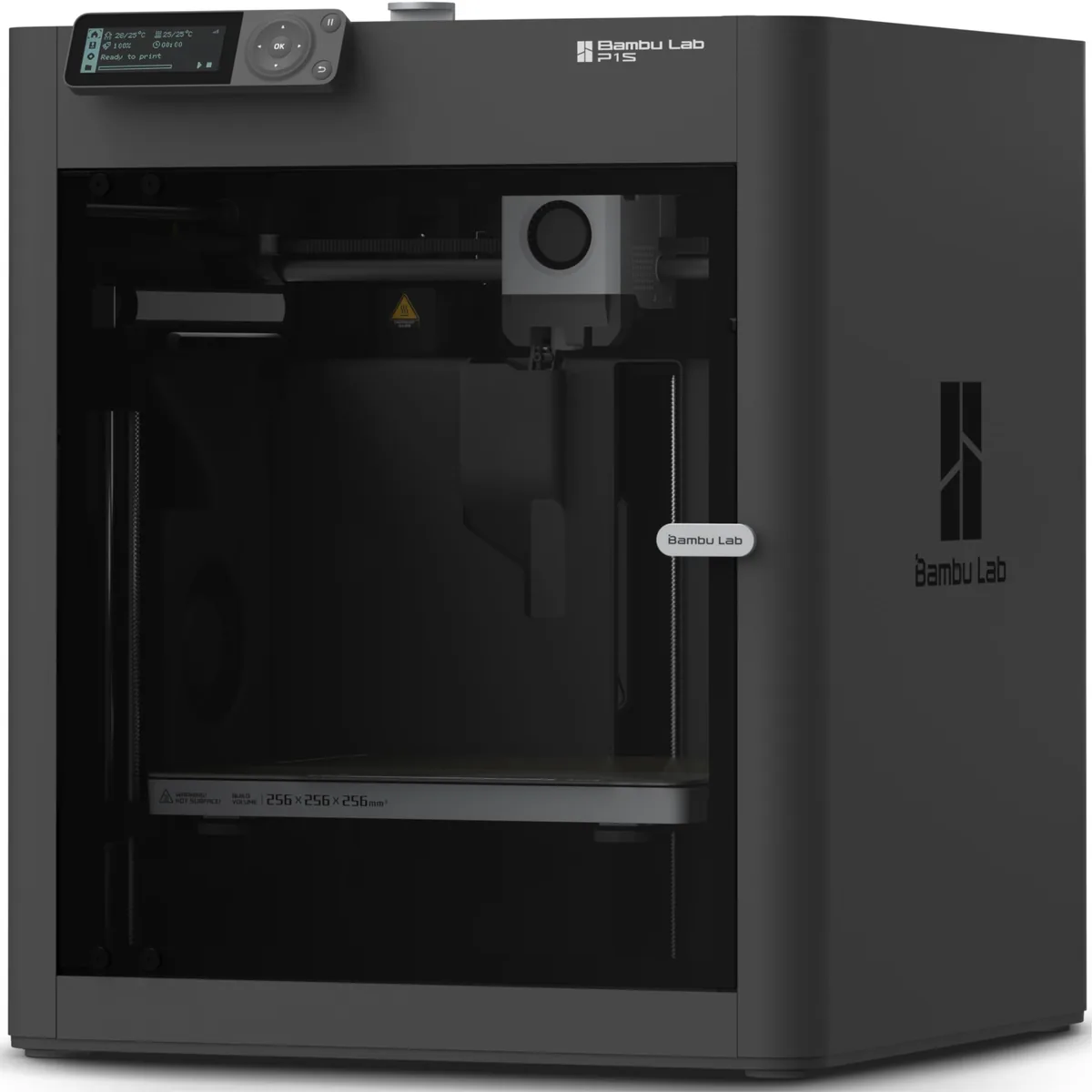
Bambu Lab P1S Enclosed 3D Printer
Pros
- Fully enclosed CoreXY chassis with auxiliary cooling fan, Smooth multi-color / multi-material integration with Bambu AMS, Reliable out-of-the-box first layers with dual automated bed leveling, Active vibration compensation and belt tension monitoring
- Improved consistency over some BLTouch clones.
- Official Creality product ensures broad compatibility with their printers.
Cons
- Proprietary closed ecosystem
- Chamber is passively heated by the bed rather than a dedicated PTC heater
- Upgrading to hardened nozzle for carbon fiber requires separate swap
Part 2: Firmware and Power-On Test
The firmware and power-on test verifies that the new sensor deploys and retracts correctly without flashing error codes. With the hardware installed, it’s time for a quick check before diving into calibration.
- If you are replacing a sensor with the exact same model (BLTouch for BLTouch): You likely do not need to flash your firmware.
- If you are upgrading or changing types (e.g., inductive sensor to CR Touch): You absolutely must update your firmware. In Marlin, this involves editing your
Configuration.hfile, enabling the correct sensor type (#define BLTOUCHor similar), and disabling other Z-probe options. Then, compile and flash the new firmware.
The Self-Test: Plug in and power on the printer. Watch the sensor. It should immediately perform a self-test: the pin will deploy and retract two or three times, and the LED should turn a solid color (usually red or blue).
- If it works: Great. Move to the next section.
- If it flashes red/blinking: Power off immediately. This is an error code. The most common cause is a wiring mistake. Double-check your connections against the pinout diagram. Another cause is a faulty sensor or a pin that is physically stuck.
Part 3: The Critical Calibration: Your Z-Offset
Calibrating the Z-offset determines the exact negative distance between the nozzle tip and the sensor trigger point. Your printer now knows where the bed is, but it doesn’t know this specific distance. This distance is the Z-Offset. It is the single most important setting for a perfect first layer. It will be a negative value, something like -2.45.
Step 1: Prepare for Calibration
Preparing for calibration requires heating the nozzle and bed to printing temperatures and homing the axes.
- On the printer’s LCD, go to the
ControlorPreparemenu. Heat the nozzle to your standard printing temperature for PLA (e.g., 200°C) and the bed to 60°C. Metal expands when hot, so calibrating at printing temperatures is not optional. It is mandatory for accuracy. - Run an
Auto Home(G28 command) sequence. The printer will home X, Y, and Z. The Z-axis will home using the probe in the center of the bed.
Step 2: Find the Zero Point
Finding the zero point identifies the exact Z-height where the nozzle touches the bed, which is the Z-offset value. Your goal is to find the exact point where the nozzle touches the bed. We use a piece of A4 paper or a 0.1mm feeler gauge for this.
- Navigate to the
Move Axismenu. Disable the soft endstops if your firmware has that option. This lets you move Z into negative territory. - Move the nozzle to the center of the build plate (X=110, Y=110 for a standard Ender 3).
- Go to
Move Z. Place the paper under the nozzle. - Slowly lower the Z-axis in 0.1mm, then 0.025mm increments.
- Slide the paper back and forth. You are looking for the point where you feel a slight drag. The nozzle should just barely scratch the paper. It should not be pinned.
- Look at the Z value on the screen. It will be a negative number, for example,
-2.60. This number is your Z-offset.
Step 3: Set and Store the Z-Offset
Setting and storing the Z-offset saves the new value to the printer’s EEPROM so it persists after rebooting.
- Go to the
Configurationmenu and findProbe Z-Offsetor a similar setting. - Enter the value you just found (e.g.,
-2.60). - Crucial Step: Scroll down and select
Store SettingsorSave to EEPROM. This writes the value to the printer’s memory using theM500G-code command. If you skip this, the value will be lost on the next reboot.
The differences between the BLTouch and CR Touch include pin material, sensor type, and durability.
| Parameter | BLTouch | CR Touch |
|---|---|---|
| Pin Material | Plastic | Metal |
| Sensor Type | Hall Effect | Optical/Contact |
| Durability | Good (Pin is a weak point) | Excellent |
| Repeatability | ~0.005mm | ~0.005mm |
| Common Failure | Bent/broken pin, wiring | Rare, usually wiring |
Part 4: Final Validation
Final validation confirms the setup by generating a new bed mesh and checking the first layer of a test print. Your Z-offset is set, but the job isn’t done. Now you need to generate a new bed mesh and run a test print.
- Generate New Mesh: From the LCD, run the
Bed Levelingsequence (G29 command). The printer will now probe the bed in multiple spots (usually 9 or 25) to create a new compensation mesh based on the new sensor and offset. - Save Again: After the mesh is created, go back to the
Configurationmenu andStore Settingsone more time. This saves the new mesh data. - The First Layer Test: Slice a large, single-layer square (e.g., 100x100mm, 0.2mm layer height). Start the print. Watch the first layer go down.
- Lines have gaps / Not sticking? Your nozzle is too high. Stop the print, go back to the Z-offset menu, and make the value more negative (e.g., from -2.60 to -2.65). Save and try again.
- Filament is squished/transparent? Your nozzle is too low. Stop the print, go to the Z-offset menu, and make the value less negative (e.g., from -2.60 to -2.55). Save and try again.
Repeat this fine-tuning until you get a flawless, glassy-smooth first layer. Once set, you shouldn’t have to touch your Z-offset again unless you change the nozzle or build surface. Proper troubleshooting and maintenance like this is key to reliable printing. Understanding these replacement procedures helps properly track 3D printer running costs.