
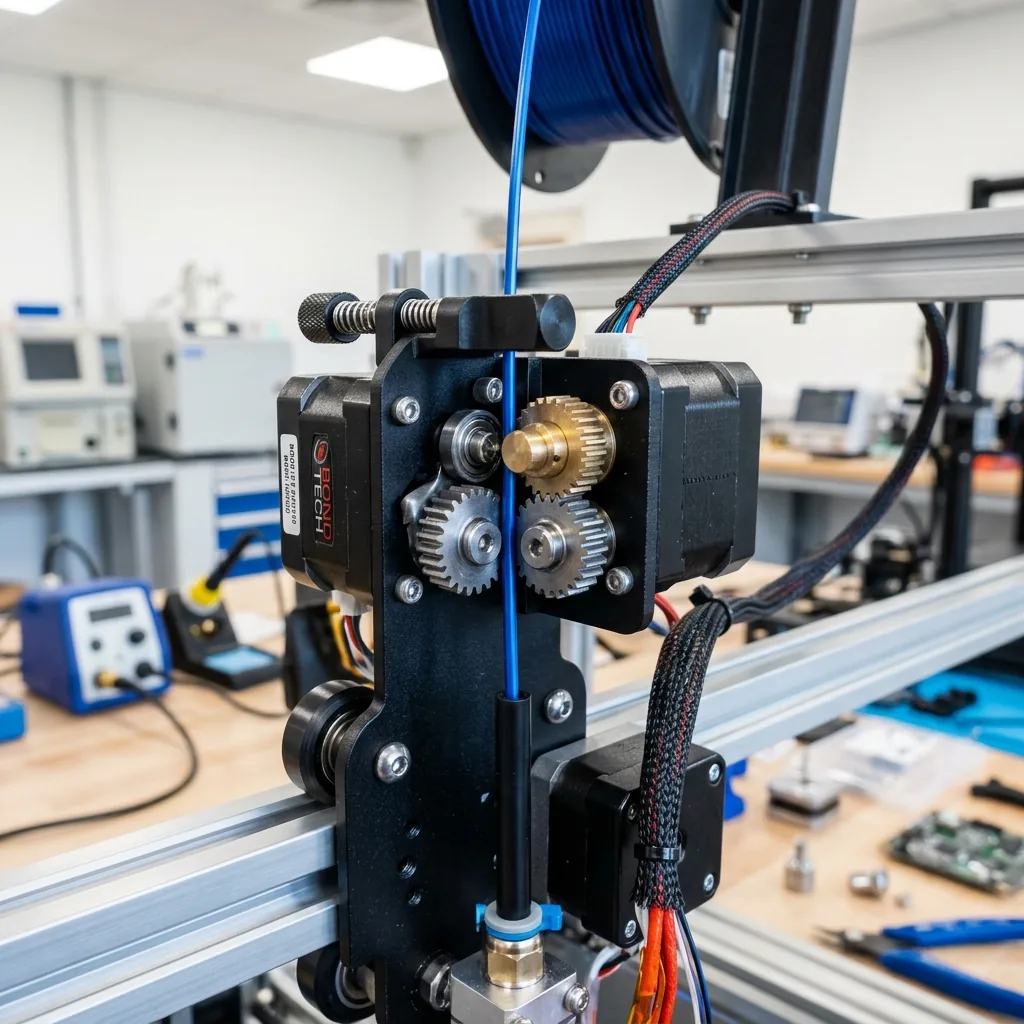
Layer shifting is a permanent X- or Y-axis displacement between otherwise aligned print layers. Stop the print, preserve the failure evidence, note its axis and height, make the printer safe under its manual, inspect the motion path, change one variable, and verify the result. This sequence protects a desktop 3D printer from unrelated adjustments and keeps diagnosis tied to the failed motion.
What causes layer shifting in a 3D print?
Layer shifting occurs when commanded motion and actual X- or Y-axis motion no longer match. The controller continues the print from a displaced position because it does not receive position feedback from most open-loop stepper systems.
The main cause groups are listed below.
- Mechanical resistance or a collision prevents the carriage from completing a commanded move.
- Belt, pulley or idler slip changes the relationship between motor rotation and carriage position.
- A motor, connector or stepper driver interruption removes torque during part of a move.
- Requested acceleration, travel speed or another motion limit exceeds the documented capability of the printer in its present condition.
Adhesion loss, warping and extrusion defects can resemble an offset in a photograph, but those defects do not become layer shifting unless carriage motion is lost.
How do you diagnose a layer shift without changing several variables?
Diagnose layer shifting by preserving the failed print evidence and checking one cause category at a time. A disciplined record prevents a belt adjustment, slicer change and connector reseat from being credited to the wrong cause. Use this diagnostic sequence.
- Stop the print and follow the printer manual for cooling, shutdown and access.
- Record whether the displacement follows X, Y or both axes, then measure the shift height in millimeters from the build surface.
- Compare the height with lifted corners, supports, seams, travel moves and any sound heard at failure.
- Save the model file, slicer project, profile, firmware version and machine configuration used for the failed print.
- Inspect the relevant motion path for obstruction, binding, belt damage, pulley movement and cable or spool interference.
- Change one documented variable, then repeat the same print or a traceable test under unchanged conditions.
A shift at the same height points toward a repeatable collision, snag or tight spot. A random height points more strongly toward intermittent slip, heat, connection loss or motion demand. Neither pattern proves a cause without physical evidence, so the next step is to isolate the shifting axis.
How do you isolate the shifting axis?
A shift confined to X or Y localizes the first inspection to that axis and its drive path. Cartesian printers often assign one motor and belt path to an axis, while CoreXY printers combine motor motion through shared belts. Use the exact kinematic diagram for the model.
| Observation | Likely system | Check | Evidence needed |
|---|---|---|---|
| Displacement follows one Cartesian axis | That axis belt, motor, pulley, rail or wheels | Trace the full path and test travel | Manual diagram and visible condition |
| CoreXY displacement has a diagonal or mixed pattern | Shared belt paths or either drive motor | Compare both routed belts and pulleys | Manufacturer routing diagram |
| Shift repeats at one coordinate | Obstruction, cable snag or tight travel point | Move through the location as permitted | Repeatable physical contact |
| Shift appears after a sharp move | Resistance, slip or excessive motion demand | Inspect hardware before the profile | Saved profile and firmware limits |
Motion components need separate maintenance methods. Use How to Maintain 3D Printer Linear Rails and V-Slot Wheels after the motion-path check identifies a rail or wheel issue.
How do you inspect belts, pulleys and idlers?
Inspect the complete belt path for slack, over-tension, contamination, damaged teeth, pulley movement and idler binding. The exact route matters because a hidden twist, rubbing edge or misrouted segment changes belt tracking.
Complete the belt and pulley inspection in this order.
- Make the printer safe according to its service instructions before placing hands near moving parts.
- Trace each belt from its anchor through every pulley and idler, using the model diagram as the reference.
- Look for frayed edges, polished rubbing marks, missing teeth, embedded debris and belt sections that ride against a flange.
- Check whether each drive pulley moves relative to its shaft. Where the design uses a shaft flat, confirm the manual’s required fastener alignment.
- Turn permitted idlers by hand and note roughness, side movement or resistance without dismantling a sealed unit.
- Set tension only by the manufacturer’s method or published value for that belt path.
Do not apply a universal frequency, deflection distance or “guitar string” comparison. Do not invent fastener torque. A valid 3D printer belt path inspection records the belt type, axis, observed defect and source used for correction.
How do you check rails, wheels and mechanical binding?
The carriage must move through its full travel without a repeatable tight spot, wheel lift or rail binding. Follow the manual’s power-isolation procedure because some systems must not be back-driven.
Inspect the travel surface under good light. Linear rails need checks for debris, corrosion and carriage roughness. V-slot systems need checks for wheel dust, flat spots, cracks and incorrect eccentric preload. Rod-bearing systems require their own approved cleaning and lubrication method. A lead screw is not a linear rail, so its lubricant specification cannot be transferred automatically.
Move the axis only when the manufacturer permits manual travel. Slow movement helps locate a repeated tight point; it does not justify forcing the carriage past resistance. Record the coordinate and inspect nearby fasteners, covers, cable chains and frame joints. Correct one documented fault, then travel the full axis again before moving to stepper electronics.
How do you check stepper motors, drivers and cooling?
Electrical diagnosis begins only after the motion path moves freely and all connectors are inspected with power removed. Opening an electronics enclosure exposes mains and stored-energy hazards on some printers, so stop when the service manual limits owner access.
| Finding | Next check | Required evidence |
|---|---|---|
| Loose or damaged motor cable | Reseat or replace by the official service method | Connector and wiring diagram |
| Motor or driver protection suspected | Check fans, vents and documented thermal limits | Board, driver and printer documentation |
| Current setting appears altered | Compare the configured value with the exact board and motor source | Driver mode and RMS, peak or Vref convention |
| Fault persists on a free axis | Use the manufacturer’s diagnostic or service route | Error log or support procedure |
Temperature by touch is not a measurement. A current or Vref value from another mainboard is not a safe substitute. Record the board revision, driver identity, motor identity, firmware mode and unit before any documented current change. Unauthorized adjustment may damage hardware or affect the warranty.
Which slicer and firmware settings can trigger missed motion?
Acceleration, travel speed and machine limits can contribute to missed motion when they exceed the printer’s documented capability. Compare the slicer’s requested values with firmware caps and the manufacturer’s profile instead of treating a slicer preset as a hardware specification.
| Setting | Compare | Avoid |
|---|---|---|
| Acceleration | Slicer request, firmware cap and official profile | One universal acceleration value |
| Travel speed | Requested move and machine limit | Raising speed during diagnosis |
| Jerk or junction behavior | Firmware type, version and configured mode | Mixing terms across firmware systems |
| Motor current | Exact board, driver and motor documentation | Forum values from a different revision |
Restore a known documented profile when a shift began after tuning. Input shaping addresses resonance within a configured motion system; it does not repair loose pulleys or binding. After mechanical faults are excluded, follow How to Tune Input Shaping and Pressure Advance for Speed for the separate calibration task.
How do collisions and cable snags create repeatable shifts?
A nozzle collision, lifted edge, loose part or cable snag can stop carriage travel while the print continues from a displaced position. Inspect the failure height for raised material, curled edges, detached supports, purge deposits or a feature that enters the nozzle path.
Check the full harness travel, spool feed and enclosure clearance at the same coordinates. A cable that becomes taut only near one corner creates positional evidence. Spool drag affects extrusion first, but a routed tube or cable that pulls the toolhead can obstruct motion. A mark near the shift height is causal evidence only when contact can be shown or repeated safely.
How do you verify that layer shifting is fixed?
A layer-shift repair is verified only when the same file or a documented test completes repeatedly without displacement under unchanged conditions. One clean layer does not prove a motion fault has been removed. Record the verification conditions listed below.
- Identify the file and its source, slicer project, profile and firmware version.
- Record the printer, material, axis, previous layer shift height in millimeters and corrected component.
- Keep speed, acceleration, orientation and placement unchanged unless that setting was the single correction.
- Complete X repetitions under the editorial policy, then photograph the same faces and classify each run as pass or fail.
- Define a pass as no permanent X- or Y-axis displacement through the full print.
The layer shift height in millimeters links the failed evidence to the verification result. If the shift returns at the same height, reopen the collision and tight-point branches before making another change.
When should you repair a component instead of replacing it?
Replace a motion component when inspection shows damage or when the manufacturer’s service limit is exceeded. Cleaning or adjustment fits contamination and documented looseness; replacement fits cracked wheels, damaged belt teeth, rough bearings or hardware outside a published tolerance.
| Finding | Adjustment or cleaning | Replacement | Source required |
|---|---|---|---|
| Loose fastener with undamaged parts | Use the documented fastening method | Only if threads or part are damaged | Service manual |
| Debris on an approved surface | Clean by the approved process | If damage remains after cleaning | Maintenance instructions |
| Worn belt, wheel, idler or bearing | No adjustment hides physical damage | Match the exact specification | Parts catalog and service limit |
| Uncertain electronic fault | Use official diagnosis or support | Replace only the confirmed compatible part | Board and printer documentation |
Parts cost, service time and repeated downtime belong in The True Total Cost of Owning a 3D Printer Explained. Compatibility evidence matters more than an unverified low-cost part.
When is a layer shift not a belt or stepper problem?
Not every offset-looking failure is layer shifting; adhesion loss, warping, loose models and extrusion defects require different repairs. Adhesion loss lets the whole model move on the build plate. Warping lifts an edge while lower layers remain at their original coordinates. A loose model may rotate or translate as one object. Under-extrusion leaves gaps without a permanent axis displacement.
Compare aligned features above and below the suspected event. A true layer shift preserves the new X- or Y-offset in later layers. A local gap, rough surface or lifted corner points to a different failure branch.
Can wet filament or nozzle clogs cause true layer shifting?
No, wet filament and nozzle clogs primarily affect extrusion, although a severe collision can indirectly precede a motion shift. Wet filament may create bubbles, inconsistent flow or rough surfaces. A clog may create missing lines. Neither changes axis position by itself. Inspect for permanent displacement before treating an extrusion symptom as a motion failure.
What should you record after the repair?
Record the confirmed cause, model, component, documented setting, source and verification result. Include the failed and passing photographs, axis, shift height, file, profile, firmware version and X repeat outcomes. Set the next inspection from the manufacturer’s schedule or observed condition, not an invented print-hour interval. Related 3D printer troubleshooting and maintenance guides cover other failure types.