
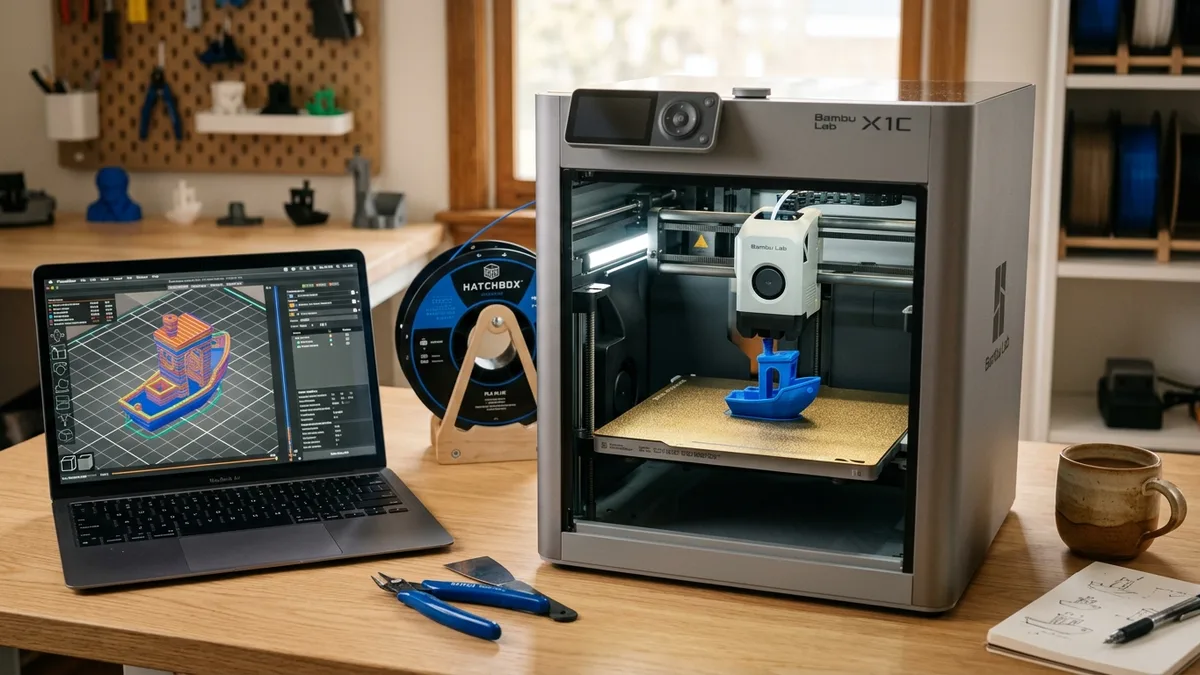
A resilient digital workflow for a 3D printer requires managing the core software stack, building a bulletproof backup strategy, ensuring network stability, and applying firmware updates safely. The physical machine is only half the battle. Your printer’s stability depends entirely on its digital foundation: firmware, network settings, and slicer profiles. Protecting this software prevents the loss of tuned settings due to corrupted microSD cards, hardware failures, or software update issues.
Understanding the Core Software Stack
Understanding the core software stack requires identifying the location and function of the printer’s firmware and slicer profiles. A 3D printer’s software ecosystem has several critical layers.
Firmware: The Printer’s Operating System
Firmware is the printer’s operating system, running on the mainboard or a connected single-board computer, that translates G-code into precise motor movements, heater commands, and sensor readings.
The three primary firmware architectures used in modern 3D printers are:
- Marlin: For years, this was the standard. It runs directly on the printer’s mainboard. Configuration happens in two text files,
Configuration.handConfiguration_adv.h, before compiling and flashing the firmware. Backing up these two files is essential. - Klipper: The modern choice for high-speed printing. It uses a different architecture. A lightweight firmware runs on the mainboard (the MCU), while a powerful SBC (like a Raspberry Pi) handles all the complex calculations. The entire printer configuration lives in a simple text file:
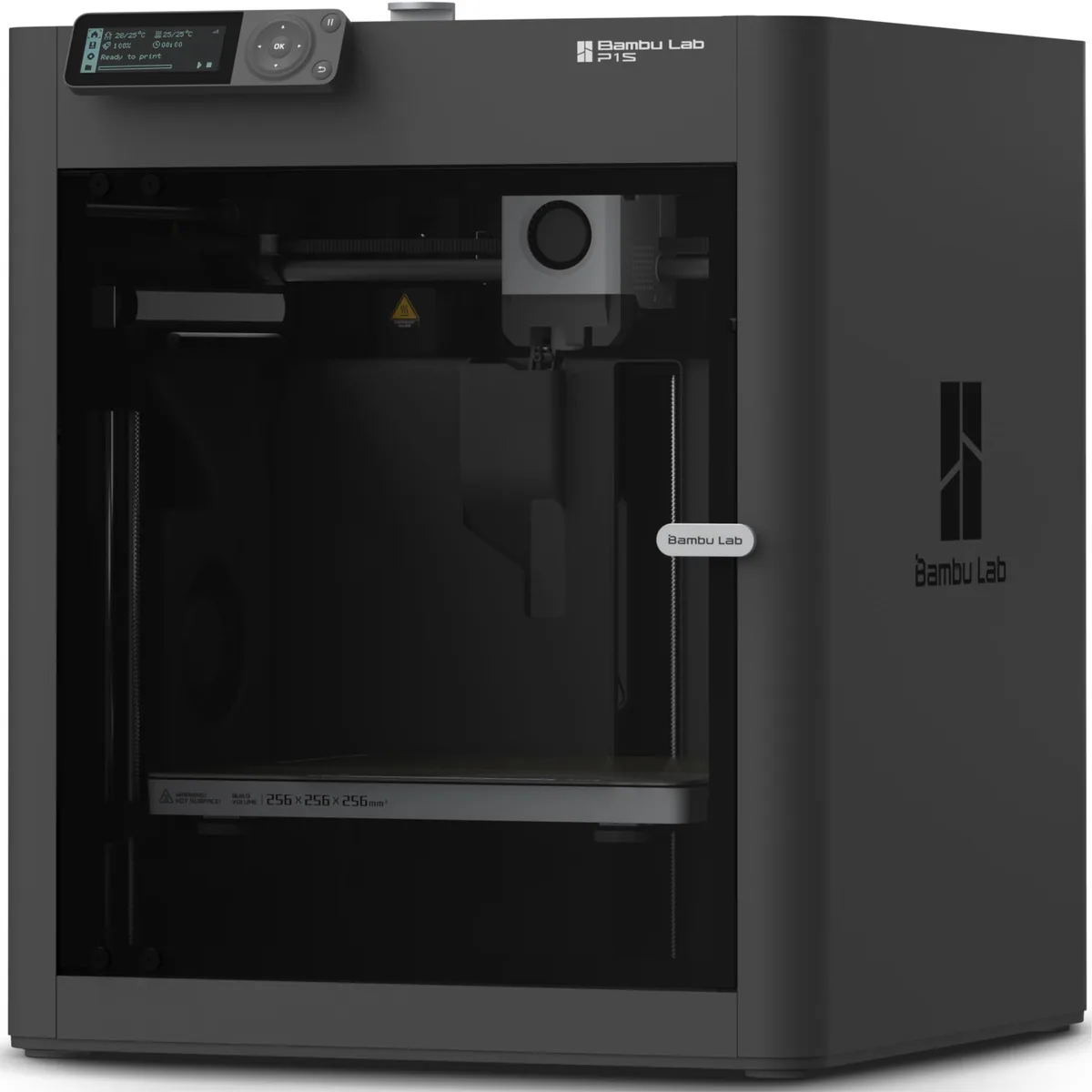
printer.cfg. This makes backups incredibly easy. - Proprietary Systems: Printers from brands like Bambu Lab use their own closed-source firmware, often based on Klipper. Updates are managed through the cloud, and user configurations are synced to an account. While convenient, this gives you less direct control over backups.
Slicer Profiles: The DNA of Your Prints
Slicer profiles are the DNA of your prints, containing hundreds of tuned settings like filament temperatures, retraction distances, and flow rates. Losing these profiles means starting every filament calibration from scratch.
The default configuration folder locations for backing up common slicers are:
- OrcaSlicer/Bambu Studio: Check the
Help -> Show Configuration Foldermenu. - PrusaSlicer: Located in the application support directory (e.g.,
C:\Users\[YourUser]\AppData\Roaming\PrusaSliceron Windows). - Cura: Similar to PrusaSlicer, in the
AppDataor~/Library/Application Supportfolder.
Knowing these locations is the first step to protecting your data.
Building a Bulletproof Backup Strategy
Building a bulletproof backup strategy relies on the 3-2-1 rule to protect against both local hardware failures and site-wide disasters. The professional IT world solved this problem decades ago with a simple principle.
The 3-2-1 Rule for Makers
The 3-2-1 rule dictates keeping three copies of data on two different media types with one stored off-site.
The 3-2-1 backup strategy applies to 3D printer configurations by using:
- Copy 1 (Primary): The live
printer.cfgon your Pi or the slicer profiles on your PC. - Copy 2 (Local): A copy on a separate physical device in your network. This could be a USB stick, an external SSD, or a Network Attached Storage (NAS) device.
- Copy 3 (Off-site): A copy stored physically separate from your network. A private GitHub repository is perfect for this. Other options include Dropbox or Google Drive.
Practical Backup Methods for Klipper
Practical backup methods for Klipper include manual transfers, automated scripts, and version control via Git to protect the printer.cfg file.
The three standard methods for backing up a Klipper configuration are:
- Manual: The simplest method is to use a program like WinSCP or Cyberduck to connect to your Pi and manually download
printer.cfgand any other custom files (likemacros.cfg). Do this weekly. - Automated Script: For those with a NAS, you can set up a simple
rsynccommand or a cron job on the Pi to automatically copy the config files to your network storage every night. - The Gold Standard (Git): Using Git provides version control. This means you can both restore your file and roll back to any previous version. If a new tuning change makes things worse, you can revert in seconds.
The basic Git workflow for securing a Klipper printer.cfg file is:
- Install Git on your Pi and create a free private repository on GitHub.
- Navigate to your Klipper config directory (
cd ~/klipper_config). - Initialize the repository:
git init, then link it to GitHub. - After tuning, commit your changes:
git add .followed bygit commit -m "Tuned PA for new PETG spool". - Push to your off-site backup:
git push origin main.
Securing Your Slicer Profiles
Securing your slicer profiles requires backing up the entire configuration directory rather than relying solely on cloud sync. OrcaSlicer and Bambu Studio’s cloud sync is convenient for moving between computers, but it is not a true backup. If you accidentally delete a profile, that deletion may sync everywhere.
For real protection, periodically go to the configuration folder and copy the entire directory to your local and off-site backups. Even better, make this folder a Git repository just like your Klipper config.
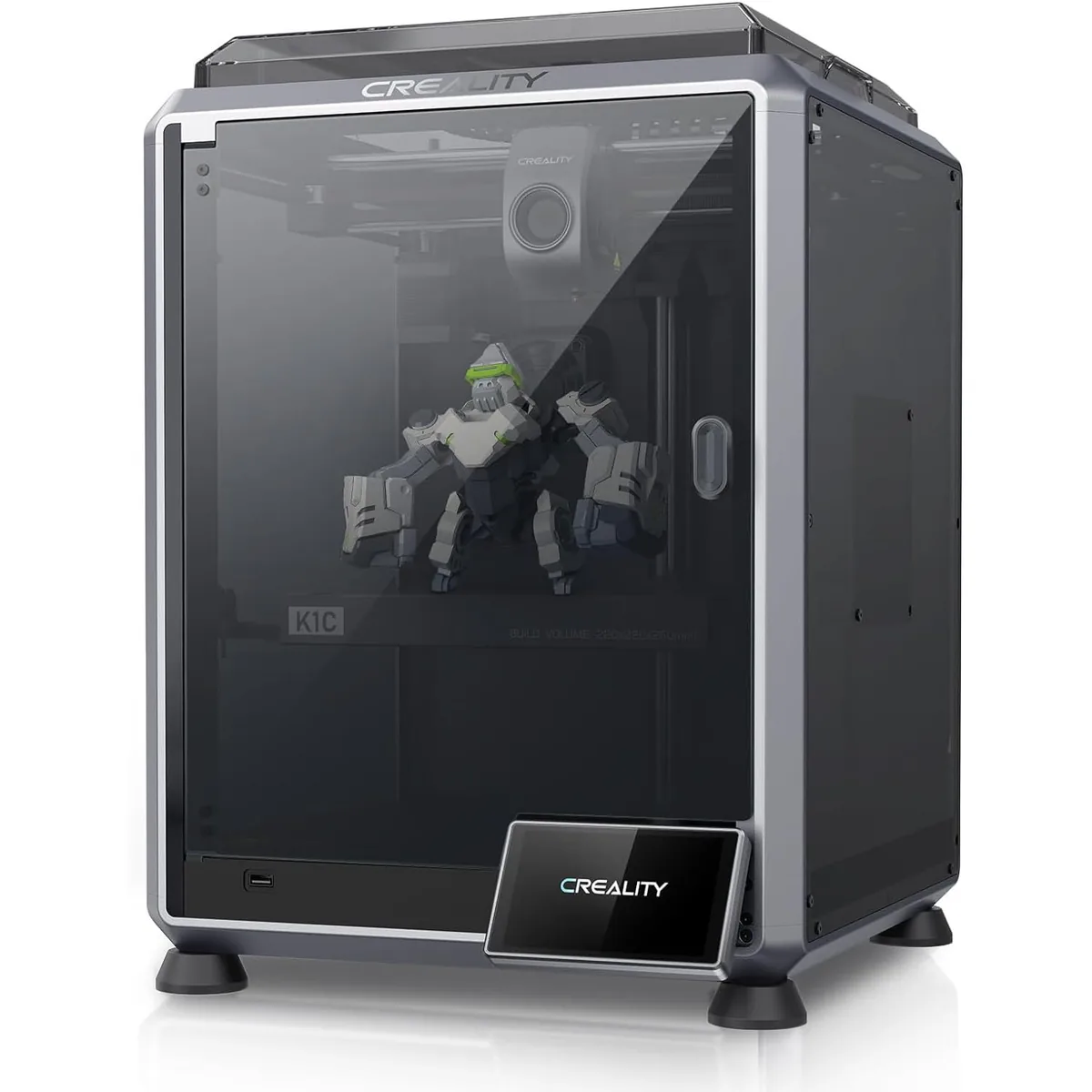
Creality K1C Carbon Fiber 3D Printer
Pros
- Hardened steel tri-metal Unicorn nozzle handles abrasive PA-CF and PET-CF without wear, Integrated AI camera provides automated spaghetti failure detection and time-lapses, 600mm/s CoreXY speed with 20,000mm/s² acceleration, Open-source Klipper-based Creality OS allows custom macros and root access
- “Klipper-based firmware allows for deep customization and backup”
- “Auto-calibration and AI camera streamline workflow”
Cons
- Build volume (220x220x250mm) is slightly smaller than Bambu P1S
- Passive chamber relies on bed heat to reach ~48°C
The Creality K1C runs on CrealityOS, which is built on Klipper. This gives you the speed and power of Klipper, and more importantly, it means you can (and should) directly access and back up its configuration files. A robust machine deserves a robust backup plan.
Connectivity and Network Stability
Connectivity and network stability protect the printer from external intrusion while maintaining reliable internal access via static IPs. Lock down your network.
Static IP vs. DHCP
Assigning a static IP or DHCP reservation ensures consistent access to the printer’s web interface, unlike dynamic DHCP addresses that can change.
Solution: Log into your router and find your printer’s MAC address. Create a DHCP reservation (sometimes called a static lease). This tells your router to always assign the same IP address to your printer. It is the best of both worlds: centralized management from the router with the stability of a fixed address.
The Dangers of Port Forwarding
Forwarding ports from the public internet to your 3D printer exposes the network to automated scanning bots and potential compromise. Exposing your printer’s web interface (port 80) or SSH (port 22) to the internet is like leaving your front door wide open. Automated bots constantly scan for open ports and can take control of your machine or use it to attack your home network.
The secure alternatives to port forwarding for remote 3D printer access are:
- VPN: The most secure method. Services like Tailscale or ZeroTier create a secure private network for your devices. You can access your printer from anywhere as if you were on your local Wi-Fi, with no open ports.
- Cloud Services: Obico (formerly The Spaghetti Detective) and OctoEverywhere provide secure, AI-monitored remote access without exposing your network.
A stable digital workflow is useless if your physical materials fail you. Consistent results depend on controlling every variable, starting with your filament.

Creality Space Pi Filament Dryer
Pros
- “PTC heating is safer and more efficient than older methods”
- “Precise temperature and humidity control”
- “Drying hygroscopic materials like PETG, TPU, and Nylon is essential for print quality”
Cons
- “Only holds one spool at a time”
Damp filament causes pops, sizzles, stringing, and weak parts. Storing filament in a dedicated dryer like the Creality Space Pi ensures that the material properties you have tuned your slicer profiles for remain consistent, spool after spool. It removes a major variable, making your carefully backed-up profiles even more effective. A full system requires both digital and physical stability.
Firmware Updates: When and How?
Applying firmware updates safely provides critical security patches and performance improvements without risking machine downtime. Ignoring firmware updates is a common mistake. While the “if it ain’t broke, don’t fix it” mindset is tempting, it carries risks.
The standard protocol for safely executing a firmware update is:
- Read the Changelog: Before you update, understand what is changing.
- Perform a Full Backup: Use your 3-2-1 system to create a complete backup of your current, working configuration. This is your safety net.
- Update During Downtime: Never update when a critical print is due. Do it when you have an hour to test and troubleshoot.
- Test and Validate: After the update, check that everything works. Run a small calibration print. Some updates may require you to re-run PID tuning for your bed and hotend.
Summary: Backup Strategy Comparison
The backup strategy comparison table outlines the difference between high-risk practices and safe, reliable data protection methods.
| Component | Unsafe Method (High Risk) | Safe Method (Low Risk) |
|---|---|---|
| Klipper Config | No backups. | Git repository (GitHub/GitLab) + local NAS copy. |
| Slicer Profiles | Relying on cloud sync only. | Git repo of config folder + periodic manual exports. |
| Network Access | DHCP address, port forwarding. | Static IP / DHCP reservation + VPN (Tailscale/ZeroTier). |
| Firmware Files | Files on original download PC only. | Versioned archive on cloud storage and local NAS. |
Building resilience into your 3D printing workflow is an investment. It takes a few minutes to set up a Git repo or a backup script. Those few minutes can save you dozens of hours of re-tuning, troubleshooting, and frustration. Treat your printer’s software with the same care you give its hardware. Your future self will thank you. Managing these digital components is part of the true cost of owning a 3D printer. You can evaluate which manufacturers offer the best software experience using a 3D printer comparison table. Find more guides on setup and networking in our 3D printer troubleshooting guides section.