
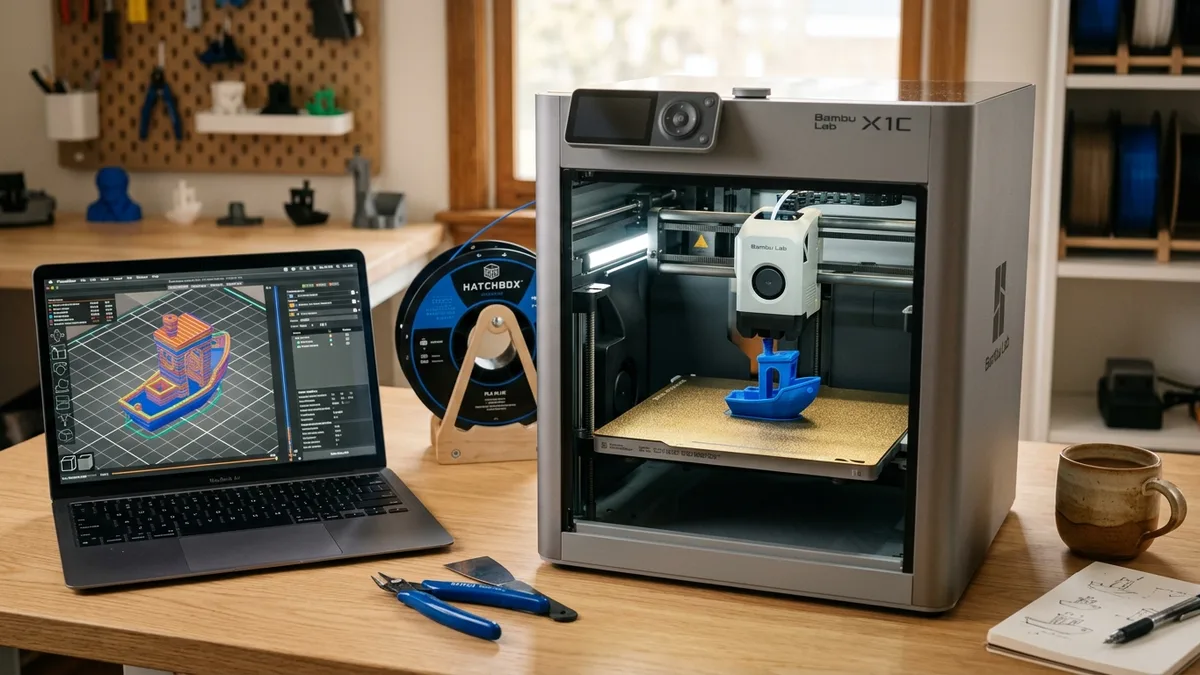
The best 3D printing software depends on the job: parametric CAD fits dimensioned functional parts, digital sculpting fits organic models, and mesh repair fixes invalid files before slicing. This guide compares those three groups, connects model quality to the print process, and ends with a software decision framework.
A printable model needs clean surfaces, valid geometry, and a watertight mesh before the slicer can create reliable toolpaths. A flawed STL can waste filament or produce disconnected paths, weak walls, and incomplete geometry. Three software groups cover the main tasks:
- Parametric CAD: For engineering and mechanical parts.
- Digital Sculpting: For organic, artistic models.
- Mesh Repair: For fixing broken files.
The correct group narrows the choice. Parametric CAD controls dimensions and design history, sculpting controls organic form, and repair software closes holes, fixes normals, and resolves non-manifold geometry.
Parametric CAD: The Engineer’s Toolkit
Parametric CAD is the best category for functional parts that need controlled dimensions, editable features, and repeatable fit.
Parametric modeling builds parts from dimensioned 2D sketches, extrusions, cuts, and editable features. A history timeline records those operations. Editing the original dimension updates dependent geometry, which supports iterative design and parts that must fit together.
Fusion 360 (The Industry Standard)
Autodesk Fusion 360 is a beast. It integrates design, simulation, and CAM (for CNC machining) into one package. For 3D printing, its parametric environment is intuitive and powerful. You can design a complex enclosure, shell it to a precise 2.4mm wall thickness, add fillets, and export a perfect STL in minutes.
- Best For: Functional parts, multi-component assemblies, product design.
- Cost: Free for personal, non-commercial use. A subscription is required for business.
- Learning Curve: Moderate. The UI is clean, but the feature depth is huge.
FreeCAD (The Open-Source Powerhouse)
FreeCAD is the answer for anyone who resists subscription models. It is completely free and open-source, forever. Its power is undeniable, with dedicated workbenches for different tasks like part design, sketching, and architecture. The trade-off is usability. The user interface is less refined than Fusion 360’s, and the learning curve can be brutally steep. But if you put in the time, you gain a tool with zero financial or licensing restrictions.
- Best For: Budget-conscious makers, open-source advocates, complex mechanical design.
- Cost: Free.
- Learning Curve: High. Be prepared to watch many tutorials.
Onshape (The Cloud Collaborator)
Onshape takes a different approach: it lives entirely in your web browser. There is no software to install. This makes it fantastic for teams and collaboration. It uses a version control system similar to what programmers use, so you can branch designs and merge changes without breaking the master model. The free plan’s major catch is that all your documents are public.
- Best For: Collaborative projects, open-source hardware, users on multiple operating systems.
- Cost: Free with public documents. A subscription is required for private work.
- Learning Curve: Moderate. Familiar if you have used other CAD software.
Digital Sculpting: The Artist’s Clay
Digital sculpting is the best category for organic forms such as characters, creatures, miniatures, and natural objects. Sculpting software uses brushes to push, pull, smooth, pinch, and inflate a polygon mesh. The printing constraint is a manifold mesh, meaning one continuous, watertight shell.
Blender (The Free-For-All Behemoth)
Blender is not just a sculpting program. It is a complete 3D production suite for modeling, animation, rendering, and more. And it is completely free. Its sculpting tools have become incredibly powerful, rivaling paid software for many use cases. You can start with a simple sphere and sculpt a highly detailed miniature. Just remember to check your mesh for printability before exporting.
- Best For: Character art, miniatures, organic shapes, anyone wanting a powerful, free tool.
- Cost: Free.
- Learning Curve: Very High. Blender can do anything, which makes it intimidating to learn. Focus on the Sculpt Mode first.
ZBrush & ZBrushCoreMini (The Professional’s Choice)
When professional digital artists sculpt, they usually use ZBrush. It is designed to handle millions upon millions of polygons without slowing down, allowing for insane levels of detail. The workflow and UI are unique, but the results are unmatched. For those not ready for the professional price tag, ZBrushCoreMini is a free, stripped-down version that gives you a taste of the core sculpting experience.
- Best For: Hyper-detailed professional sculpting.
- Cost: Expensive subscription. ZBrushCoreMini is free.
- Learning Curve: High. The workflow is not like other 3D software.
Mesh Repair: The Print-Saving Medics
Mesh repair software fixes holes, inverted normals, disconnected shells, and non-manifold geometry that prevents an STL from slicing correctly. A damaged download may appear as floating toolpaths or missing regions because its edges and faces do not define a valid solid.
Many slicers, like PrusaSlicer and Bambu Studio, have a built-in repair function that can fix simple errors upon import. For anything more serious, you need a dedicated tool.
Meshmixer (The Classic Swiss Army Knife)
Even though Autodesk no longer develops it, Meshmixer is still an essential free utility. Its “Inspector” tool is brilliant at finding and fixing every hole and error in your mesh. It is also a fantastic tool for more advanced edits, like hollowing a model to save resin, adding escape holes, splitting a large model into smaller parts for your print bed, or generating tree-like supports.
- Best For: Repairing complex breaks, hollowing models, splitting parts.
- Cost: Free.
- Learning Curve: Low for basic repair, moderate for advanced features.
Microsoft 3D Builder (The Simple Fix)
Pre-installed on Windows, 3D Builder is surprisingly powerful. When you import a model, it will often detect that it is invalid and offer a one-click repair button. This repair algorithm is remarkably effective for most common STL problems. While it lacks the advanced tools of Meshmixer, its simplicity and effectiveness make it a great first stop for any problematic file.
- Best For: Quick, easy, one-click repairs.
- Cost: Free (with Windows).
- Learning Curve: Very Low.
From Flawless Model to Flawless Print
A valid STL is only the first step because hardware condition and filament handling still control extrusion, surface finish, and layer bonding. This connection matters more as commanded print speed and volumetric flow increase.
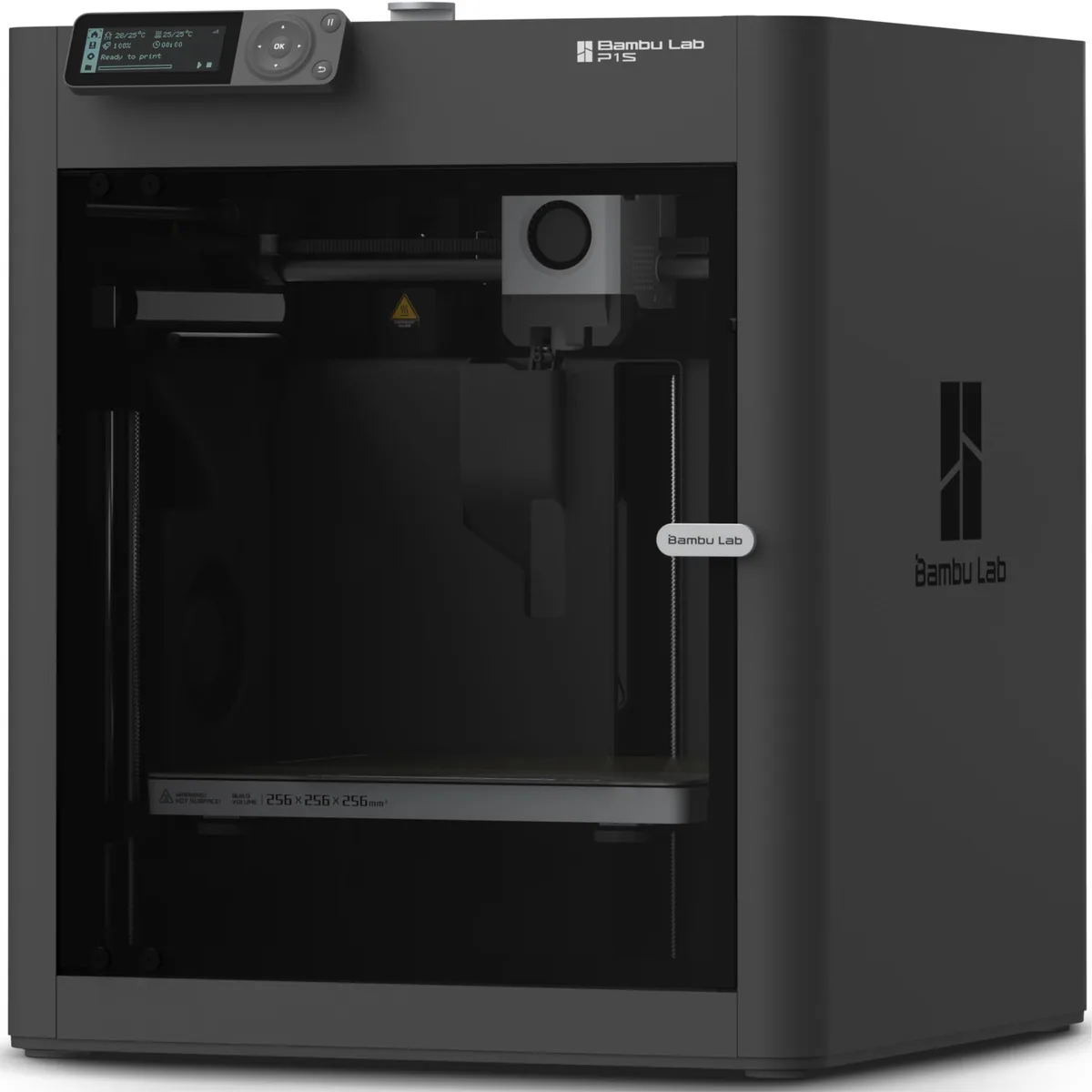
A printer like the Bambu Lab P1S (|Check Price on Amazon) can lay down plastic at over 300 mm/s. At those speeds, any inconsistency in filament diameter or moisture content becomes a major print defect. A perfectly designed model will print poorly if your filament is wet. Hydrolyzed filament pops and sizzles as it leaves the nozzle, creating weak, stringy, and ugly parts. This is why keeping your materials in top condition is non-negotiable. For a deeper dive into how these new machines stack up, check out our Bambu Lab P1S vs Creality K1C face-off.
A dedicated filament dryer provides controlled storage and conditioning for hygroscopic materials such as PETG, TPU, and nylon.
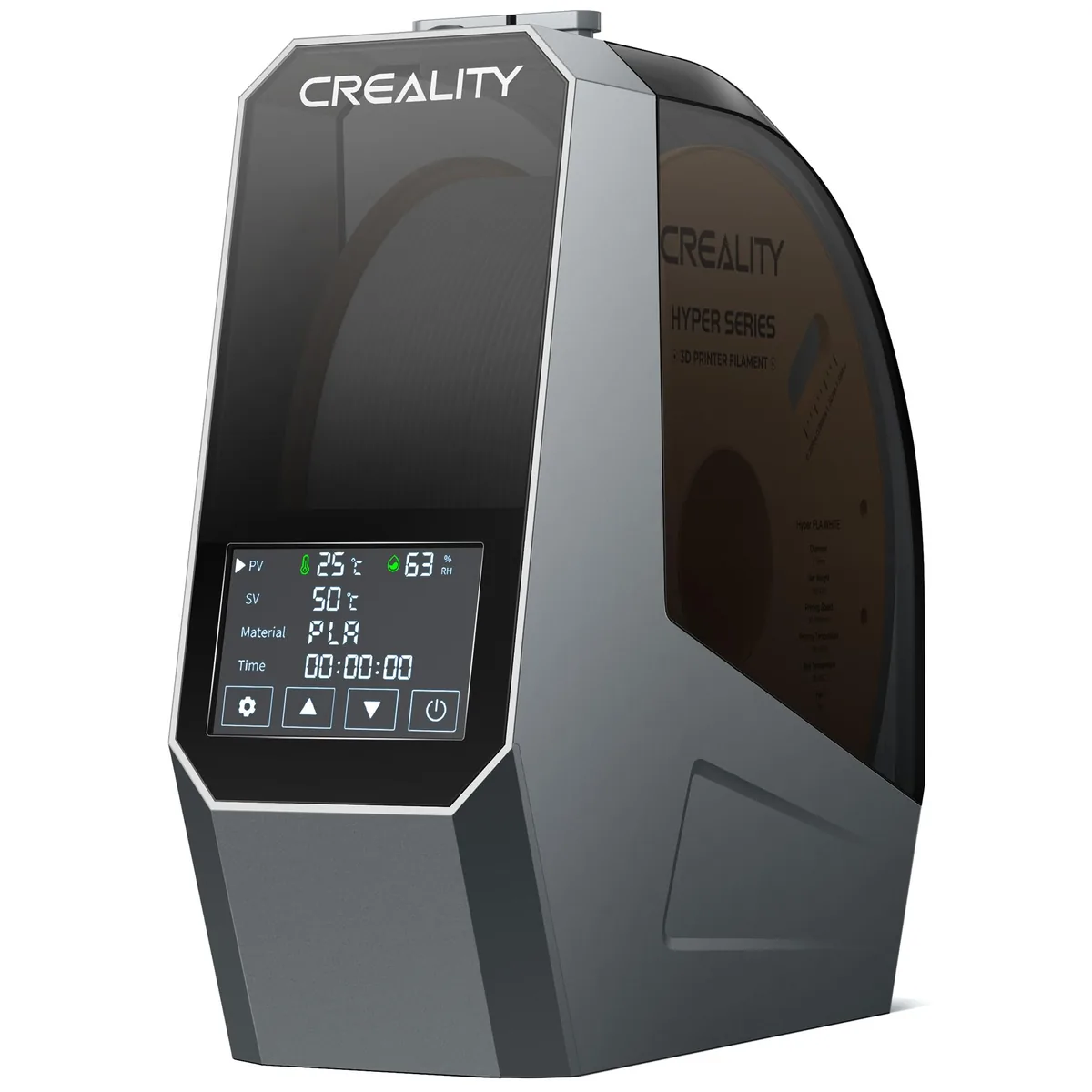
Creality Space Pi Filament Dryer
Pros
- Ensures consistent extrusion and surface quality.
- Revives old, moisture-damaged filament.
- Critical for printing hygroscopic materials like Nylon, PETG, and TPU.
Cons
- Takes up additional desk space.
The Creality Space Pi circulates heated air around one spool and lets the user set time and temperature within its listed range. The exact drying cycle still comes from the filament maker because PETG, TPU, and nylon formulations differ. A clean model and correctly conditioned filament remove two separate sources of print failure. The filaments and resins section covers material selection and handling in more detail.
Decision Framework: Which Software Should You Use?
The software decision depends on whether the source task is dimensional design, organic sculpting, beginner modeling, or mesh repair.
| Software | Primary Use | Cost (Personal) | Learning Curve | Key Feature |
|---|---|---|---|---|
| Fusion 360 | Mechanical Parts | Free | Moderate | Integrated CAD/CAM/Simulation |
| FreeCAD | Mechanical Parts | Free | High | Completely free and open source |
| Tinkercad | Simple Shapes & Beginners | Free | Very Low | Browser-based, intuitive |
| Blender | Organic Sculpting & Art | Free | Very High | All-in-one 3D creation suite |
| Meshmixer | Model Repair & Modification | Free | Low | Powerful “Inspector” repair tool |
| 3D Builder | Model Repair | Free | Very Low | Simple one-click repair |
Use this logic to pick your tool:
- If you are designing a functional part that needs to be a specific size… use Fusion 360 or FreeCAD.
- If you are creating an artistic model, like a character or sculpture… use Blender.
- If you downloaded a file and it won’t slice correctly… use Meshmixer or 3D Builder to fix it first.
- If you have never made a 3D model before in your life… start with Tinkercad. You will learn the basic concepts of 3D space in an afternoon. If you are just starting out your 3D printing journey, our Best 3D Printer For Beginners guide can help you choose the right first machine.