
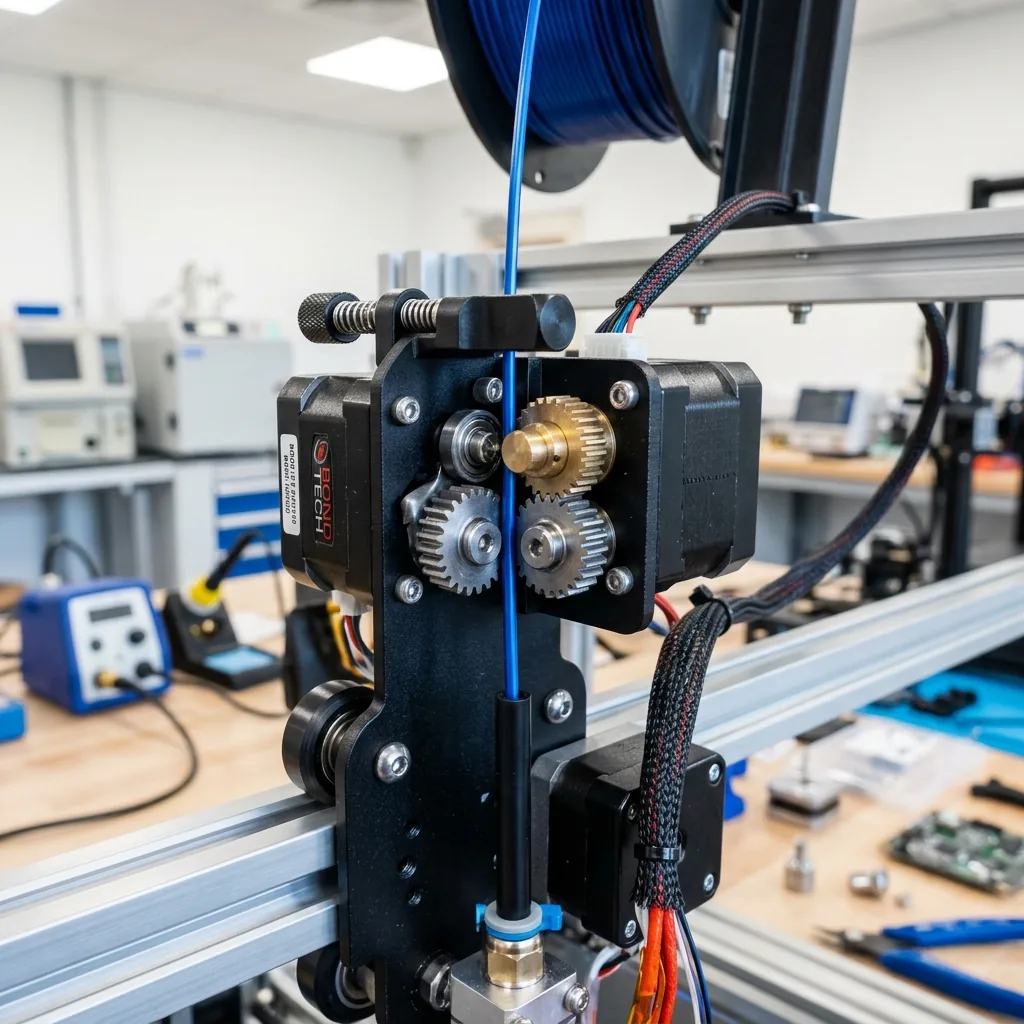
You’ve done everything right. You’ve perfected your bed tramming, PID tuned your hotend, and dried your filament for 8 hours at 50°C. You hit “print” on a 12-hour job, only to return to a mess of spaghetti. The culprit wasn’t your machine. It was the file.
A 3D model is more than just a shape. It’s a precise set of digital instructions. If those instructions are flawed, even the best printer will fail. This guide is your digital pre-flight checklist. It covers identifying and fixing broken meshes, unit mismatches, and other gremlins that ruin prints before the first layer even goes down.
What is a “Watertight” Mesh?
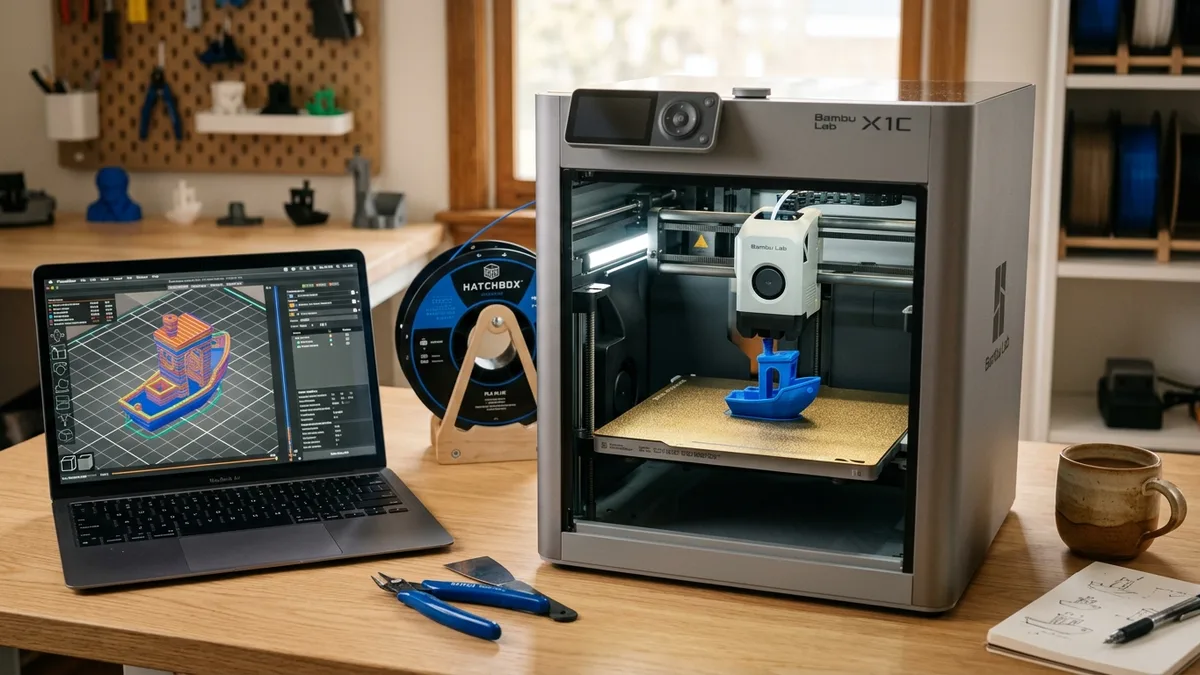
Think of a 3D model not as a solid object, but as a hollow shell made of thousands or millions of tiny flat triangles (polygons). Each triangle is defined by three vertices (points) and three edges (lines).
For a 3D printer slicer to work, this shell must be manifold, or “watertight.” This means it has to define a clear, unambiguous volume with a distinct inside and outside. A slicer traces the perimeter of this volume layer by layer to generate toolpaths.
If the shell has holes, internal walls, or overlapping geometry, the slicer gets confused. It can’t determine what’s “inside” or “outside,” leading to bizarre G-code, gaps in the print, or a complete slicing failure.
Common Mesh Errors and How to Spot Them
Most slicers like Bambu Studio, OrcaSlicer, or PrusaSlicer are good at flagging these issues. Look for a small warning icon next to your model’s name. That’s your first clue something is wrong.
Non-Manifold Geometry
This is the most common category of error. It means the model breaks the “rules” of a continuous surface.
- Internal Faces: A wall inside your model that serves no purpose. An edge is shared by four faces instead of two. The slicer doesn’t know which side is the “real” exterior.
- T-Junctions: An edge from one face meets the middle of another face without a connecting vertex. This creates ambiguity.
- Open Edges: An edge that is only connected to one face. This is, by definition, a hole.
How to Spot It: Your slicer will throw a “non-manifold edges” warning. The slice preview might show missing sections or strange, thin lines appearing inside the model.
Flipped Normals (Inverted Faces)
Every polygon in your mesh has a direction, called a “normal.” This vector points outward, telling the software which side is the exterior of the model. When a normal is flipped, it points inward.
How to Spot It: The model will look like it’s inside-out in the slicer viewport. You’ll see dark, incorrectly shaded patches. The slicer treats these inverted areas as empty space, creating large voids in your print.
!A 3D model in a slicer showing dark patches indicating flipped normals. An example of flipped normals in a slicer. The dark, shadowed areas indicate faces pointing the wrong way.
Holes and Gaps
This is exactly what it sounds like: missing polygons in the mesh. These can be tiny pinholes or massive gaps. Even a single missing triangle makes a model non-watertight.
How to Spot It: Sometimes you can see them visually. In the slicer preview, you’ll see the nozzle path making strange jumps or creating stringy bridges across the gap instead of solid infill.
Zero-Thickness Walls
A 3D printer cannot print a surface that has no thickness. A 2D plane might look fine in a 3D modeling program, but it contains no volume information. It’s just a collection of polygons with no depth.
How to Spot It: These features often disappear completely in the slicer preview. The slicer sees no volume to print, so it ignores them.
Your Digital Toolkit for Mesh Repair
You don’t need to be a 3D modeling expert to fix these issues. Your toolbox ranges from one-click fixes to more powerful dedicated software.
1. The Slicer’s Built-in Repair
Both PrusaSlicer and Bambu Studio have surprisingly effective auto-repair functions. When you import a broken model, they will often detect it and offer to fix it. For simple holes and a few non-manifold edges, this is often enough.
How to Use:
- Bambu Studio/OrcaSlicer: A dialog box will pop up on import. Click “Repair.”
- PrusaSlicer: Right-click the model with the warning icon and select “Fix through the Netfabb.”
2. Microsoft 3D Builder (The Unsung Hero)
Included with Windows, 3D Builder has a fantastically simple and robust repair tool.
How to Use:
- Open your STL file in 3D Builder.
- If the model is broken, a red box will appear around it, and you’ll see a banner at the bottom: “One or more objects are invalidly defined. Click here to repair.”
- Click it. That’s it.
- Save the repaired model as a new STL or, even better, a 3MF file.
3. Autodesk Meshmixer (The Power Tool)
For more stubborn errors, Meshmixer is the free tool of choice. It gives you more control.
Simple Repair Workflow:
- Import your STL file.
- On the left-hand menu, click Analysis.
- Click Inspector.
- Meshmixer will highlight all the errors with colored markers.
- In most cases, you can just click Auto Repair All.
- Export the fixed model.
Evaluating software compatibility is an important part of comparing 3D printer specs for your workflow.
The Scale and Units Conundrum
You import a model of a bolt, and it’s the size of a dust speck on your build plate. Or it’s a hundred times too big. This is a units problem.
The STL file format is old. It does not store unit information (like inches or millimeters). It only stores numerical coordinate values. If a designer creates a part that is 5 inches long in their software and exports it as an STL, the file just says “5 units.” When you import it into your slicer, which works in millimeters, it assumes “5 millimeters.”
How to Fix It:
- Check the Source: Reputable model sites like Printables or Thangs usually state the intended units or dimensions.
- Use a Digital Caliper: If you have a physical version of the part, measure it.
- The Magic Number: If you suspect an inch-to-millimeter error, simply scale the object by 2540% in your slicer. (1 inch = 25.4 mm). If you suspect a cm-to-mm error, scale by 1000%.
Mesh Density: When Good Detail Goes Bad
Sometimes you’ll get a file, often from a 3D scan or a digital sculpt, with millions and millions of polygons. This is an excessively dense mesh.
For FDM printing, this is a problem. Your 0.4mm nozzle cannot resolve the microscopic detail contained in a 20-million-polygon file. All that extra data does is slow your slicer to a crawl and increase the chance of processing errors.
Practical Guideline: For most functional parts and decorative models on an FDM printer, a mesh between 100,000 and 500,000 polygons is more than enough. Anything over 1 million is a candidate for reduction.
How to Fix It (Decimation): Use Meshmixer or Blender to reduce the polygon count.
- In Meshmixer, go to Select, click on the model to select all, then go to Edit -> Reduce. You can reduce by a percentage or to a target triangle count.
- In Blender, use the “Decimate” modifier.
Reducing a 2-million-polygon model down to 250,000 will often have zero visible impact on the final FDM print but will make slicing dramatically faster.
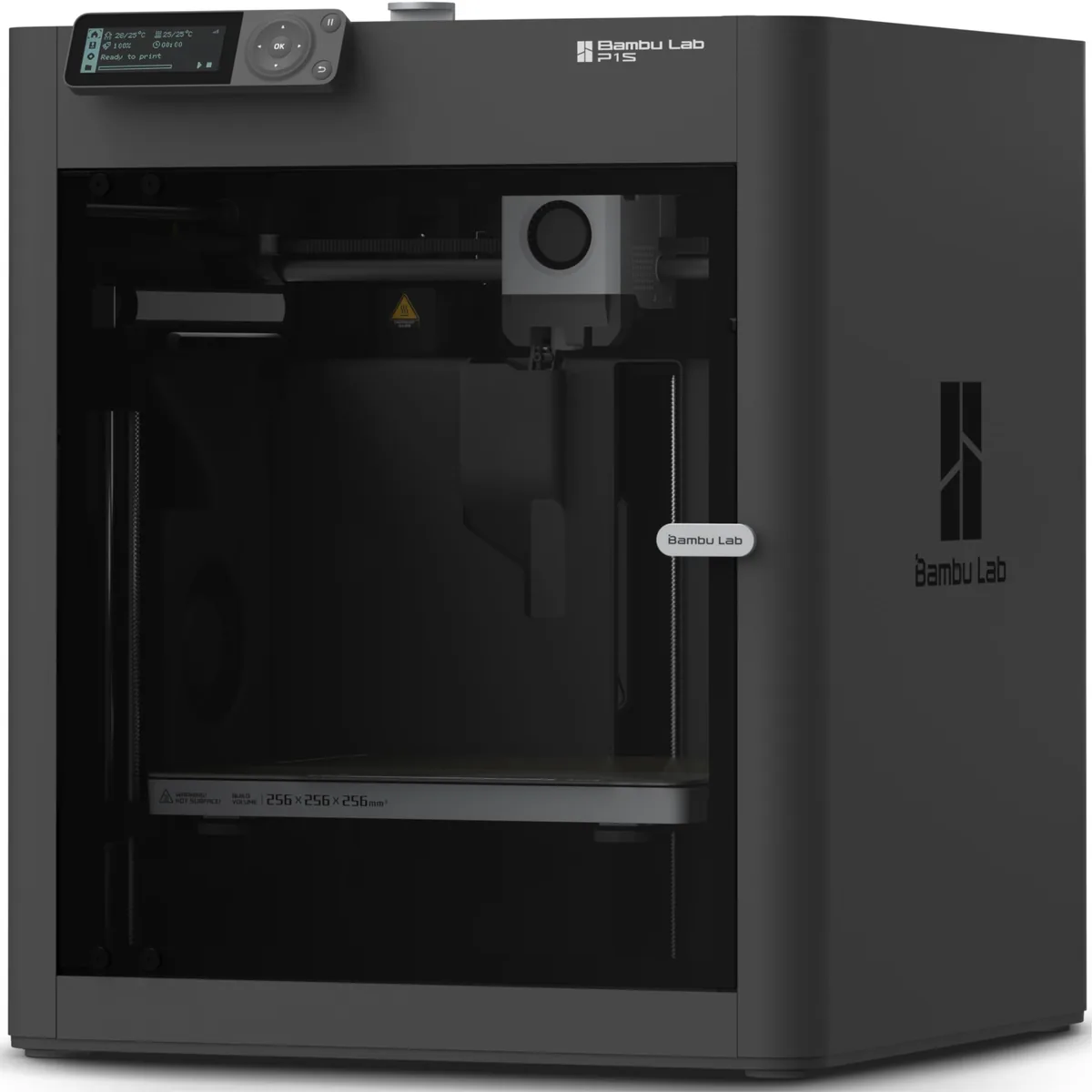
Bambu Lab P1S Enclosed 3D Printer
Pros
- Fully enclosed CoreXY chassis with auxiliary cooling fan, Smooth multi-color / multi-material integration with Bambu AMS, Reliable out-of-the-box first layers with dual automated bed leveling, Active vibration compensation and belt tension monitoring
- Enclosure makes printing ABS, ASA, and Nylon reliable.
- Excellent slicer integration with Bambu Studio.
Cons
- Proprietary closed ecosystem
- Chamber is passively heated by the bed rather than a dedicated PTC heater
- Upgrading to hardened nozzle for carbon fiber requires separate swap
Printers like the Bambu Lab P1S move with incredible speed and acceleration. They are less forgiving of bad G-code generated from a faulty mesh. A clean, valid file is critical to leveraging the full performance of these machines. Fast, jerky movements caused by a slicer trying to interpret non-manifold geometry can cause print artifacts or even layer shifts. If you’re serious about speed printing, you have to be serious about file hygiene. Knowing how to pick a 3D printer helps ensure your hardware matches these file preparation demands.
A Clean File Needs Dry Filament
All your digital preparation is wasted if your material is compromised. Even brand new, vacuum-sealed filament can contain moisture, and it will quickly absorb more from the ambient air. Wet filament causes popping at the nozzle, stringing, weak layer adhesion, and a poor surface finish.
This is especially true for materials like PETG, ABS, and Nylon, but even PLA benefits enormously from being dry.
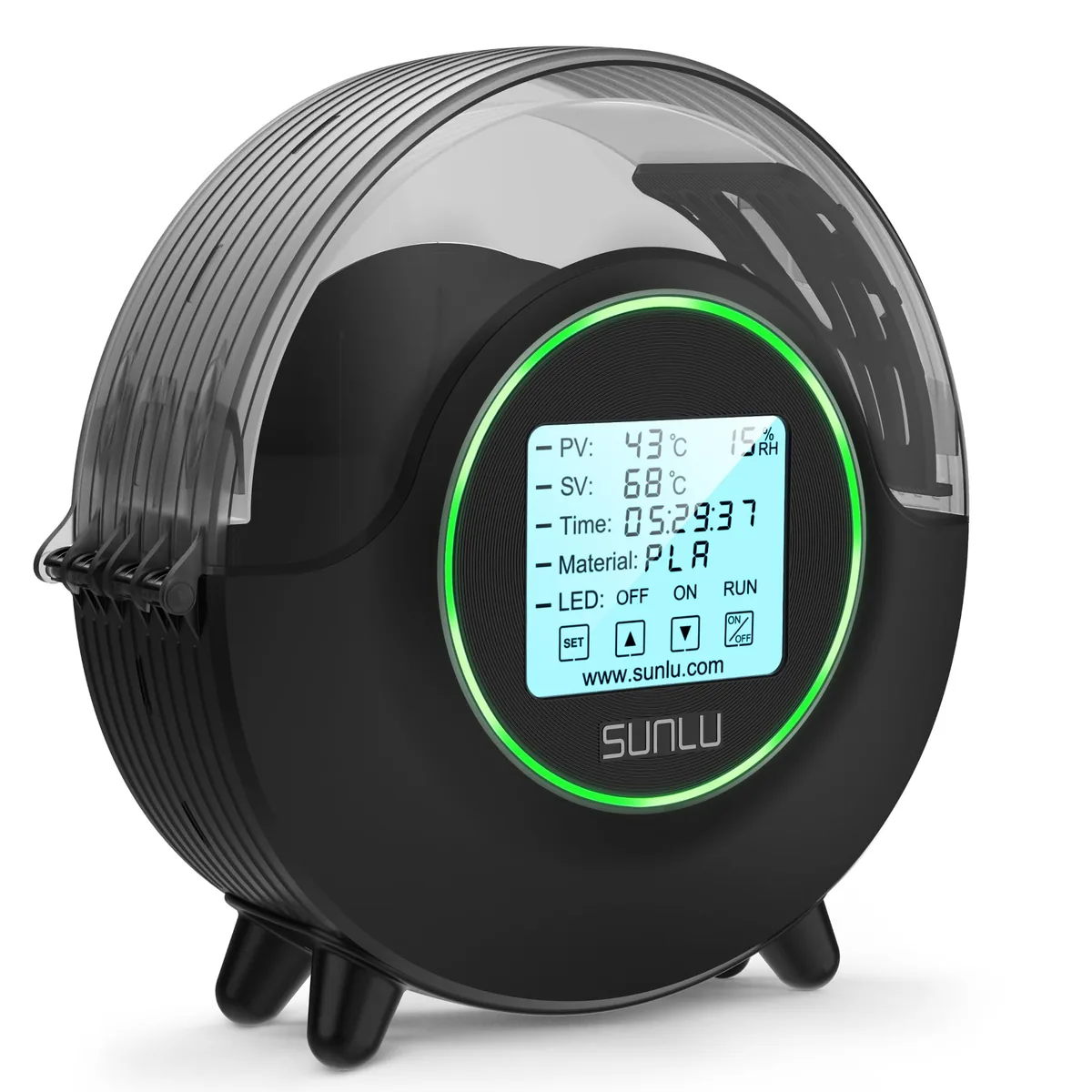
SUNLU S2 Upgraded Filament Dryer (with Fan)
Pros
- 70°C maximum temperature ceiling safely dehydrates Nylon (PA), PC, and TPU, Upgraded internal circulation fan prevents localized scorching, 4.6” circular touchscreen display with ambient LED status ring, Very quiet operation (~40 dB) suitable for bedroom or office workstations
- Wide temperature range for different materials.
- Simple, set-and-forget operation.
Cons
- Humidity sensor measures air pocket near the bottom rather than spool core
- Moisture vapor venting requires cracking the top seal during the first hour of drying
Investing in a dedicated filament dryer like the SUNLU S2 is one of the best upgrades you can make to your workshop. It’s not an optional accessory; it’s a core piece of equipment for consistent, high-quality printing. Proper 3D printer maintenance and preparation includes both your files and your materials.
The Final Pre-Slice Checklist
Before you send any file to your printer, run it through this quick mental workflow.
| Check | Potential Problem | Quick Solution | Recommended Tool |
|---|---|---|---|
| Scale | Model is microscopic or huge. | Scale by 2540% (in to mm) or 1000% (cm to mm). | Your Slicer |
| Slicer Warnings | “Non-manifold” or “open edges” error. | Use slicer’s built-in repair function first. | Bambu Studio/PrusaSlicer |
| Visual Artifacts | Dark patches, inside-out appearance. | The model has flipped normals. | 3D Builder / Meshmixer |
| Repair Failure | Slicer repair fails or corrupts the model. | Open in 3D Builder and use its one-click repair. | 3D Builder |
| Stubborn Errors | Complex internal geometry, many holes. | Use Meshmixer’s Inspector for targeted repair. | Meshmixer |
| Slicer Sluggishness | Slicing takes minutes for a simple object. | Mesh is too dense. Decimate to ~250k polygons. | Meshmixer / Blender |
| Slice Preview | Gaps, missing layers, weird toolpaths. | The file is still broken. Go back to the repair steps. | Your Slicer |
By making file validation a standard part of your process, you’ll save countless hours of failed prints and wasted filament. You’ll move from being a machine operator to a true technician, controlling every variable from the digital file to the final physical object. Reviewing other practical 3D printing guides will further expand your troubleshooting skills.